Peakboard version 4.3 has landed, and it brings a mix of powerful new capabilities and thoughtful refinements that make building and managing Peakboard applications smoother than ever. From AI-assisted vibe coding to reusable custom components, from a revamped dataflow editor to smarter image handling, this release is all about letting us work faster and scale bigger.
Here is what’s new:
- Prompted Peakboard Applications - Vibe Coding
- Custom Components
- Code Editor Tabs
- Base64 Handling with Images
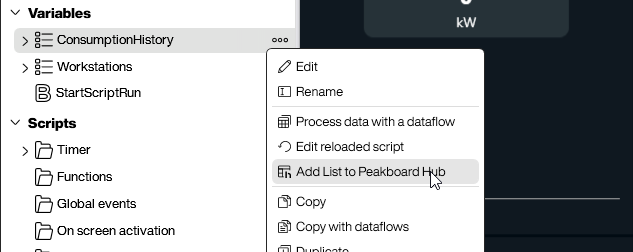
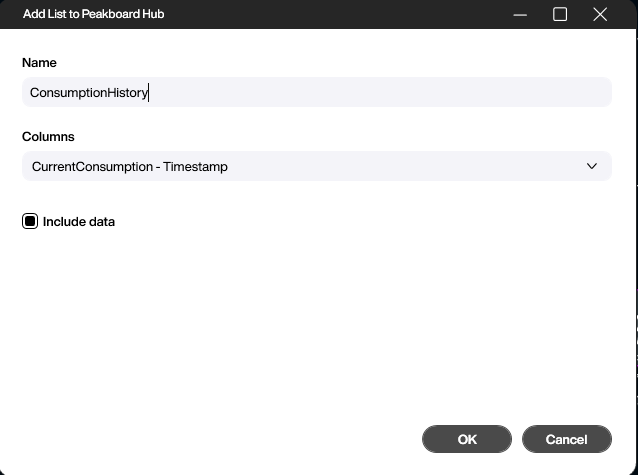
- Transfer Lists from Local to Hub
Let’s dive into the details!
Prompted Peakboard Applications - Vibe Coding
Probably the most exciting addition in 4.3 is the ability to generate entire Peakboard applications simply by describing what we want in natural language. Instead of dragging controls, wiring data sources, and scripting events by hand, we can now just tell Peakboard “build me a production dashboard with a KPI tile for OEE and a bar chart of downtime reasons” and let the AI do the heavy lifting. The result is a fully functional pbmx file that we can immediately refine, tweak, and extend like any other application. This is not a toy feature for simple demos either. The prompting engine understands data source configuration, script logic, and UI layout, which makes it a genuine accelerator for real industrial use cases. We have dedicated an entire walkthrough to this topic in our Industrial Vibe Coding Tutorial, where we go step by step from an empty prompt to a working shop floor dashboard.
Custom Components
Peakboard 4.3 finally lets us bundle multiple controls together with their scripts and functions into a single reusable custom component. Once defined, we can drop the same component onto any number of screens and even share it across applications, which means no more copy-pasting a button group, a navigation bar, or a KPI tile ten times and fixing each copy separately when something changes. For a deep dive into how this works in practice, check out our dedicated article Stop Repeating Yourself - How Custom Components Save Hours of Design.
Code Editor Tabs
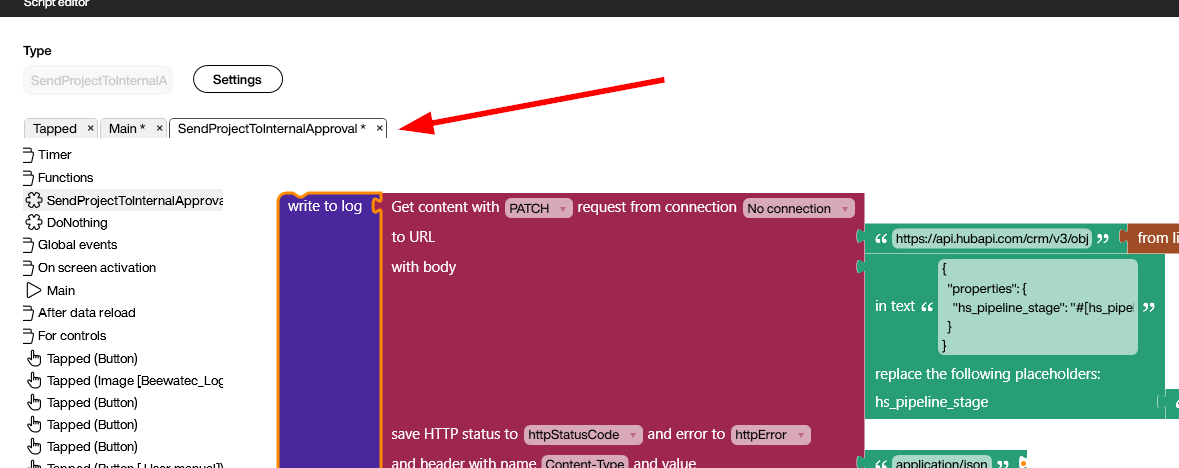
The new code editor now features a dedicated top pane that lists all currently open scripts and Building Blocks. With a single click on a tab, we can jump between routines without ever leaving the editor, which makes working on several scripts in parallel a lot more pleasant. Any unsaved changes are clearly marked with an asterisk, so we always know what still needs to be saved.
Base64 Handling with Images
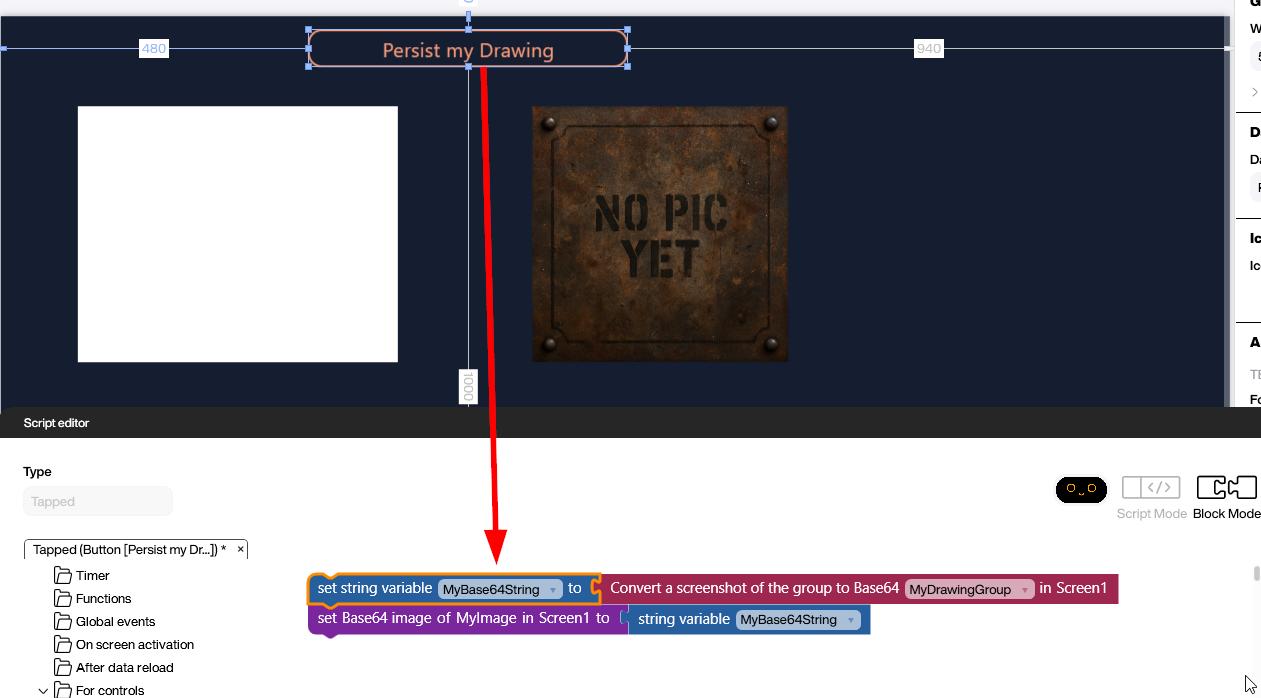
Peakboard applications have always been able to load images from a wide variety of sources. With 4.3, we can now also work with images as Base64 strings directly. We already learned how to integrate a live camera image in an earlier article, but now we can also read and write Base64 strings straight from the traditional image control.
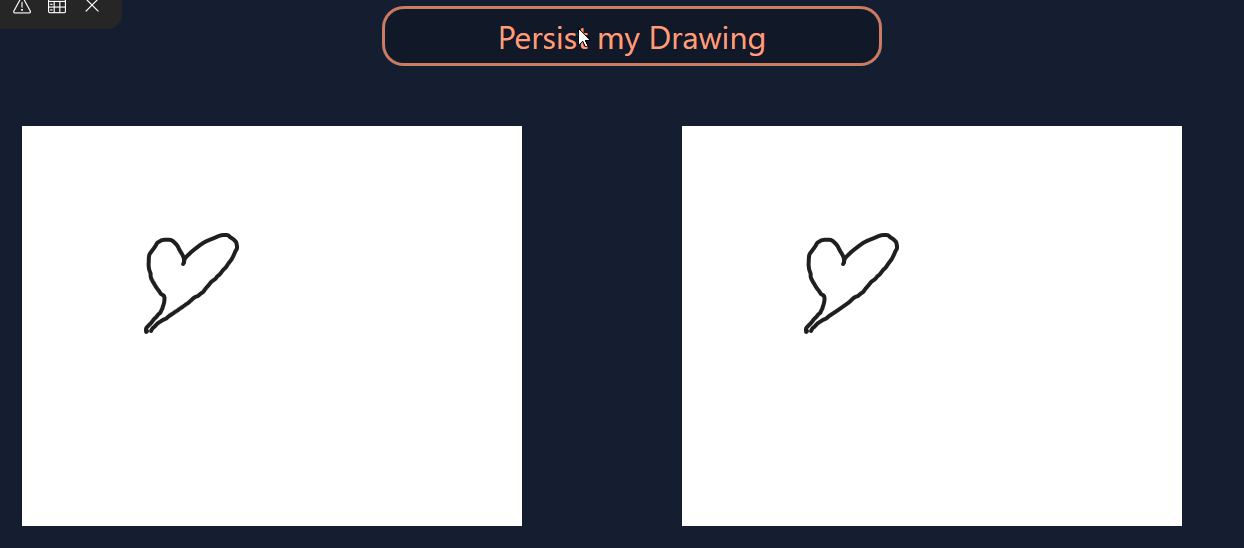
The following example shows how to grab a Base64 representation of a drawing group and push it into a standard image control. This kind of workflow is especially handy when we need to communicate with external APIs or AI services, where Base64 is often the expected format for image payloads. The sample application is available for download at the top of this article.
Transfer Lists from Local to Hub
It is very common to start building an application locally with variable lists, just to get things moving quickly. Once the initial prototype is in place, we often want to promote those lists to the Peakboard Hub so they can be shared across multiple applications or persisted outside of the Box. In 4.3, we can now make that jump with a single click, and we even get to choose whether to transfer just the list structure or include the existing data as well.