
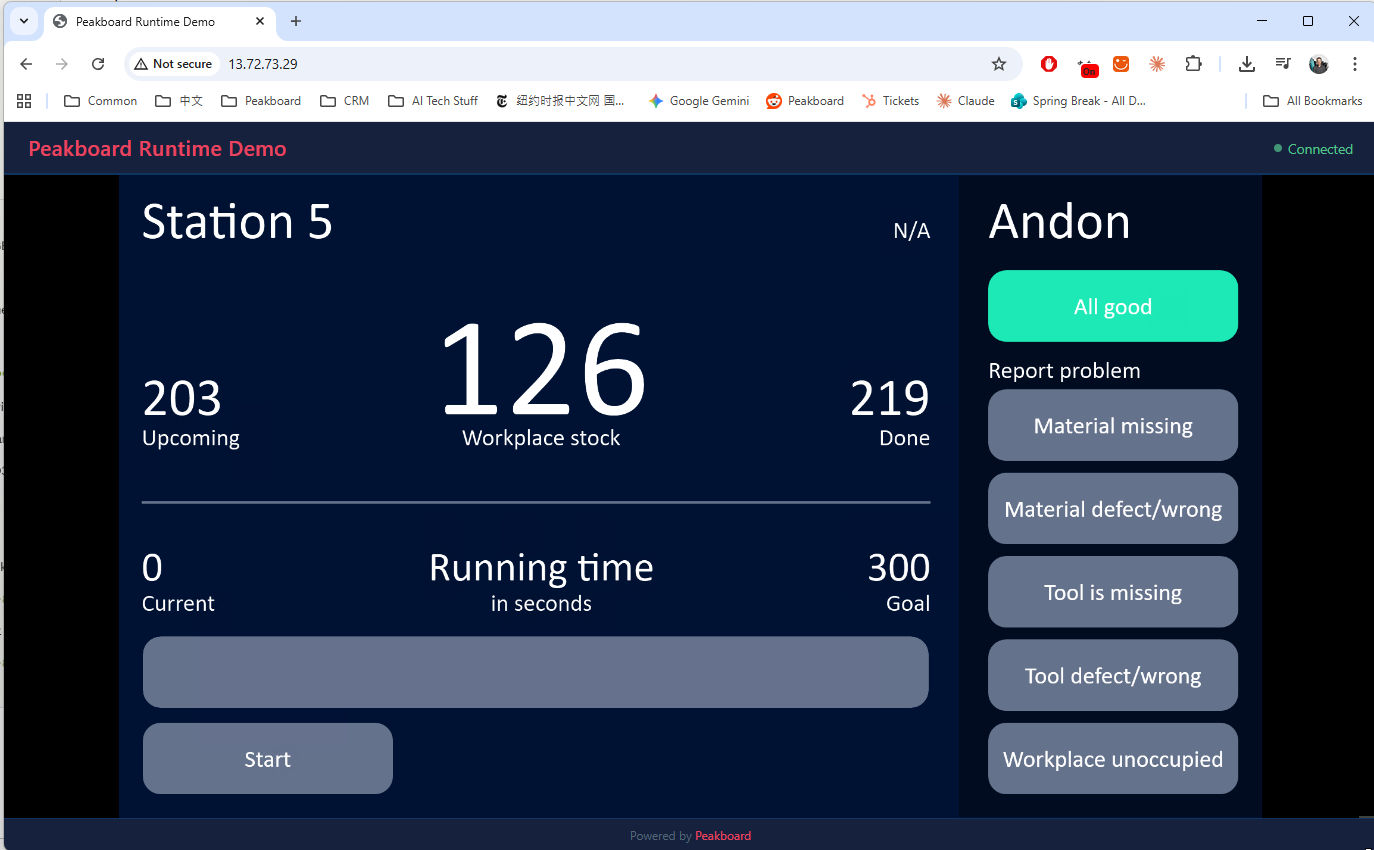
Here’s a question that comes up surprisingly often: Can we show a Peakboard dashboard in a web browser without installing anything on the viewer’s machine? The answer is yes, and the secret ingredient is Apache Guacamole, a clientless remote desktop gateway that turns any RDP session into a browser-accessible HTML5 stream. No plugins, no Java applets, no client software at all. Just a URL.
In this article, we’ll walk through the entire setup: a Windows VM running the Peakboard BYOD Runtime in Azure, a Linux VM running Guacamole, and a clean landing page that auto-connects visitors straight to the live dashboard. The Peakboard installation itself is covered in the command line installation article, so we’ll focus on the Guacamole side of things here.
The architecture
The setup involves two VMs talking to each other inside the same Azure virtual network:
[Browser] --> [GuacServer:80 Nginx] --> [GuacServer:8080 Guacamole] --> [PeakboardVM:3389 RDP]PeakboardVM is a Windows 11 VM running the Peakboard BYOD Runtime. It has auto-login configured so the desktop is always ready with the runtime running. GuacServer is a lightweight Ubuntu VM running Apache Guacamole via Docker. Nginx sits in front as a reverse proxy, serving a branded landing page at the root and proxying Guacamole requests behind the scenes.
The beauty of this approach is that the browser user never knows they’re looking at an RDP session. They just see the dashboard.
Setting up the Guacamole server
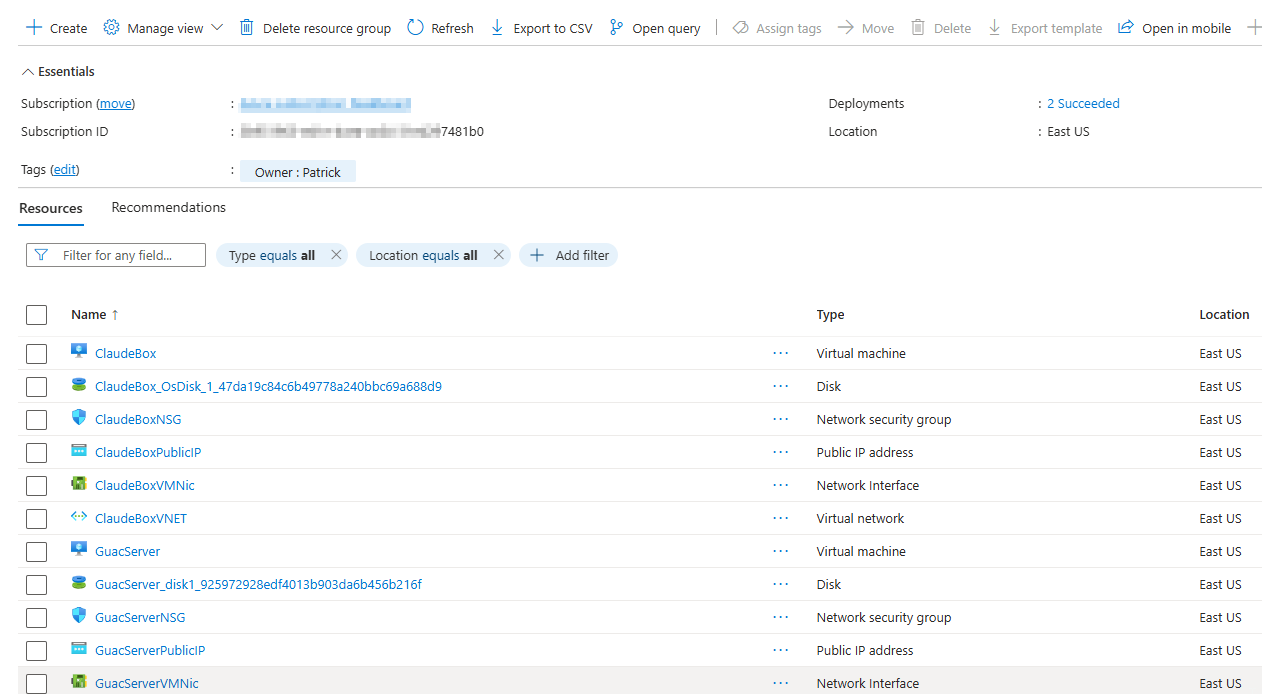
Here’s what the resource group looks like in the Azure portal with both VMs and their associated resources:
We need a Linux VM. Nothing fancy, a Standard_B2s (2 vCPUs, 4 GB RAM) on Ubuntu 24.04 LTS is more than enough. After creating the VM, we install Docker:
apt-get update -qq
apt-get install -y ca-certificates curl
install -m 0755 -d /etc/apt/keyrings
curl -fsSL https://download.docker.com/linux/ubuntu/gpg \
  -o /etc/apt/keyrings/docker.asc
chmod a+r /etc/apt/keyrings/docker.asc
echo "deb [arch=$(dpkg --print-architecture) \
  signed-by=/etc/apt/keyrings/docker.asc] \
  https://download.docker.com/linux/ubuntu \
  $(. /etc/os-release && echo ${VERSION_CODENAME}) stable" \
  | tee /etc/apt/sources.list.d/docker.list > /dev/null
apt-get update -qq
apt-get install -y docker-ce docker-ce-cli \
  containerd.io docker-compose-plugin
The Docker Compose stack
Guacamole consists of three components that we run as Docker containers: guacd (the connection daemon that speaks RDP, VNC, and SSH), guacamole (the Java web application), and MySQL (for storing connections and user accounts). We add Nginx as a fourth container to serve our landing page and reverse-proxy to Guacamole.
version: "3.8"
services:
  guacd:
    image: guacamole/guacd:latest
    container_name: guacd
    restart: always
    networks: [guac-net]

  mysql:
    image: mysql:8.0
    container_name: guac-mysql
    restart: always
    environment:
      MYSQL_ROOT_PASSWORD: YourRootPassword
      MYSQL_DATABASE: guacamole_db
      MYSQL_USER: guacamole_user
      MYSQL_PASSWORD: YourGuacPassword
    volumes:
      - mysql-data:/var/lib/mysql
      - ./initdb:/docker-entrypoint-initdb.d
    networks: [guac-net]

  guacamole:
    image: guacamole/guacamole:latest
    container_name: guacamole
    restart: always
    depends_on: [guacd, mysql]
    environment:
      GUACD_HOSTNAME: guacd
      MYSQL_HOSTNAME: mysql
      MYSQL_DATABASE: guacamole_db
      MYSQL_USER: guacamole_user
      MYSQL_PASSWORD: YourGuacPassword
    ports: ["8080:8080"]
    networks: [guac-net]

  nginx:
    image: nginx:alpine
    container_name: nginx
    restart: always
    ports: ["80:80"]
    volumes:
      - ./nginx/default.conf:/etc/nginx/conf.d/default.conf
      - ./html:/usr/share/nginx/html
    depends_on: [guacamole]
    networks: [guac-net]

volumes:
  mysql-data:
networks:
  guac-net:
    driver: bridge
Initializing the database
Before we spin up the stack, we need to generate the Guacamole database schema. The Guacamole Docker image ships with a handy script for that:
mkdir -p initdb
docker run --rm guacamole/guacamole \
  /opt/guacamole/bin/initdb.sh --mysql > initdb/001-schema.sql
This gives us the complete schema including tables for users, connections, and permissions. MySQL picks up any .sql file in /docker-entrypoint-initdb.d on first start, so we just need to drop our files in the initdb folder.
Pre-configuring the RDP connection
Here’s where things get interesting. Instead of logging into Guacamole and manually creating a connection, we can bake it right into the database initialization. We create a second SQL file that runs after the schema:
USE guacamole_db;

INSERT INTO guacamole_connection (connection_name, protocol)
  VALUES ('Peakboard RDP', 'rdp');

SET @cid = LAST_INSERT_ID();

INSERT INTO guacamole_connection_parameter
  (connection_id, parameter_name, parameter_value) VALUES
  (@cid, 'hostname',    '10.0.0.4'),
  (@cid, 'port',        '3389'),
  (@cid, 'username',    'YourUser'),
  (@cid, 'password',    'YourPassword'),
  (@cid, 'security',    'nla'),
  (@cid, 'ignore-cert', 'true'),
  (@cid, 'width',       '1920'),
  (@cid, 'height',      '1080'),
  (@cid, 'dpi',         '96');

INSERT INTO guacamole_connection_permission
  (entity_id, connection_id, permission)
  SELECT entity_id, @cid, 'READ'
  FROM guacamole_entity WHERE name = 'guacadmin';
We use the private IP (10.0.0.4) because both VMs sit in the same Azure virtual network. The ignore-cert parameter is set to true because we’re connecting to a self-signed RDP certificate. The resolution is set to 1920x1080, but we can adjust that to whatever fits the dashboard best.
Setting up Nginx
Nginx does double duty: it serves our landing page at / and proxies everything under /guacamole/ to the Guacamole web application. The WebSocket upgrade headers are essential here because Guacamole uses WebSockets for the live session stream:
server {
    listen 80;
    server_name _;
    root /usr/share/nginx/html;
    index index.html;

    location / {
        try_files $uri $uri/ =404;
    }

    location /guacamole/ {
        proxy_pass http://guacamole:8080/guacamole/;
        proxy_buffering off;
        proxy_http_version 1.1;
        proxy_set_header X-Forwarded-For $proxy_add_x_forwarded_for;
        proxy_set_header Upgrade $http_upgrade;
        proxy_set_header Connection $http_connection;
        proxy_set_header Host $host;
        proxy_read_timeout 86400;
    }
}
The proxy_read_timeout of 86400 seconds (24 hours) prevents Nginx from killing idle connections. Without that, the RDP session would drop after the default 60-second timeout.
The auto-connect landing page
We don’t want visitors to see the Guacamole login screen. Instead, we build an HTML page that authenticates against the Guacamole API behind the scenes and immediately loads the RDP session in a full-viewport iframe. This index.html goes into the html folder that Nginx serves at the root. You can download the complete file below.
The page has a dark header with a status indicator, a loading spinner that shows while the connection is being established, and a full-viewport iframe where the RDP session appears. The JavaScript handles the entire authentication flow: it grabs a session token from the Guacamole REST API, looks up the first available connection, builds a client identifier (a URL-safe Base64-encoded string combining the connection ID, the type c for connection, and the data source mysql), and loads the Guacamole client into the iframe. If the connection fails, it retries every five seconds.
Preparing the Windows VM
For a seamless experience, the Windows VM needs to auto-login so that the desktop and the Peakboard Runtime are always ready when someone connects. We set this up through the Windows registry:
$regPath = "HKLM:\SOFTWARE\Microsoft\Windows NT\CurrentVersion\Winlogon"
Set-ItemProperty -Path $regPath -Name "AutoAdminLogon" -Value "1"
Set-ItemProperty -Path $regPath -Name "DefaultUserName" -Value "YourUser"
Set-ItemProperty -Path $regPath -Name "DefaultPassword" -Value "YourPassword"
We also want the Peakboard Runtime to launch automatically at login. The cleanest way is a registry entry in the Run key:
Set-ItemProperty `
  -Path "HKLM:\SOFTWARE\Microsoft\Windows\CurrentVersion\Run" `
  -Name "PeakboardRuntime" `
  -Value '"C:\Program Files\Peakboard\Runtime\Peakboard.Runtime.WPF.exe"'
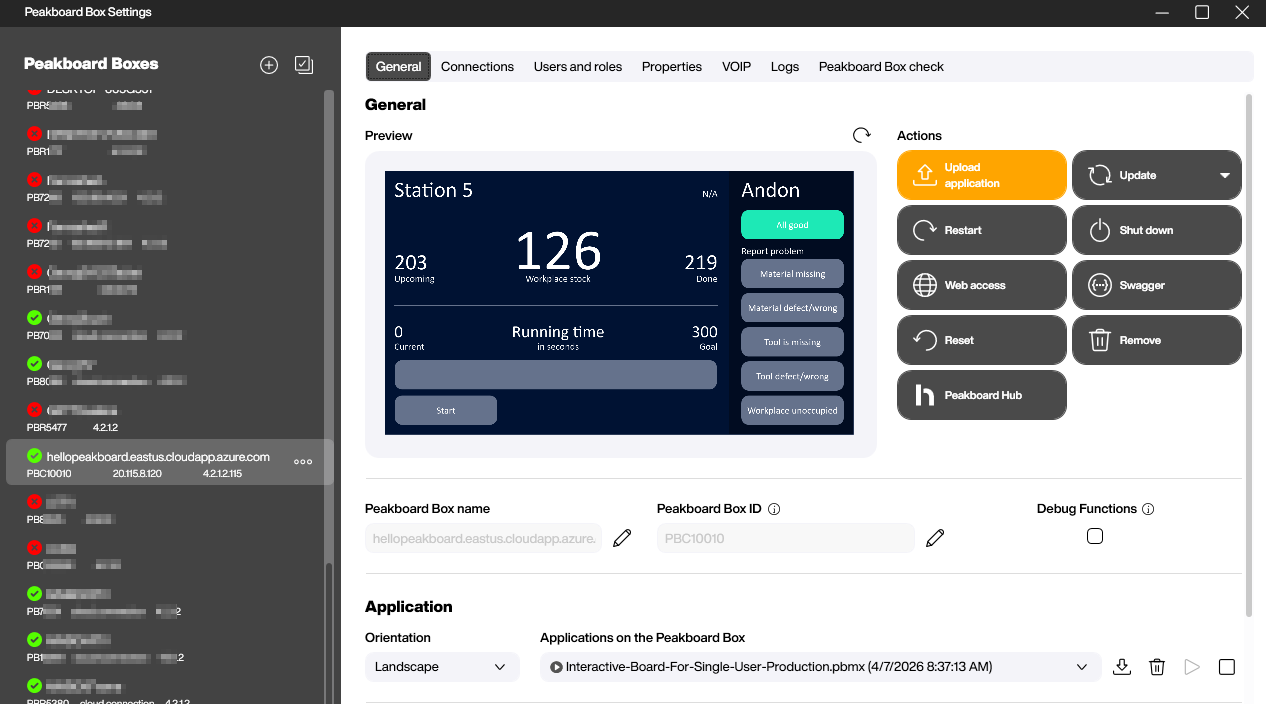
Once the Peakboard management ports are open, the VM shows up in the Peakboard Designer just like any other box. We can upload applications, monitor the runtime, and manage everything remotely, while Guacamole handles the browser-facing side independently.
Firewall and network security
On the Azure side, we need to open the right ports. The Guacamole server needs ports 80 and 443 (HTTP/HTTPS) open to the public. The Windows VM needs port 3389 (RDP) accessible from within the virtual network, but not necessarily from the public internet, since Guacamole connects over the private network. We should also open the Peakboard management ports (40404, 40405, 40408, 40409) if we want to manage the runtime remotely via the Peakboard Designer.
Launching and testing
Once everything is in place, we start the stack with a single command:
cd /opt/guacamole
docker compose up -d
After about 30 seconds for the containers to initialize and MySQL to process the init scripts, we can verify that everything is running:
$ docker ps
NAMES        STATUS                 PORTS
nginx        Up 2 hours             0.0.0.0:80->80/tcp
guacamole    Up 2 hours             0.0.0.0:8080->8080/tcp
guac-mysql   Up 2 hours             3306/tcp, 33060/tcp
guacd        Up 2 hours (healthy)   4822/tcp
All four containers should be running and guacd should report as healthy. Now we can point a browser at the server’s public IP. The landing page loads, auto-authenticates against Guacamole, and a few seconds later, the Peakboard dashboard appears right there in the browser, fully interactive with mouse and keyboard support.
Wrapping up
What we end up with is a zero-install, browser-based window into a live Peakboard dashboard. The viewer doesn’t need RDP, doesn’t need any Peakboard software, and doesn’t even need to know that there’s a Windows machine behind the scenes. They just open a URL and see the dashboard.
The complete setup script is available for download below. It takes care of the entire Guacamole installation, including Docker, the database, the Nginx proxy, and the landing page. Just pass the RDP host, username, and password as arguments and you’re good to go.