
With Peakboard 4.3 we got our first taste of vibe coding for industrial applications. Instead of dragging controls onto a screen and wiring up scripts by hand, we simply describe what we want and let Peakbot generate the project for us. This is the first iteration of the feature, and AI-driven application development is one of the core priorities of the Peakboard dev team, so we should expect a steady stream of improvements over the coming months. Everything in this article reflects the state of June 2026.
Starting from a prompt
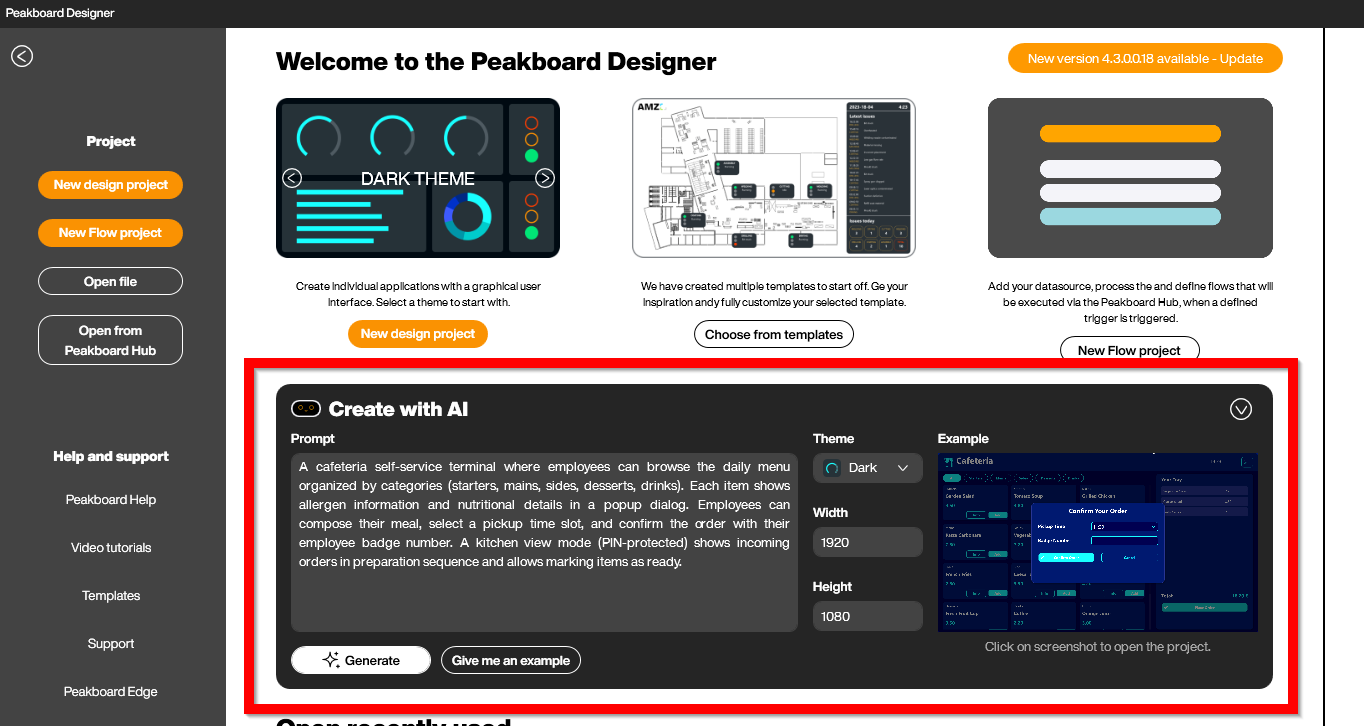
Vibe coding lives right on the Peakboard Designer start page in a panel called “Create with AI”. We type a free-form description of the application we want to build, optionally pick a theme and a target resolution, and hit Generate. In the example below we are sketching out a cafeteria self-service terminal where employees browse the daily menu by category, see allergen and nutritional details in a popup, pick a pickup time slot, and confirm the order with their badge number. There is also a PIN-protected kitchen view that shows incoming orders in preparation sequence.
Peakbot asks back
Anyone who has worked with Claude or ChatGPT will recognise what happens next. Before Peakbot blindly generates the project, it asks a few clarifying questions to nail down the parts of the prompt that are ambiguous. In our cafeteria scenario, the two open questions are about data: where do the menu items, categories, allergens and nutritional values come from, and where should the confirmed orders be stored so the kitchen view can pick them up?
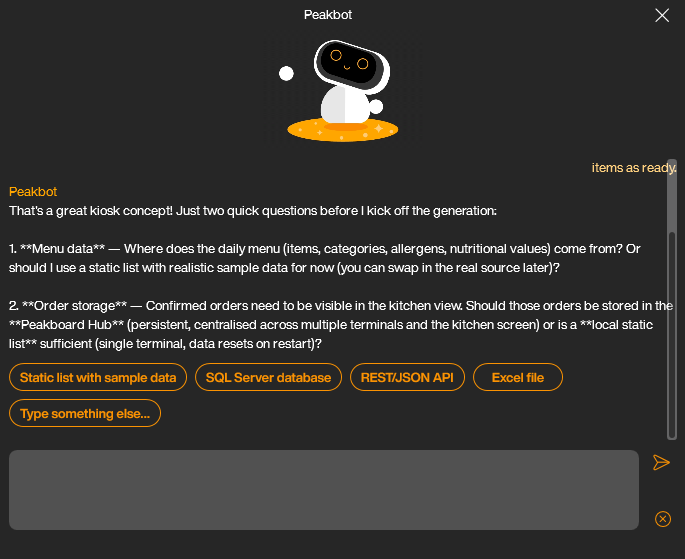
For a first cut, it is almost always a good idea to stay with local lists and sample data. The application takes shape much faster that way, and we can swap in the real SQL Server, REST API or Peakboard Hub list later once the layout and logic feel right.
The first version in Designer
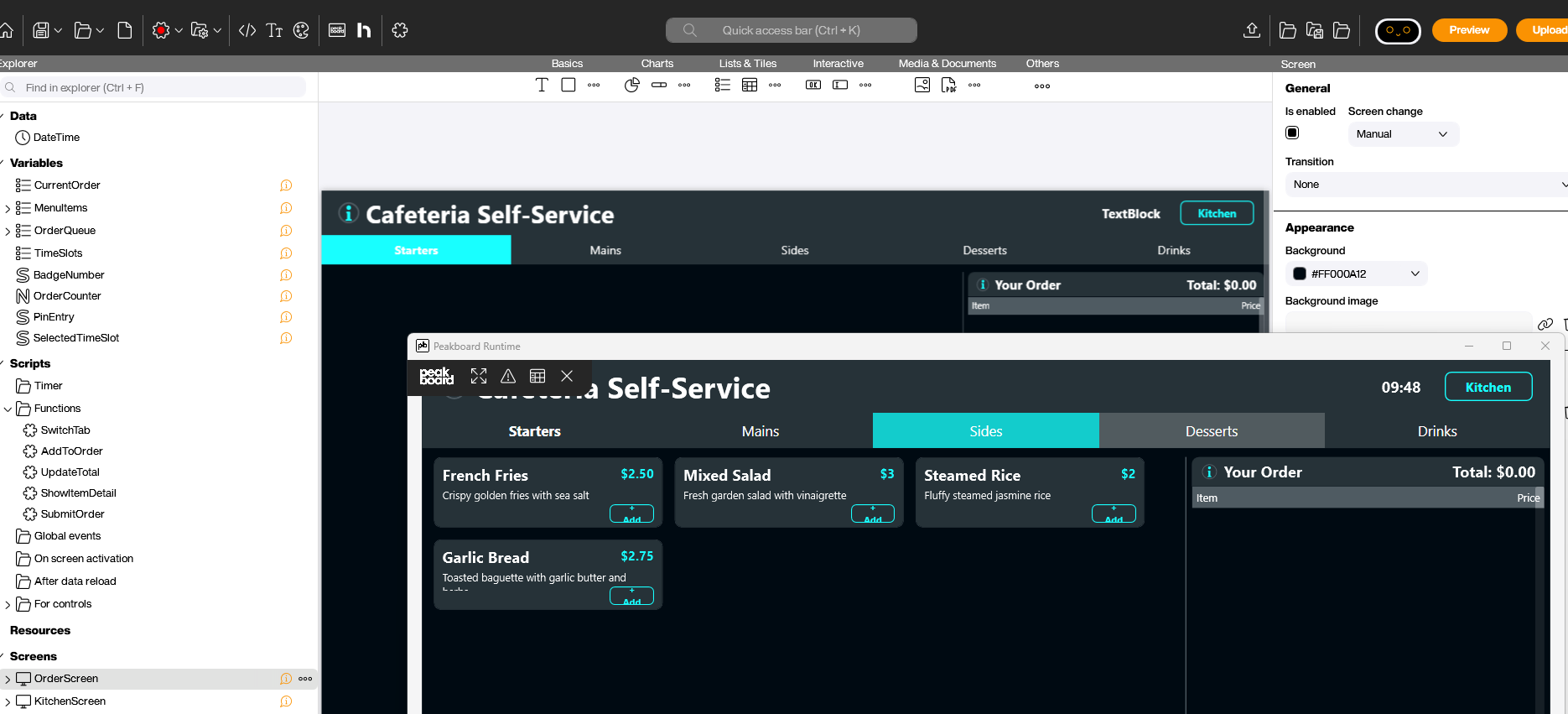
A few moments after we confirm the choices, Peakbot hands us a complete project. We see the explorer on the left filled with variable lists (CurrentOrder, MenuItems, OrderQueue, TimeSlots and so on), a set of scripts and functions for switching tabs, adding items, updating the total and submitting orders, plus the two screens we asked for. The preview window already runs a working version of the terminal with the tabbed menu, item cards and an order panel.
Iterating with more prompts
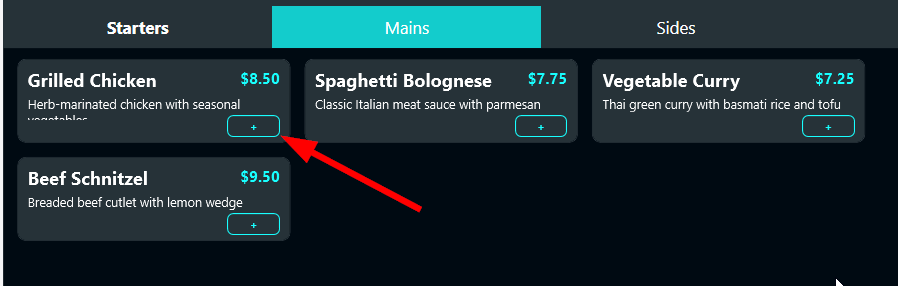
Vibe coding does not stop after the first generation. We keep talking to Peakbot to refine the application, exactly the same way we would refine a piece of code in any other AI assistant. A quick look at the order screen shows a small but annoying issue: the “Add” buttons on the item cards have an awkward word wrap, with the plus symbol on one line and the word “Add” on the next.
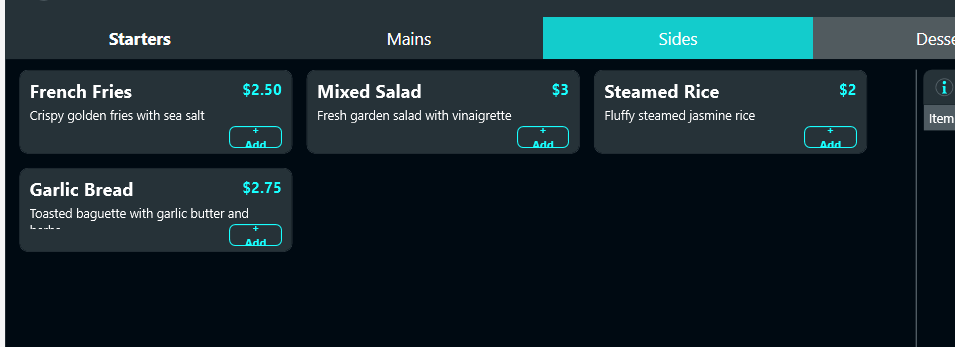
Instead of opening the button properties and tweaking them by hand, we just tell Peakbot what we want changed. A single sentence in the chat is enough: use the plus symbol only, no text.
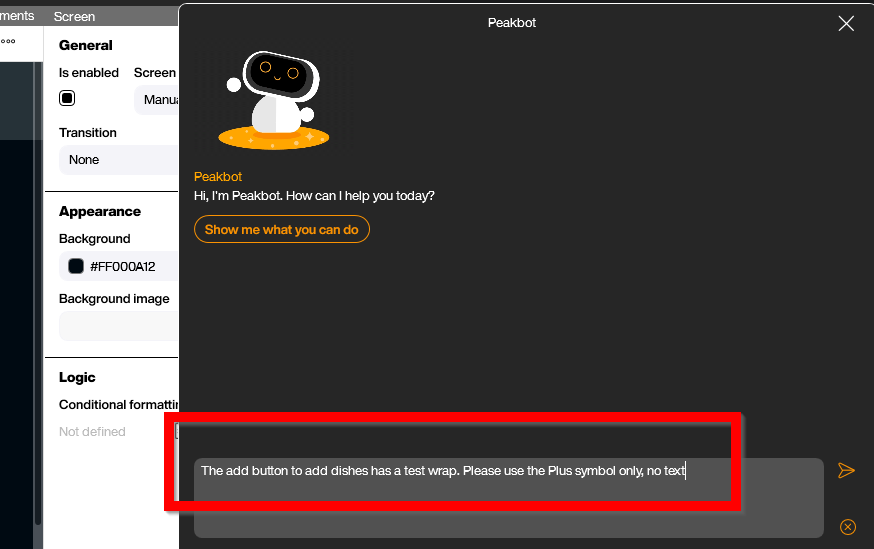
Peakbot edits the project in place, and the next time we look at the preview the buttons are clean, compact and consistent across all item cards.
Generating project documentation
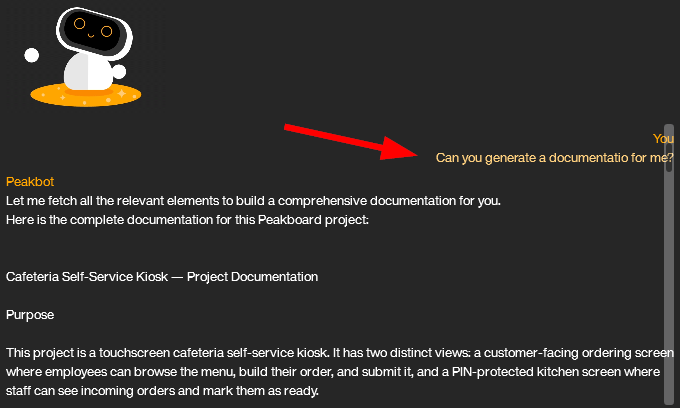
Once the project takes shape, we can ask Peakbot to write the documentation for us. A short prompt like “Can you generate a documentation for me?” is enough, and Peakbot pulls together a comprehensive write-up that covers both the functional purpose of the application and the technical background behind it. We get a description of what the kiosk does, which screens exist, which variables hold which pieces of state, and how the scripts interact with each other.
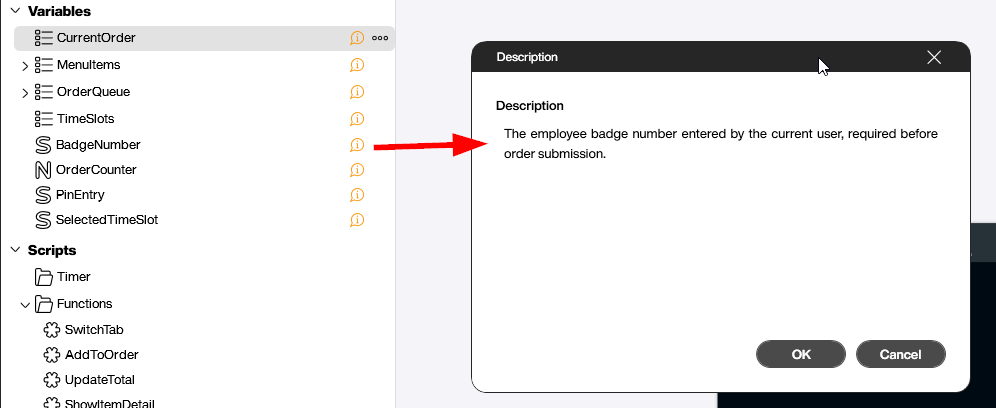
The reason Peakbot can produce such a coherent overview is that it does not just look at the final XML of the project. During the design process it uses the description function built into Peakboard Designer to name and explain every entity it creates. Each variable, script and control gets a human-readable description attached to it, which we can inspect by clicking the small info icon next to the entry in the explorer. The initial descriptions are written by Peakbot, but we can edit them at any time, and the next round of vibe coding will pick up our changes as additional context.
Conclusion
We are convinced that industrial vibe coding will replace a large part of manual application building within a very short period of time. The reason we are so optimistic about Peakboard’s specific take on it comes down to two design choices.
First, we keep full control over what is AI-generated and what is built by hand. There is no black box. We can start a project manually, hand it to Peakbot to add a feature or clean up a screen, and then go back to hand-tuning the result. We can also do it the other way around and start from a prompt, then dive into the code editor and the designer to refine the details. A lot of other AI tools force us into an all-or-nothing relationship with the generator, which is exactly the opposite of how engineering work actually flows.
Second, low-code is not dead. The opposite is true. Vibe coding works best on top of a strong low-code foundation, where every generated artifact is something we can inspect, edit and reason about with the same tools we have always used. Peakbot does not produce some opaque pile of generated logic. It produces variables, scripts and controls that look exactly like the ones we would have built ourselves, just faster. That is what makes the combination of low-code and AI so powerful.