
Peakboard version 4.4 is here, and it is a release that mostly cares about how we work rather than only about what we can build. Anyone who has ever juggled three Peakboard Designer windows while comparing a dashboard with its Building Block library will immediately feel the difference. At the same time, 4.4 opens a completely new door with 3D CAD models rendered directly on the shop floor screen.
The release covers a lot of ground, from a redesigned date and time picker to a remote data debugger that finally lets us look inside a running Peakboard Box without guessing. Here is what we consider the highlights:
- Multiple Open Projects as Tabs
- Revised Datepicker and Timepicker
- Performance Improvements for Web Browser and PDF
- STEP Control for 3D CAD Models
- The Data Debugger
Let’s go through them one by one!
Multiple Open Projects as Tabs
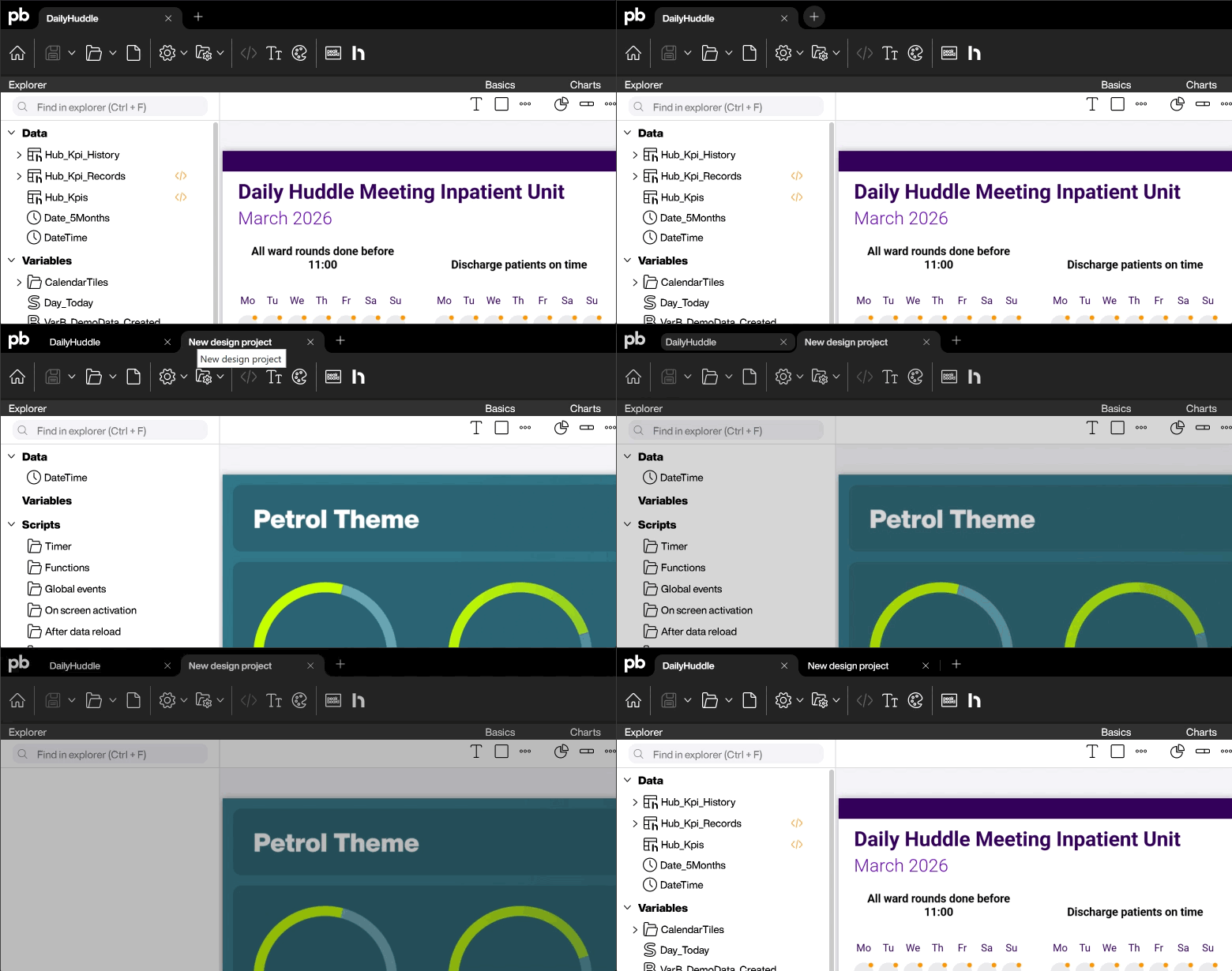
Until now, working on more than one Peakboard project at a time meant opening a second Peakboard Designer instance, and a third one, and then losing track of which window held which application. With 4.4 we can open several projects as tabs inside a single Designer window and switch between them with one click. That sounds like a small thing, but it changes the daily routine quite a bit. Copying a control group from a reference project into the one we are actually building becomes a matter of switching a tab instead of arranging windows on the desktop. The same goes for comparing two versions of an application, or for keeping a template project open next to the real thing while we work.
Revised Datepicker and Timepicker
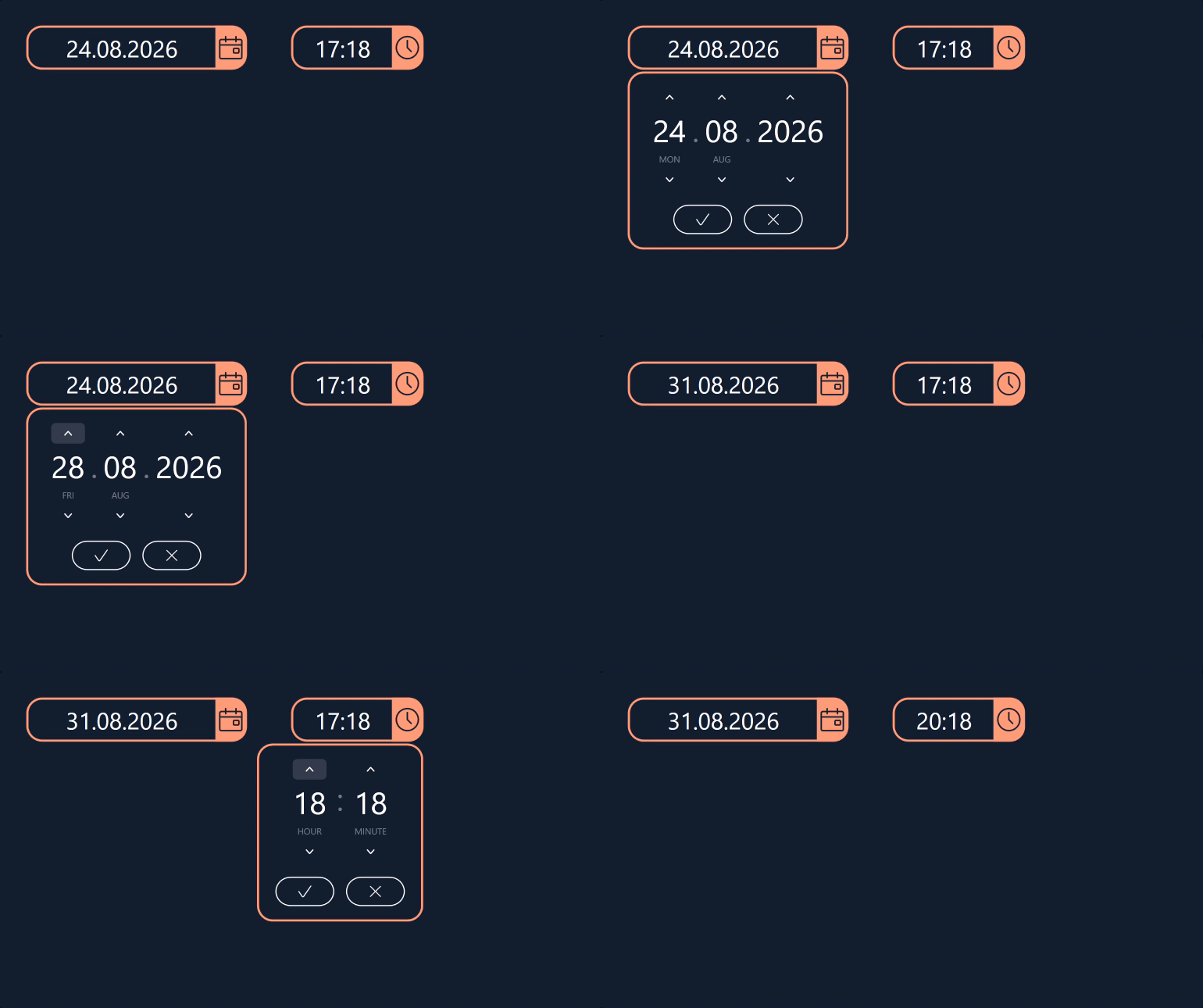
The Datepicker and Timepicker controls received a thorough overhaul. The popup has been aligned visually with the rest of the Designer, the corner radius now matches the other controls, and there is a clean 5 pixel spacing between the picker and its popup so the two no longer look glued together. More importantly for anyone building multilingual applications, conditional formatting now offers a property for the icon colour and a format setting for the output language. That means a date field can render its month names in the language of the plant it is running in, without a workaround in scripting. On top of that, transparent backgrounds and border colours behave correctly again, and tabbing to the next element works as expected in a form.
Performance Improvements for Web Browser and PDF
Not every improvement comes with a screenshot. Peakboard 4.4 brings a general performance boost to the web browser control, and it changes how the web browser and PDF controls behave on screens that are not currently visible. In a typical multi-screen application that rotates through five or six views, those hidden screens used to keep working in the background and eat resources that the visible screen needed. Now they hold back until they are actually shown. On a Peakboard Box that has to keep a heavy dashboard smooth for an entire shift, this is exactly the kind of change that we notice without ever reading the release notes.
STEP Control for 3D CAD Models
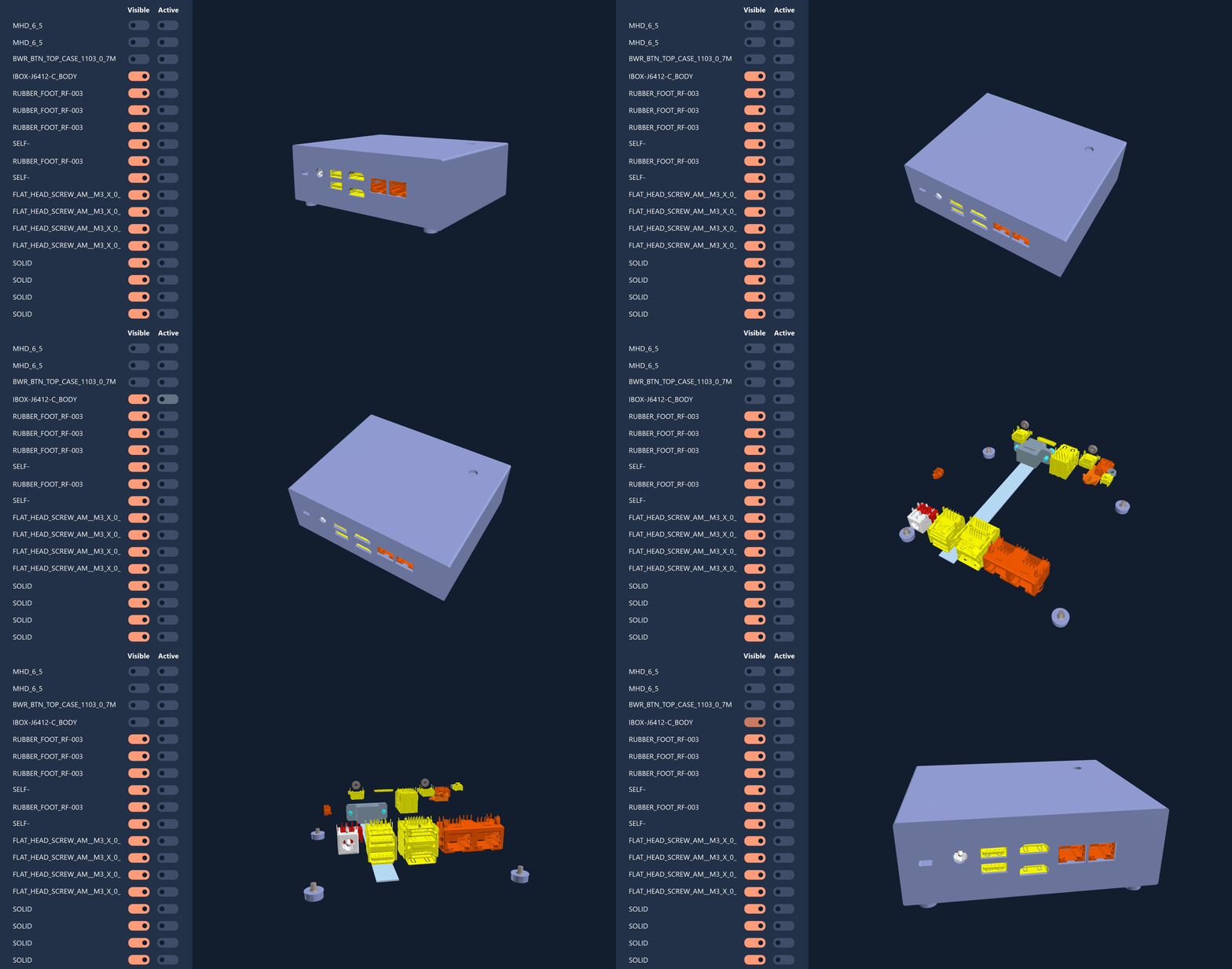
This is the headline feature of 4.4. The new Step control displays 3D CAD models directly inside a Peakboard application. We simply drop the control on the canvas, point it at a STEP file, and the model appears, rotatable and zoomable, right next to our production figures. For anyone building assembly instructions, maintenance guides, or quality inspection screens, this removes an awkward detour. Instead of exporting a series of static images from the CAD system and hoping that nobody changes the part next month, we show the actual model. A worker at the assembly station can turn the component on screen and see the mounting point from the angle that matters to them.
The Data Debugger
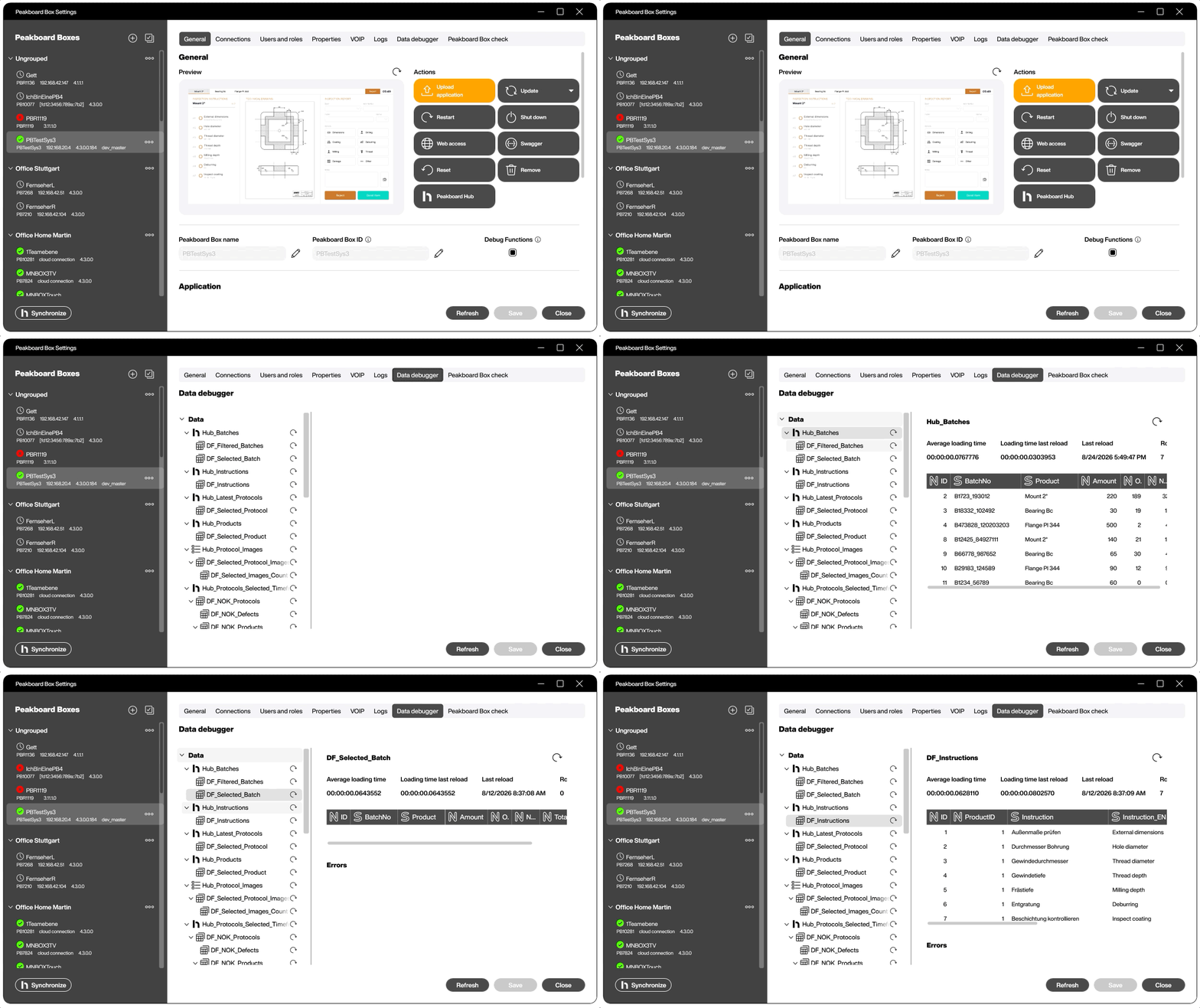
The Box Management dialog now contains a Data Debugger that lets us remotely inspect the data of a running Peakboard Box. This is one of those features that we did not know we were missing until we had it. When a dashboard on the far side of the factory shows a number that looks wrong, the question is always the same: is the data source delivering bad values, or is the application processing good values badly? Until now, answering that meant a walk to the Box, a remote session, or a rebuild with extra debug output. Now we open Box Management from our desk, look at the data as the Box currently holds it, and know within seconds which side of the fence the problem is on.
And a Lot More
As always, the full picture is bigger than the highlights. 4.4 also adds a Z-index slider that lets us reorder overlapping controls by holding the Alt key, the option to convert related controls into each other through the context menu, gradient opacity, a drag and drop preview that shows the real control instead of a plain cursor, and a hub user field in global functions that makes the email of the calling user available in scripts. The complete list is available in the official version history.