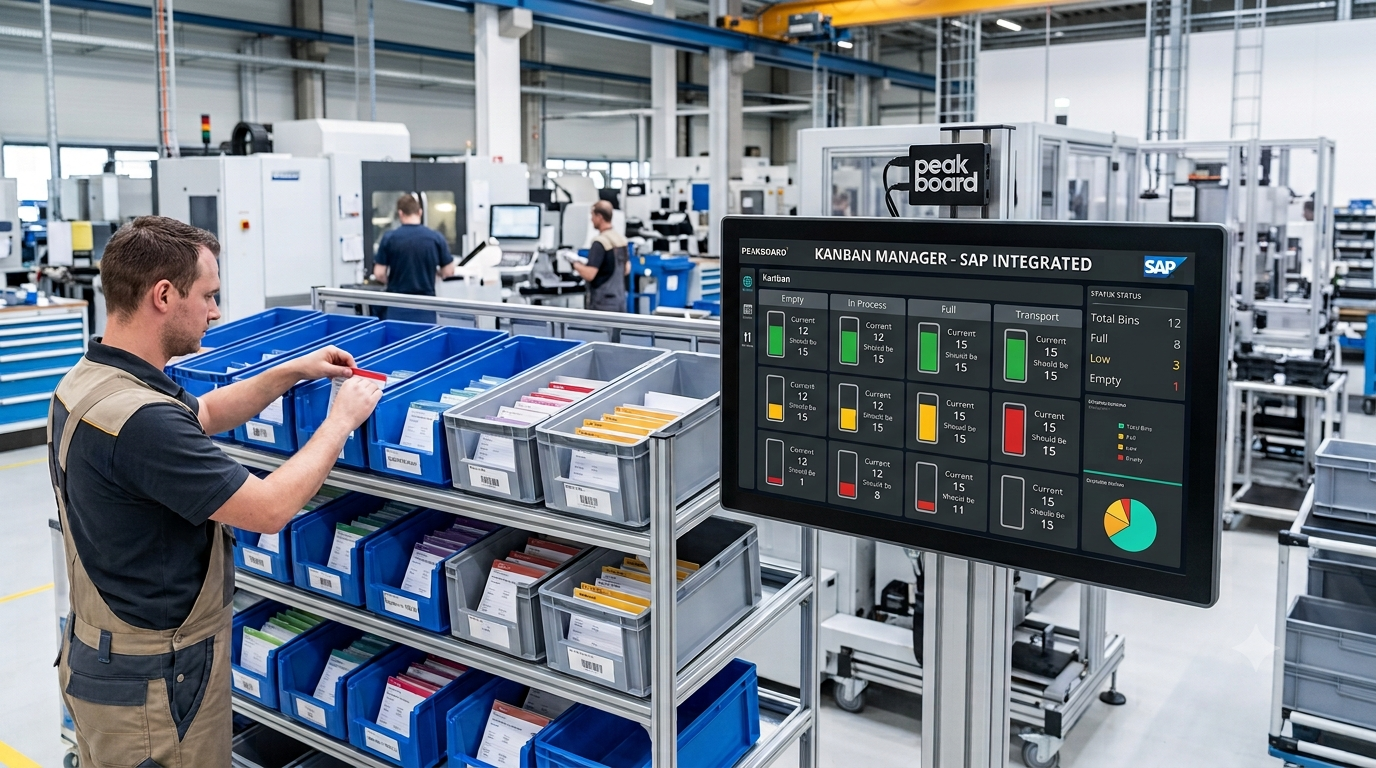
Kanban is a lean, pull-based method for controlling material flow on the shop floor. Instead of producing or replenishing to a forecast, each container (or “box”) of parts is only refilled once it runs empty, which keeps inventory low and signals demand in real time. SAP implements this concept through Kanban control cycles, where every cycle defines a fixed number of boxes that continuously cycle between a full and an empty status as parts are consumed and replenished.
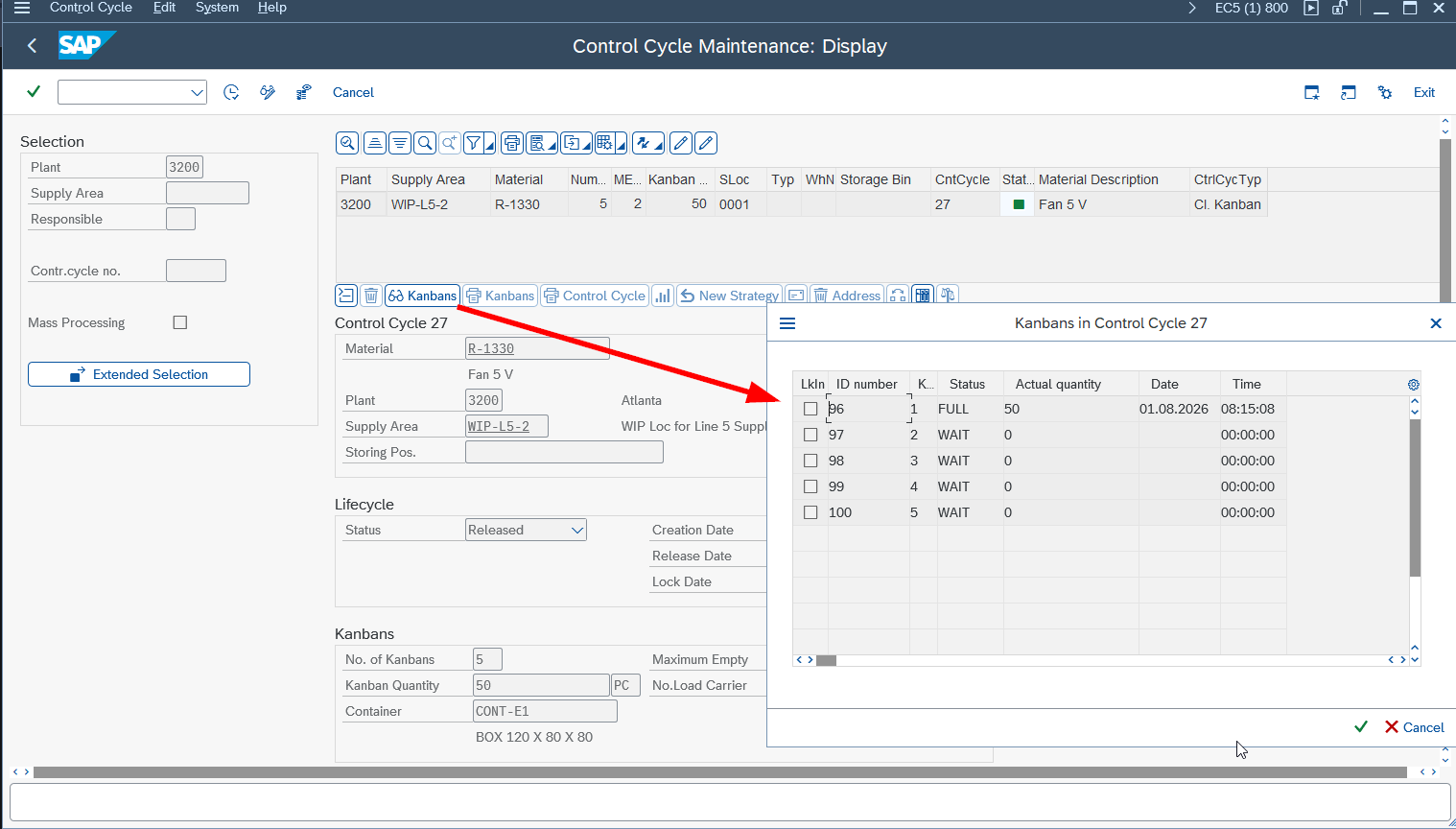
In SAP, we can inspect a control cycle and the status of its boxes with transaction PKMC. The screenshot below shows a control cycle with five Kanban boxes and their individual statuses - some full, some empty - which is exactly the metadata we want to bring into our Peakboard application.
The objective of this article is twofold. First, we want to download the Kanban metadata - the control cycle and the status of each box - from SAP into a Peakboard application so we always have a live view of the boxes on the shop floor. Second, we want to fire the Kanban event back into SAP the moment a box runs empty, which is what triggers the replenishment process. It’s worth noting that detecting an empty box doesn’t have to happen by hand: a sensor wired to the Peakboard Box via Modbus can report the empty state automatically and kick off the same event.
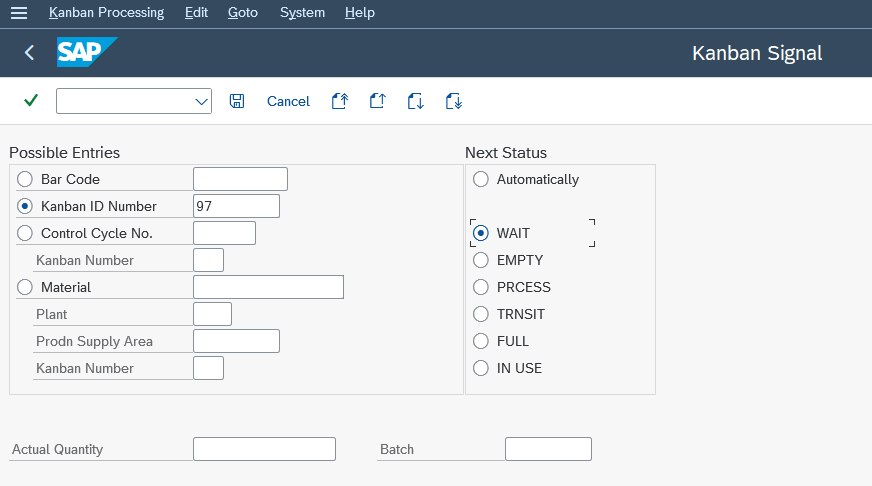
Before we build any of this, it helps to understand how the event is fired manually. In SAP, we can set a box to empty using transaction PK21, as shown below. This is the standard step we’re going to replace - or automate - with our Peakboard application.
Reading the control cycle metadata
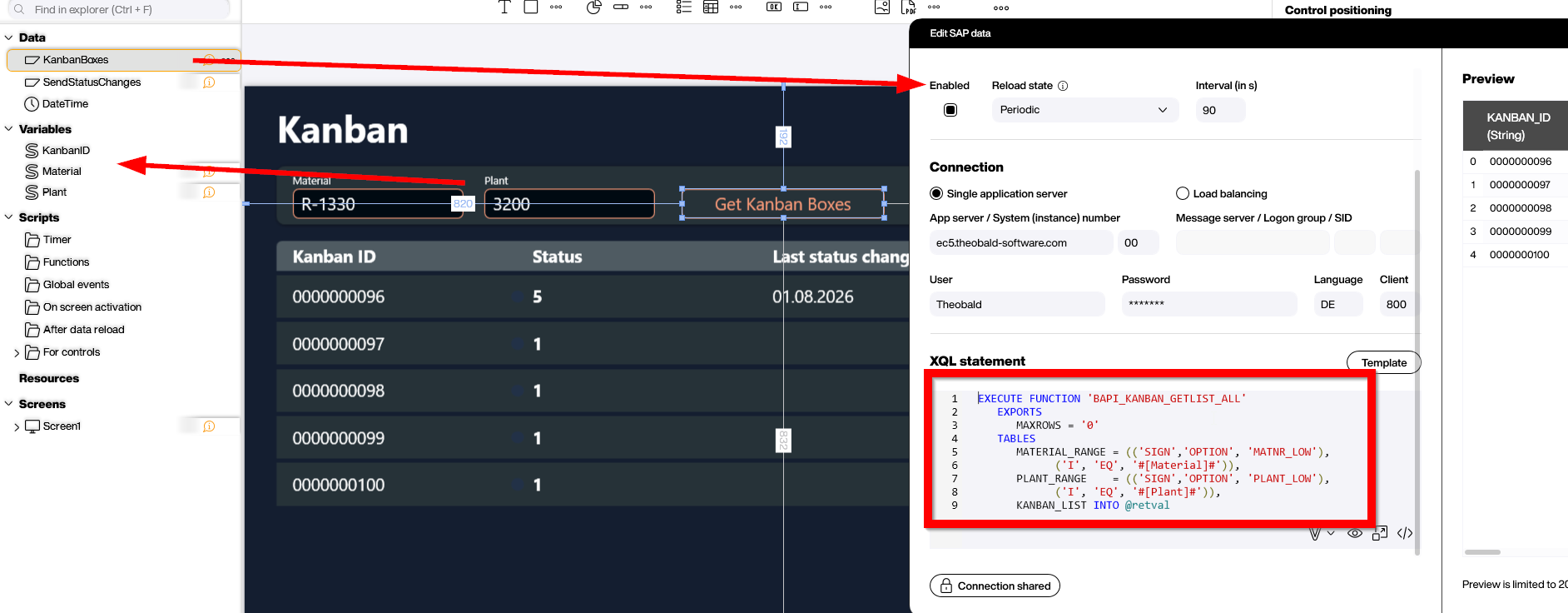
Now let’s look at how we access the metadata of a Kanban control cycle from Peakboard. SAP exposes this through the BAPI_KANBAN_GETLIST_ALL function module, which returns the boxes of a control cycle along with their current status. To narrow the result down to the boxes we actually care about, we identify the control cycle by its typical key - the plant and the material number - and pass both as selection ranges. The following XQL fills the two selection tables MATERIAL_RANGE and PLANT_RANGE, and reads the matching boxes back into KANBAN_LIST:
EXECUTE FUNCTION 'BAPI_KANBAN_GETLIST_ALL'
   EXPORTS
      MAXROWS = '0'
   TABLES
      MATERIAL_RANGE = (('SIGN','OPTION', 'MATNR_LOW'),
            ('I', 'EQ', 'R-1330')),
      PLANT_RANGE    = (('SIGN','OPTION', 'PLANT_LOW'),
            ('I', 'EQ', '3200')),
      KANBAN_LIST INTO @retval
Here we ask SAP for every box belonging to material R-1330 in plant 3200. Each entry in KANBAN_LIST represents one Kanban box, so this single call gives us the same metadata we saw earlier in PKMC - ready to be displayed in our Peakboard application.
In Peakboard, we wrap this XQL in a data source that reads the Kanban metadata straight from SAP. The screenshot below shows the data source configuration, with the result displayed in a styled list where each row represents one Kanban box and its status.
Firing the Kanban event
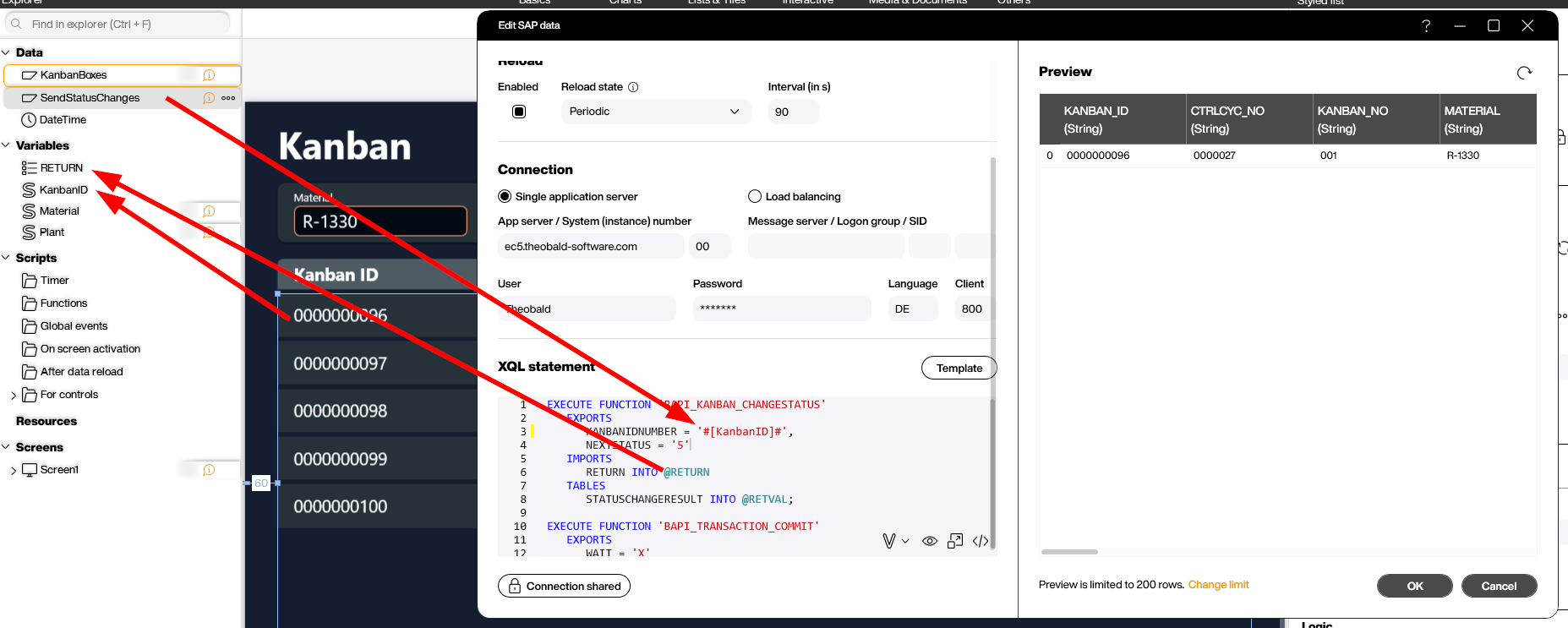
Reading the metadata is only half the story. The real value comes when we push a status change back into SAP; in our case, signalling that a box has just run empty. We do this with the BAPI_KANBAN_CHANGESTATUS function module, passing the box we want to change (KANBANIDNUMBER) and the target status (NEXTSTATUS). Because this is a write operation, we follow it up with BAPI_TRANSACTION_COMMIT so the change is actually persisted in SAP:
EXECUTE FUNCTION 'BAPI_KANBAN_CHANGESTATUS'
   EXPORTS
      KANBANIDNUMBER = '0000000096',
      NEXTSTATUS = '5'
   IMPORTS
      RETURN INTO @RETURN
   TABLES
      STATUSCHANGERESULT INTO @RETVAL;

EXECUTE FUNCTION 'BAPI_TRANSACTION_COMMIT'
   EXPORTS
      WAIT = 'X'
There are two return artifacts we need to pay attention to. The table STATUSCHANGERESULT contains all the boxes that were changed - usually exactly one, since we’re changing a single box. The structure RETURN carries any error messages coming back from SAP. To handle both the table and the structure in one place, we create a list variable named RETURN and read both artifacts into it. That way we can inspect the result of the status change and react accordingly if an error comes up, rather than firing the event blindly.
The screenshot below shows this call wired up inside the Peakboard application. When an operator picks a box from the styled list, we write its Kanban ID into a variable, and that variable feeds the KANBANIDNUMBER parameter of the call. Once the status change is committed, we reload the data source dynamically so the styled list immediately reflects the box’s new status; closing the loop between the shop floor and SAP in real time.
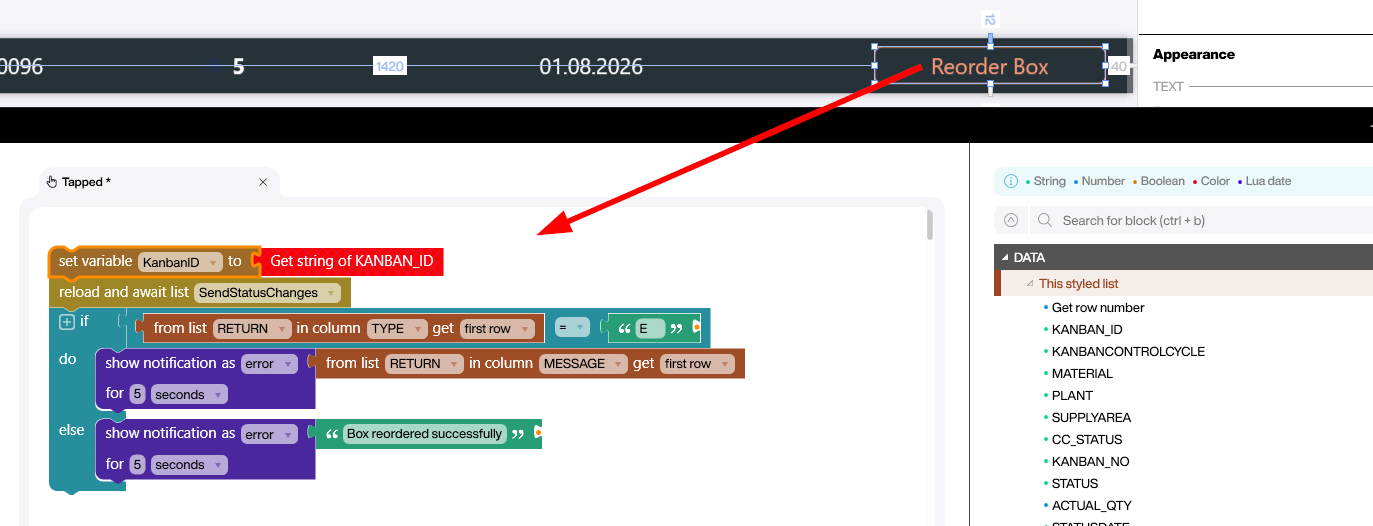
Finally, we need to make sure the reordering actually went through. The screenshot below shows the logic that evaluates the outcome of the call. After the status change, we check the RETURN structure for an error message: if there is none, the event was fired successfully and the box is on its way to being refilled. Only if SAP reports an error do we branch into error handling and let the operator know something went wrong; so the reordering is never silently assumed to have succeeded.
Wrapping up
And that’s the full round trip: we pull the Kanban metadata out of SAP, display the boxes and their status in Peakboard, and fire the empty event straight back into SAP when a box runs out. In this article we triggered the event by tapping a box in the list, but ideally that manual step disappears entirely; a sensor wired via Modbus or a barcode scanner at the rack detects the empty box and fires the reorder automatically, with no operator interaction at all.
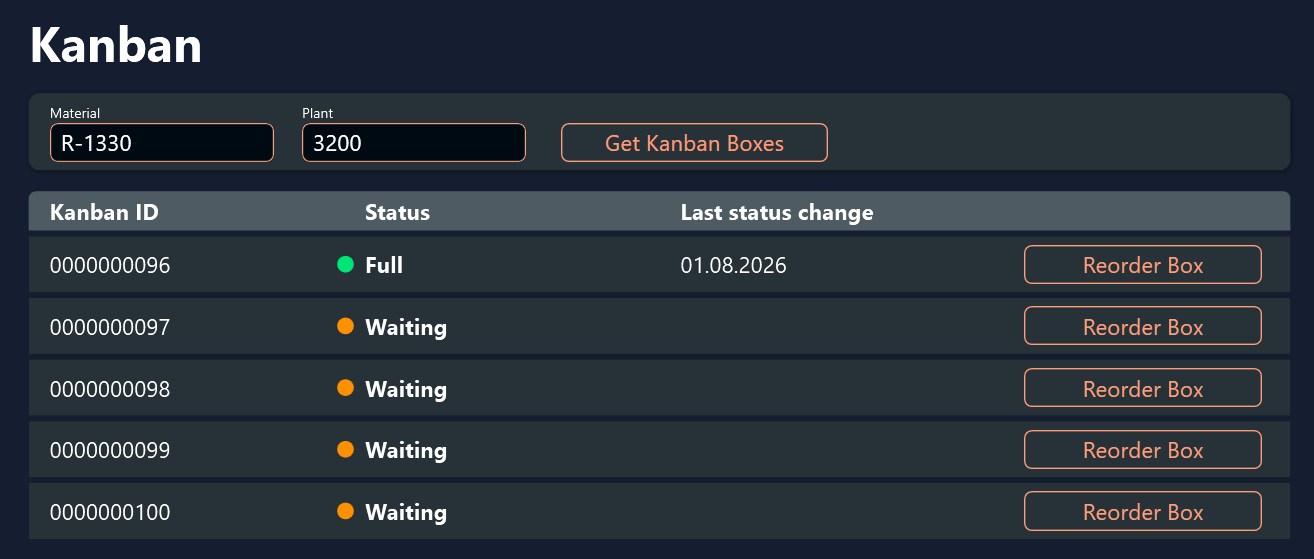
The complete sample application is available for download at the top of this article, so feel free to grab it and adapt it to your own control cycles.