SIGNL4 is a mobile alerting platform built by Derdack that bridges the gap between automated systems and the people who need to react. It delivers critical alerts via push notifications, SMS, and voice calls. But it’s more than just a notification cannon. SIGNL4 adds on-call scheduling, automatic escalation, acknowledgment tracking, and team collaboration right out of the box. If an alert isn’t acknowledged within a defined time window, it automatically escalates to the next person on duty — and that’s just one of many powerful features it brings to the table.
For industrial environments, this is a game changer. Let’s imagine a Peakboard application monitoring production KPIs, machine states, or sensor data on the shop floor. The moment a critical threshold is crossed — a temperature spike, a conveyor belt stop, or an OEE drop below target — Peakboard can fire off an alert directly to SIGNL4. Within seconds, the right technician gets a push notification on their phone, complete with all the context needed: which machine, what happened, and how severe the situation is.
The integration itself is surprisingly simple. SIGNL4 exposes a clean REST API (essentially a webhook) that accepts JSON payloads. Since Peakboard supports HTTP calls through Lua scripting and Building Blocks, connecting the two is just a matter of crafting a POST request with the right data.
In this article, we’ll walk through the complete setup: creating a SIGNL4 team, getting the webhook URL, and putting together the Building Blocks in Peakboard. As a nice extension, we will even create a notification with a live camera image attached.
Setting up the SIGNL4 account
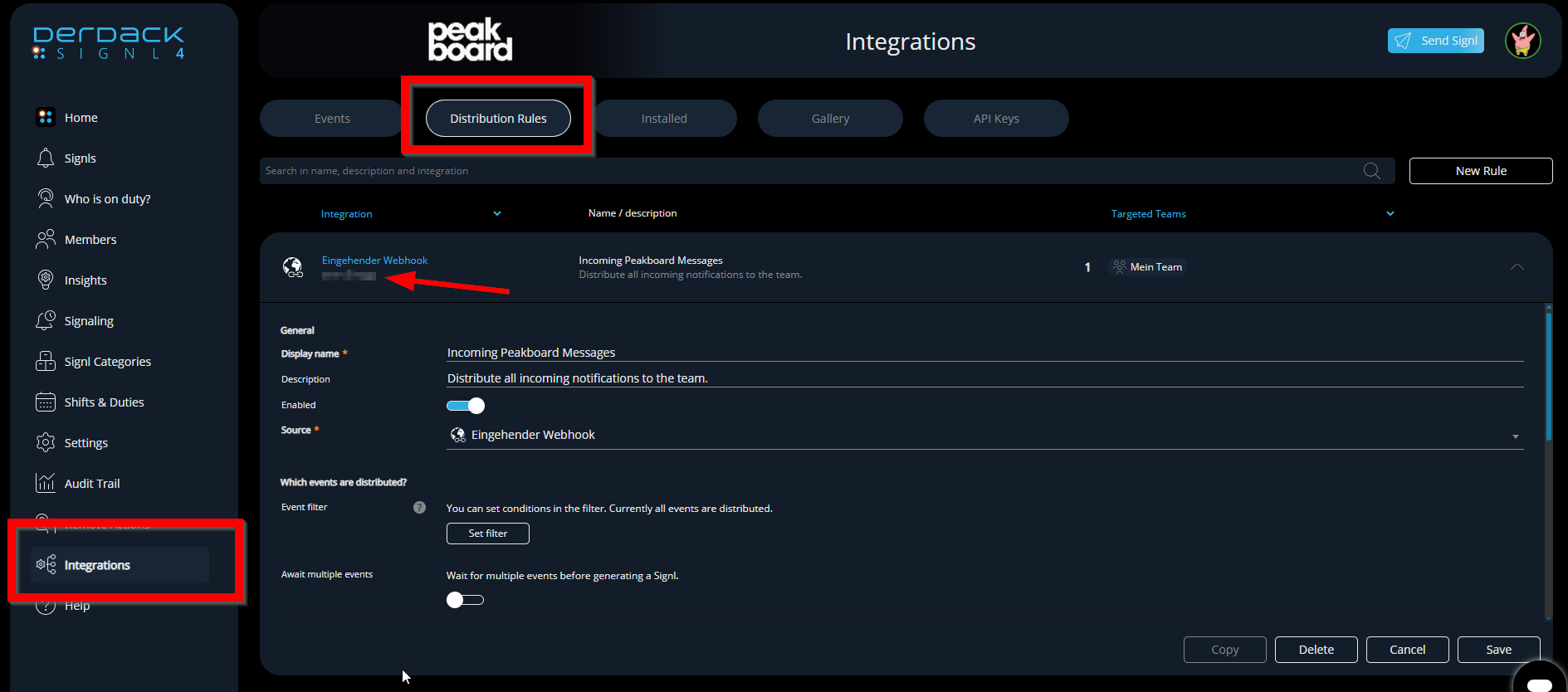
We start our journey in the portal at account.signl4.com. The basic configuration consists of one team with one or multiple team members. SIGNL4 offers a huge number of different options to organize teams, team members, and all related processes. For our purposes, the most important section can be found under Integration -> Distribution Roles. This is where we set up the incoming webhook, which serves as the main entry point for sending notifications into the distribution pipeline. The most important value here is the Team ID, which can be found in the upper corner as indicated by the arrow in the screenshot below. We will need this ID later when we configure the Peakboard side.
How the webhook works
The SIGNL4 webhook is a simple REST endpoint that accepts HTTP POST requests at https://connect.signl4.com/webhook/<Team-ID>, where <Team-ID> is the unique identifier of our SIGNL4 team that we noted earlier. To trigger an alert, we simply send a JSON payload to this URL with a Content-Type: application/json header. Here’s a typical example:
{
  "Title": "Server Problem",
  "Message": "Machine exploded at line 4",
  "Severity": 1
}
The Title and Message fields define what the recipient sees in the notification. The Severity field controls the alert priority — use 1 for critical alerts that require immediate attention, or 2 for less urgent warnings. SIGNL4 automatically routes the alert to the on-duty team members and starts the escalation chain if nobody acknowledges it in time.
Demo in Peakboard
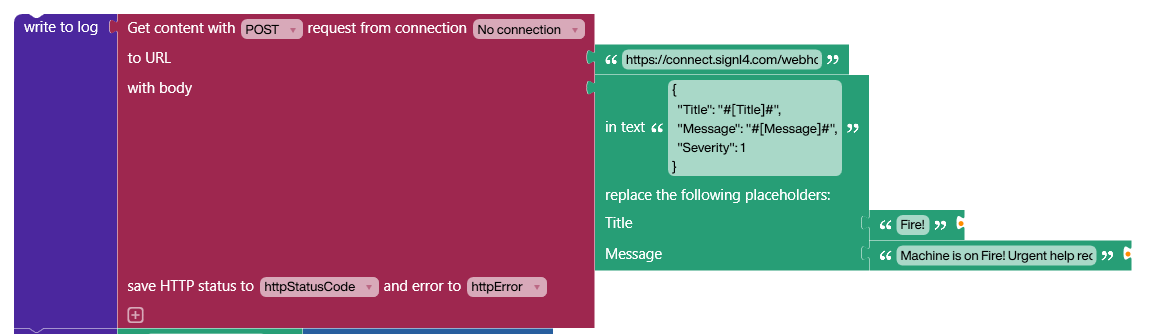
The screenshot below shows the Building Blocks needed to call the HTTP POST as described above. We use a placeholder string to build the JSON body with variable content, so the alert message can be assembled dynamically at runtime.
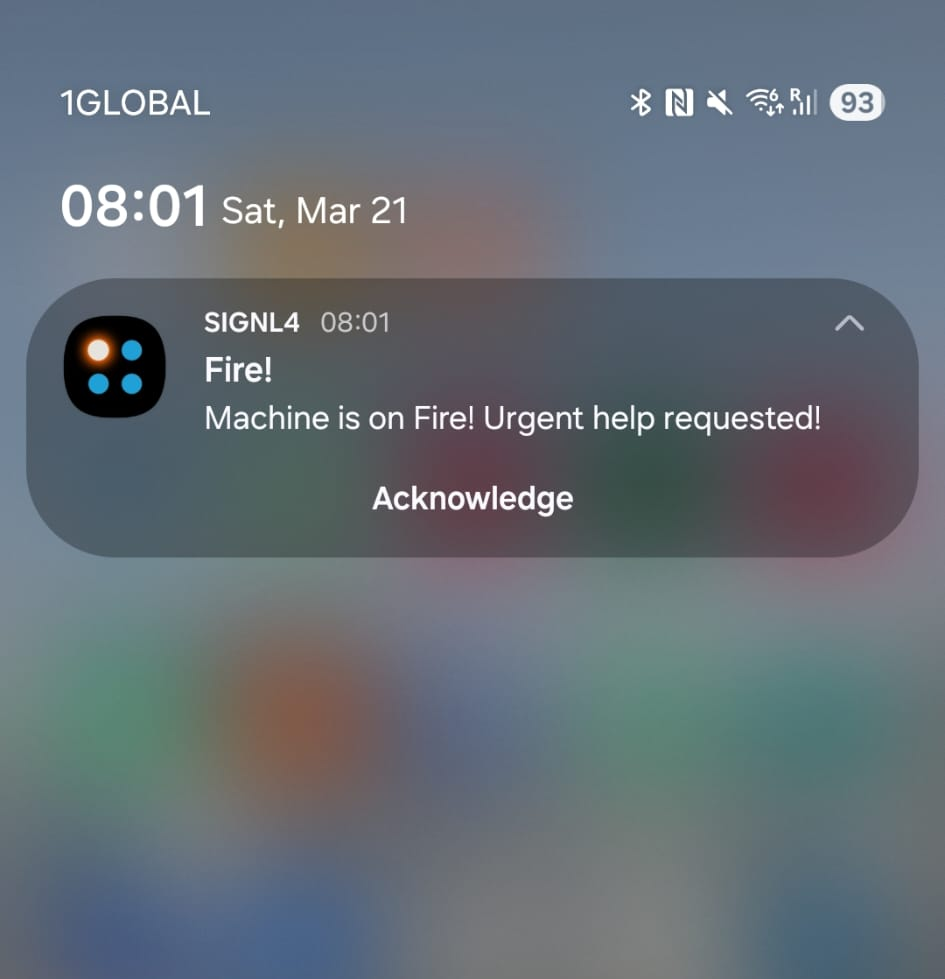
With this in place, we can trigger all subsequent processes as defined in the SIGNL4 portal — for example, sending the notification to a mobile app where the on-duty technician can immediately see and respond to it.
Next level: Sending images
In our next iteration, we can make use of some more advanced features on both the Peakboard and the SIGNL4 side. It’s entirely possible to attach an image to the notification call, which gives the recipient immediate visual context — for example, a snapshot from a shop floor camera showing the actual state of a machine. However, the HTTP call is a bit more involved than before.
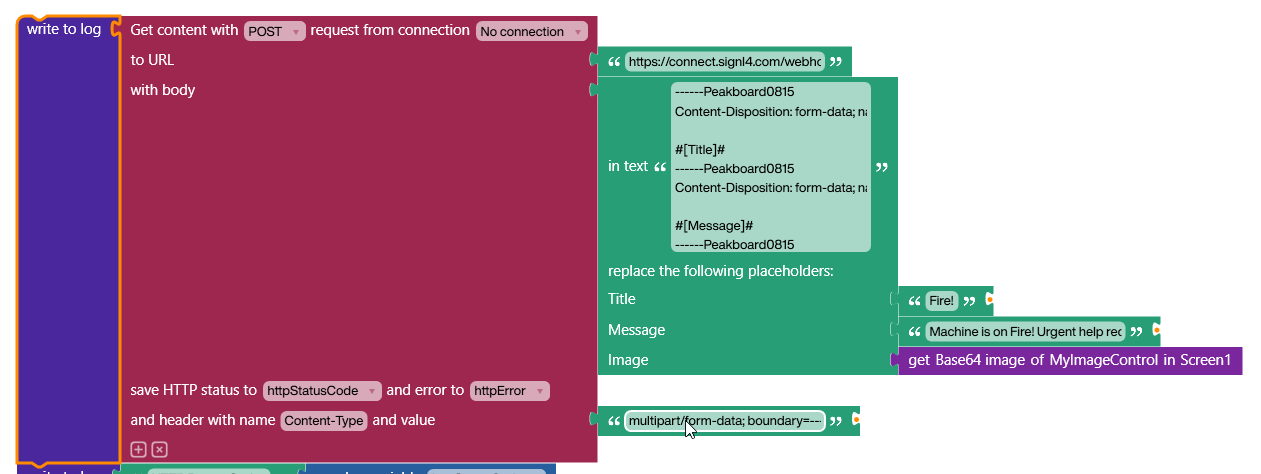
Attaching an image requires us to send an HTTP POST with a multipart body. This means we need to set the content type to multipart and combine it with a boundary string that separates the individual parts. The content type header should be multipart/form-data; boundary=----Peakboard0815, and the actual body follows the structure shown in the sample below. Besides the message, title, and severity, we add the image as a Base64-encoded string to the body.
------Peakboard0815
Content-Disposition: form-data; name="Title"

Fire!
------Peakboard0815
Content-Disposition: form-data; name="Message"

Machine is on Fire! But I'm fine!
------Peakboard0815
Content-Disposition: form-data; name="Severity"

1
------Peakboard0815
Content-Disposition: form-data; name="Photo"; filename="alert.png"
Content-Type: image/png
Content-Transfer-Encoding: base64

iVBORw0KGgoAAAANSUhEUgAAAAQAAAACCAIAAADwyuo0...
------Peakboard0815--
The next screenshot shows the Building Blocks that create this multipart message dynamically. The Base64-encoded image is taken from a picture control on the Peakboard canvas. This picture control, in turn, is fed from a live camera, just as we explained in another article. This way, the alert always includes a real-time snapshot of the situation.
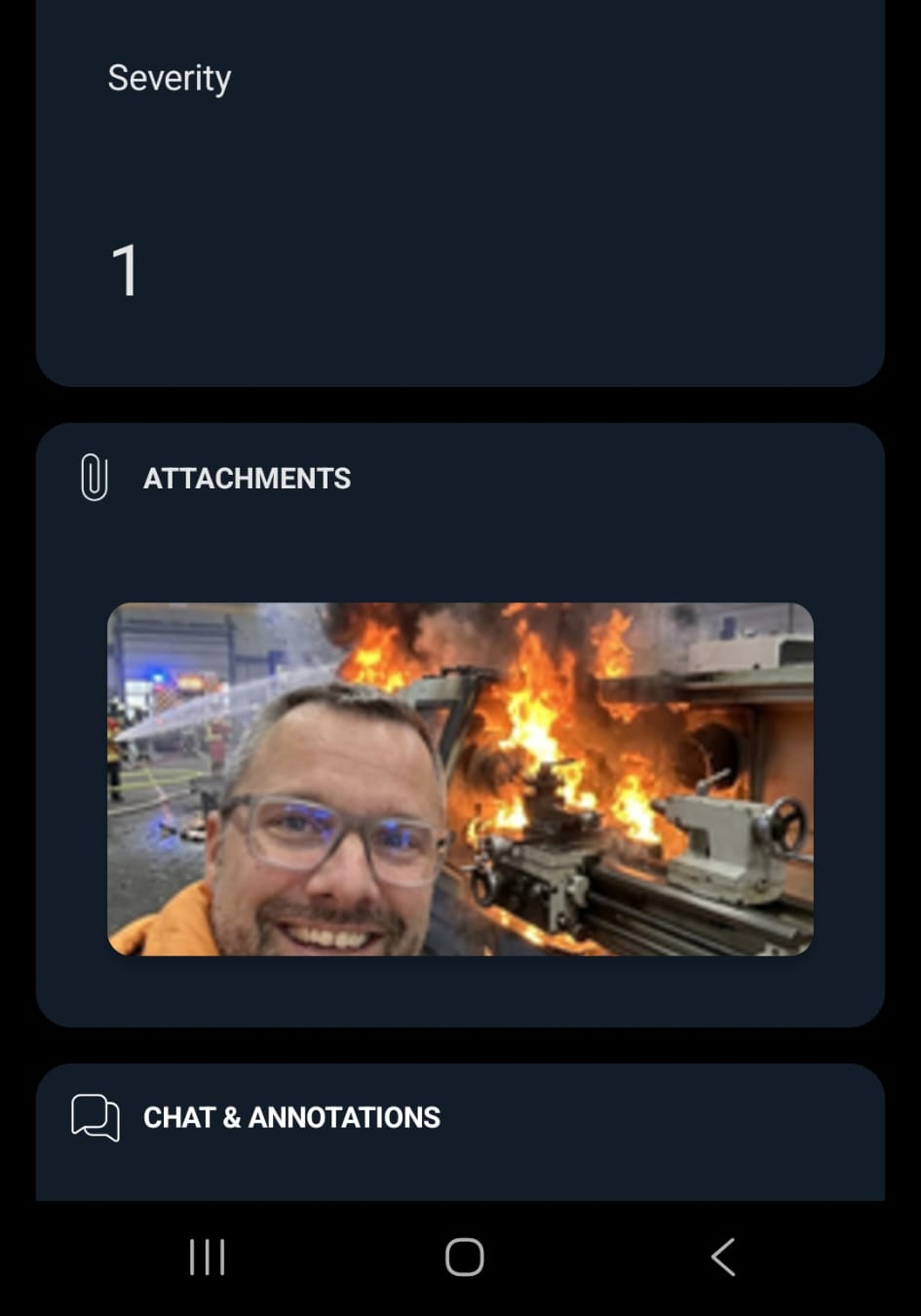
And here’s the result: the image shows up in the mobile app notification along with the title, message, and severity — giving the recipient a complete picture of the alert at a single glance.
One more next level: Acknowledgment and Feedback
For this final level, we need to discuss the way back — how information flows from SIGNL4 back to Peakboard. SIGNL4 supports multiple ways of handling, acknowledging, or escalating a message. All these options can be found in the SIGNL4 documentation along with plenty of samples. What we want to focus on here is a way to send the acknowledgment back to the Peakboard box and/or the end user who created the initial alert. The best approach for building this is to let the Peakboard Hub expose a publish function and then have SIGNL4 call this endpoint as a webhook. This principle was already explained in detail in an article where we built an Azure Logic App that called a function on a box: Cloud to Factory - Building an Azure Logic App to Access Peakboard Boxes with Peakboard Hub.
The same pattern can be applied from SIGNL4 by using its “remote actions” feature. We simply call the exposed endpoint and can even parameterize the call to pass along additional context, such as who acknowledged the alert and when.