
With version 4.2, a long-awaited feature finally came to life: any camera recognized by Windows can now serve as the source for the Video control, whether it is a USB-connected external camera or an integrated one built into the device. Beyond simply displaying the camera feed, which on its own has limited value, it is also straightforward to process the captured image and do a lot of exciting things with it, such as sending it by email, uploading it to SharePoint, the Peakboard Hub, or even forwarding it to an external API. In this article, we will take a closer look at how the Video control works in the context of a connected camera.
Walk through the control’s properties
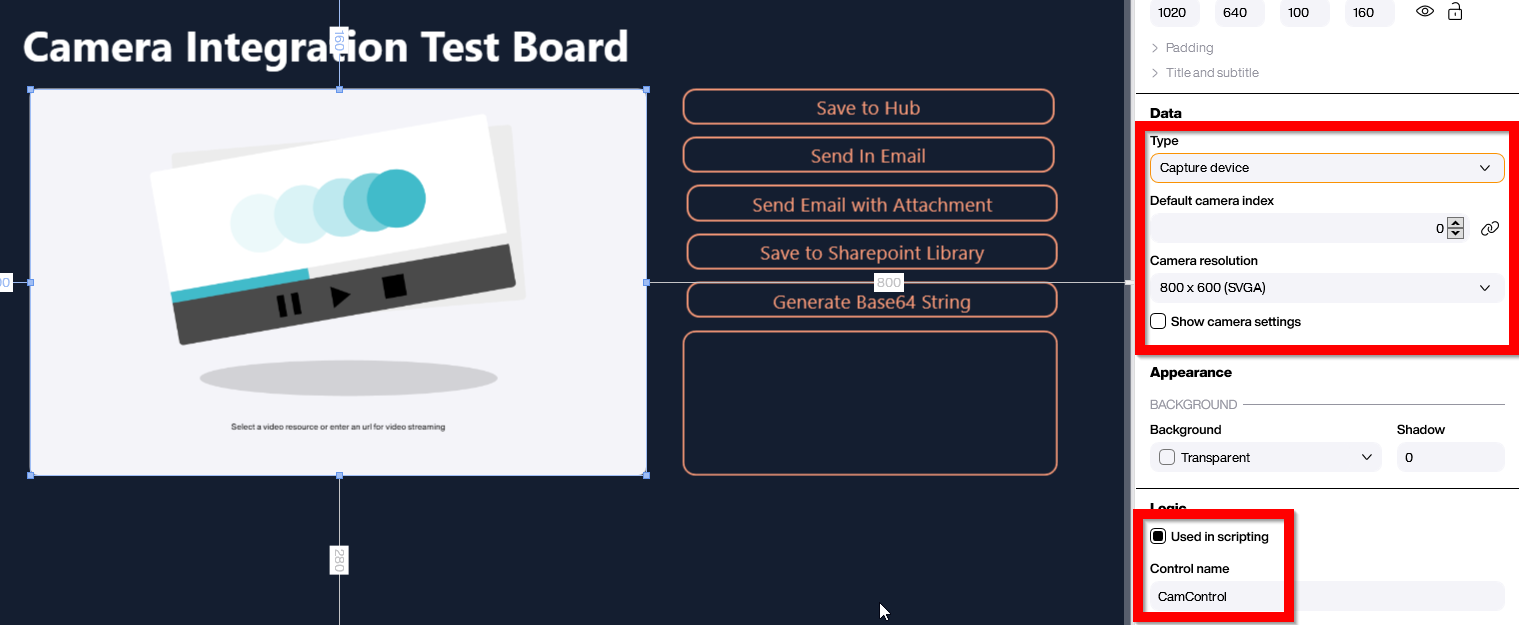
To connect the control to a camera, we need to set the type to Capture Device. The property below that is the ordinal index of the camera, which is relevant when more than one camera is connected, for example on a tablet with both a front and a rear camera. If we do not know the exact index, we start with 0 and work our way up. Keep in mind that the index may differ after deploying the application from the designer’s machine to a Peakboard Box instance, so it is worth verifying after deployment.
The camera resolution must be chosen carefully. The highest resolution is not necessarily the best choice, since rendering a high-resolution stream requires significant computing power. If a smooth and fluid image is the goal, it is better to start with a lower resolution, especially when the overall control size on the canvas is not very large. When capturing a still image for later processing, the resolution can be configured separately, which we will cover in the next section.
The Show camera settings option allows the end user to switch between multiple cameras directly on the board. Depending on the use case, it may make sense to expose this option. Finally, we need to give the control a name so that it can be addressed from Building Blocks later.
Processing the image
Simply displaying the camera feed as part of the application is only useful if we do something with the captured image. Peakboard provides several built-in Building Blocks that make it easy to build image processing workflows without writing custom code. Each of these Building Blocks also lets you adjust the resolution of the image that is sent or uploaded, so you can keep file sizes manageable without sacrificing quality where it matters.
The simplest option is to send an email. There is out-of-the-box support for sending an email with the captured image embedded directly in the email body, as shown in the screenshot below. Sending the image as an attachment is also supported, and the right choice depends on the use case and the recipient’s needs.
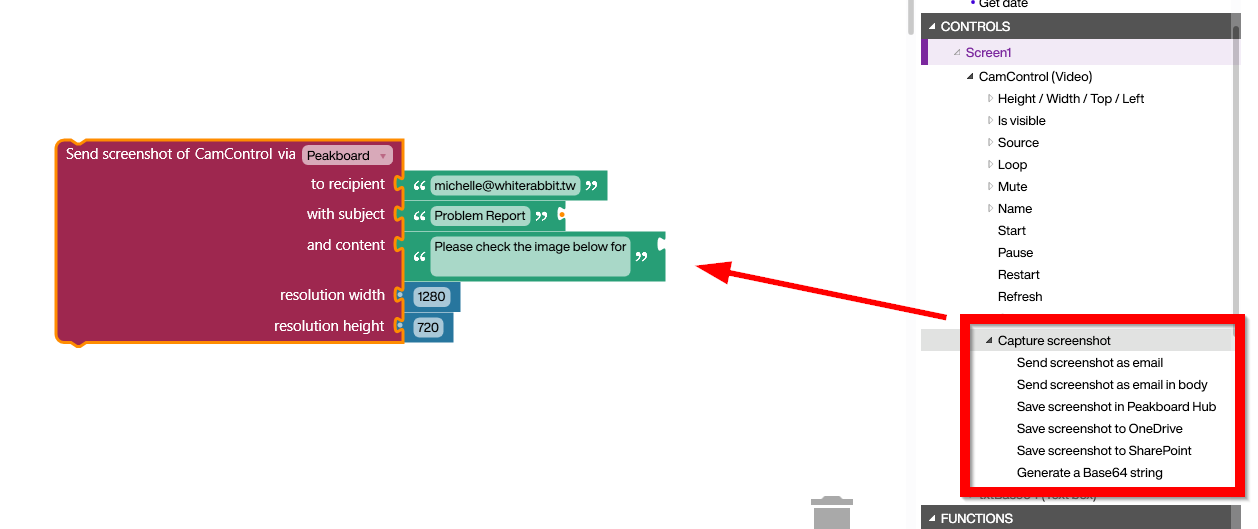
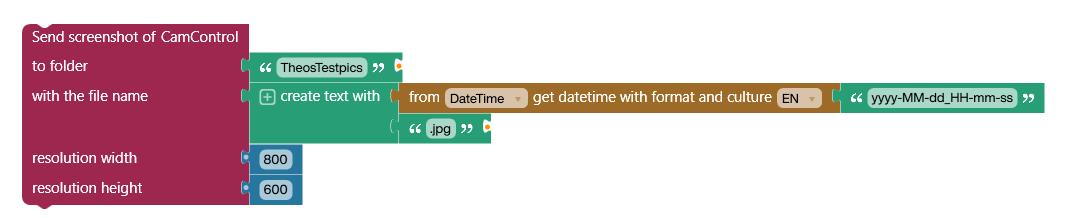
The image can also be uploaded directly to either a SharePoint document library or a OneDrive folder. The SharePoint option is likely the more common choice in enterprise environments, as it integrates naturally with existing document management workflows. Before using the corresponding Building Block shown in the screenshot below, a valid Office 365 SharePoint connection must be configured, as explained in this article.

For those who use the Peakboard Hub file management system, a dedicated Building Block is available to upload the captured image directly to Hub storage:
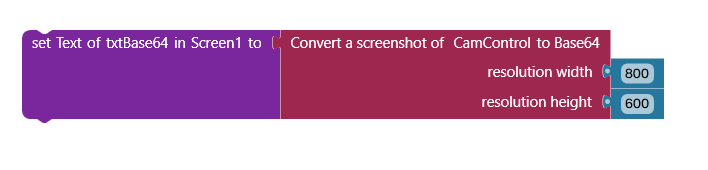
The last option is to convert the image into a Base64-encoded string so that it can be passed to external APIs, most commonly AI-powered backends. Virtually every AI vision system accepts Base64-encoded image data and knows how to decode it for analysis. This opens up a wide range of possibilities, such as defect detection, OCR, object recognition, or quality control, all triggered directly from the Peakboard application with a single Building Block call.
Conclusion
Integrating a camera into a Peakboard application is straightforward using the Video control, regardless of whether it is USB-connected or built into the device. The available Building Blocks for processing the captured image cover the vast majority of real-world use cases with minimal configuration and a single call, whether the goal is sharing, storing, or sending the image to an intelligent backend for further analysis.