
A calendar feels like the most office-y of office tools - a thing for meeting rooms and HR onboarding sessions, not for the line. In practice the shop floor runs on schedules too: shift handover at six, planned maintenance windows on Tuesday morning, supplier audits booked weeks ahead, a training room with three groups queueing for it, a rolling cleaning rota across the machines. None of that lives in the MES; most of it lives in someone’s Outlook calendar. Bringing those entries onto a Peakboard screen next to the line means the operator can see what is about to happen and when, without alt-tabbing into Outlook. One heads-up before we dive in: we wrote a version of this story years ago when the only way to reach the calendar was a hand-rolled MS Graph call, and that article is no longer the path we would recommend. Peakboard now ships a proper native Office 365 calendar data source, which is the one we are going to use here. If we have not connected Peakboard to Office 365 yet, Getting started with the new Office 365 Data Sources is the prerequisite - it walks through the one-time app registration and consent dance, after which the data source we use in this article just shows up in the list.
Personal calendars and group calendars
Office 365 calendars come in two flavours, and Peakboard can read either. The first is the personal calendar attached to a user account - the one we see when we open Outlook and have a row of meetings staring back at us. The second is a shared calendar that belongs to a Microsoft 365 group, which in turn is what backs every SharePoint team site and every Teams team. For a screen on the line we are usually not interested in any individual person’s diary; we want the shared schedule that represents the line itself. In our example that is the group calendar of a Microsoft 365 group called Factory Floor, where shift handovers, maintenance windows and training sessions are all booked side by side.
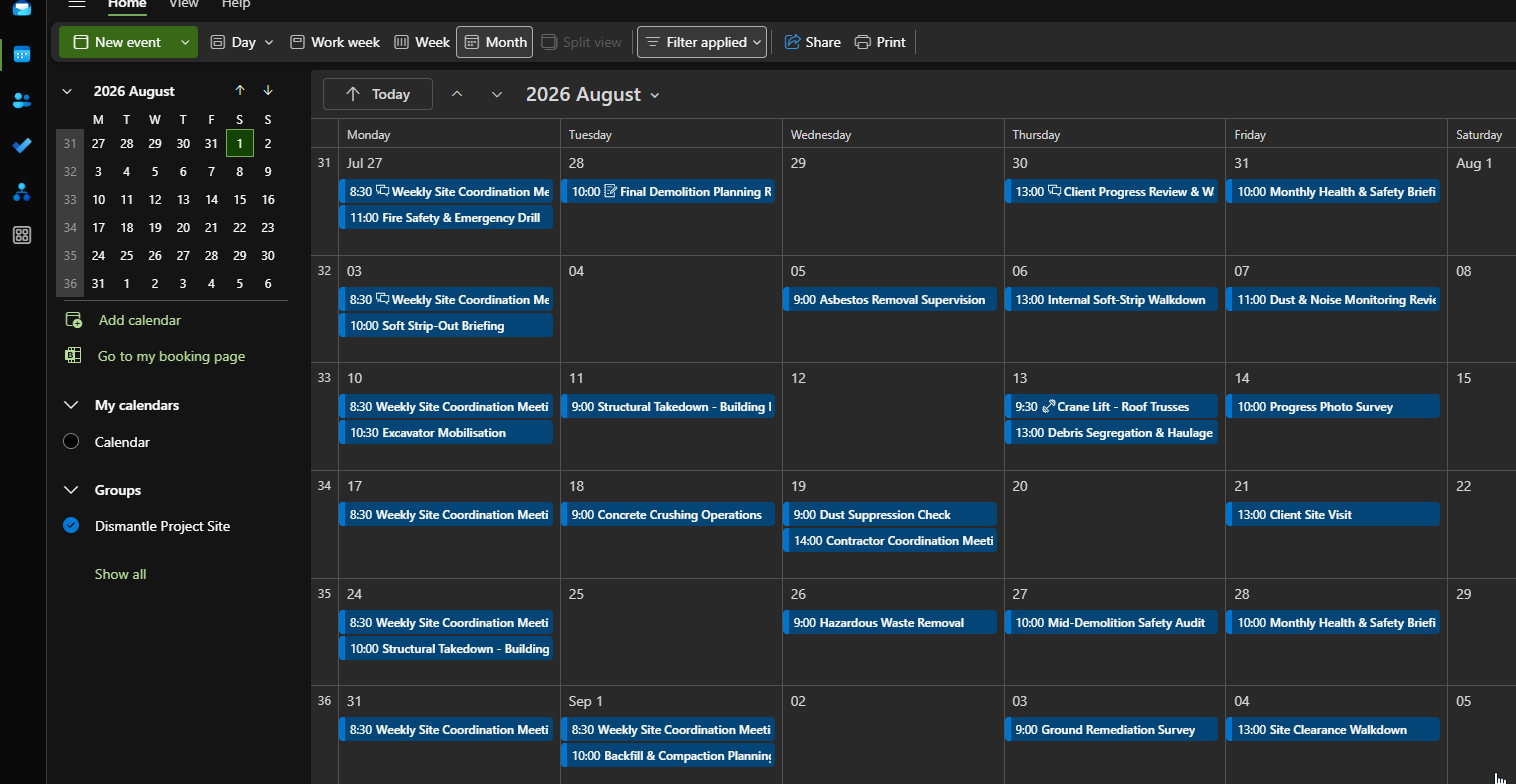
Picking that calendar up in the Designer is a matter of adding an Office 365 calendar data source and selecting the group calendar from the drop-down.
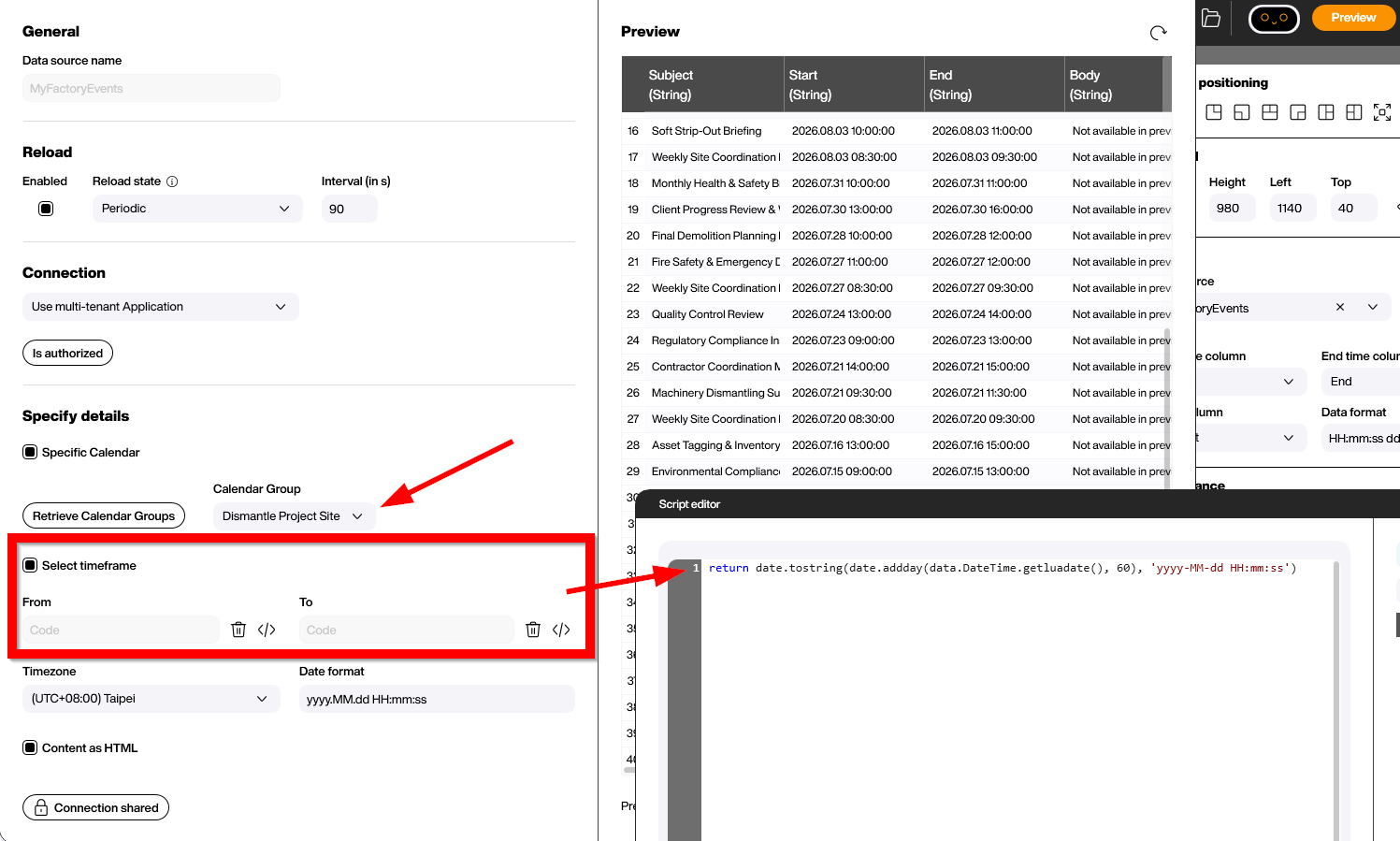
The detail worth pausing on is the timeframe. The data source needs to know how far back and how far ahead it should fetch entries; left at a hardcoded date, it will quietly drift out of relevance the moment we walk away from the project. The fix is to express the bounds as dynamic Lua expressions that evaluate every time the data source refreshes. For our calendar we set the from field to the day before yesterday and the to field to two months out, so that recent and upcoming events both stay in view:
-- from
return date.tostring(date.addday(data.DateTime.getluadate(), -2), 'yyyy-MM-dd HH:mm:ss')

-- to
return date.tostring(date.addday(data.DateTime.getluadate(), 60), 'yyyy-MM-dd HH:mm:ss')
The other field worth checking before we save is the time zone. Office 365 stores events in UTC under the hood and the data source needs the local zone to render them back at the right wall-clock time, so we set it to the time zone of the location, not whatever default the Designer suggested.
The result
Once the data source is configured, the Designer’s preview pane shows exactly what we are going to get at runtime - one row per event, ordered by date, with five columns describing each entry.
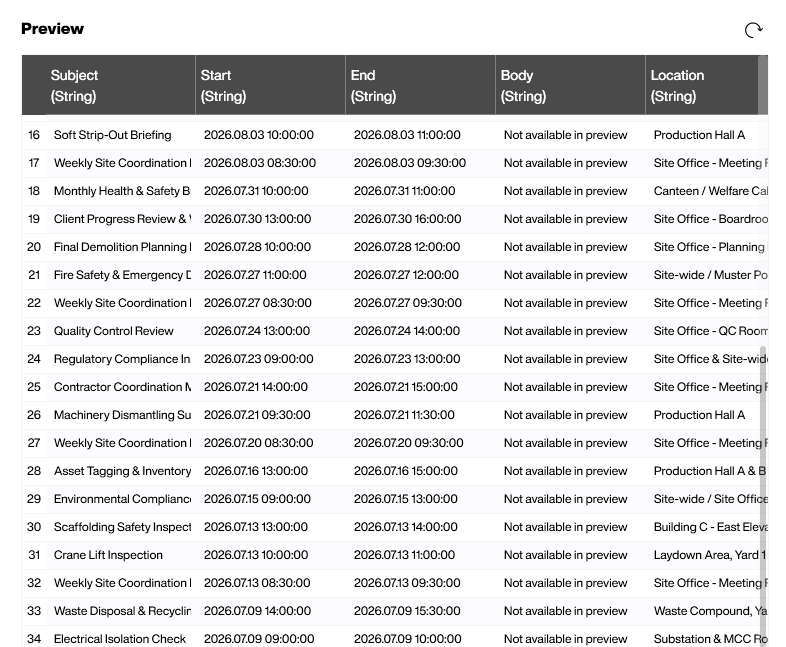
The columns map onto what we already know from any calendar app:
- Subject is the title of the entry - “Soft Strip-Out Briefing”, “Weekly Site Coordination”, “Fire Safety & Emergency Drill” and so on. The obvious field to bind to a list or a headline on the screen.
- Start and End are the event timestamps in
yyyy.MM.dd HH:mm:ssformat. The data source has already translated them into the time zone we picked earlier, so we can format and filter them straight away without any extra conversion. - Body is the long-form description of the entry. It shows as
Not available in previewhere because Peakboard does not fetch body text until runtime - a sensible default given that bodies can run to megabytes of HTML, but worth knowing if we are wondering why the column looks empty in the Designer. - Location is the room, hall or zone the event is booked for. On a busy site with many work zones this is the column that makes the list actually useful: bind it next to the subject and the operator can see at a glance whether the next entry happens in Production Hall A or out at the substation.
From here it is the usual Peakboard composition exercise - bind the columns into a styled list, group by day, drive a traffic light from whatever the next entry is, or pair the list with a clock so the screen always shows what is happening now and what is coming up next. Or, since a calendar usually looks best when it actually looks like a calendar, we can hand the same data source to Peakboard’s dedicated Calendar control - which is exactly what we cover in the follow-up article, The Matrix of Time - Rendering Office 365 Calendars with the Peakboard Calendar Control. The schedule that used to live in Outlook is now part of the line.