Loyal long-time readers of this blog might remember an article from June 2023 about how to call OPC UA functions. Back then, we used an external OPC UA client called UaExpert to hunt down the right node ID and then wrote some LUA code to trigger the function on the A/C. With the latest release 4.2 that arrived in early 2026, those days are finally over! The Peakboard Designer now fully supports the use of Building Blocks to call OPC UA functions. We’re going to have a brief look at this now.
Feel free to download the accompanying pbmx file, which is fully functional and relies on a public OPC UA server. Caffeine not included.
The requirements
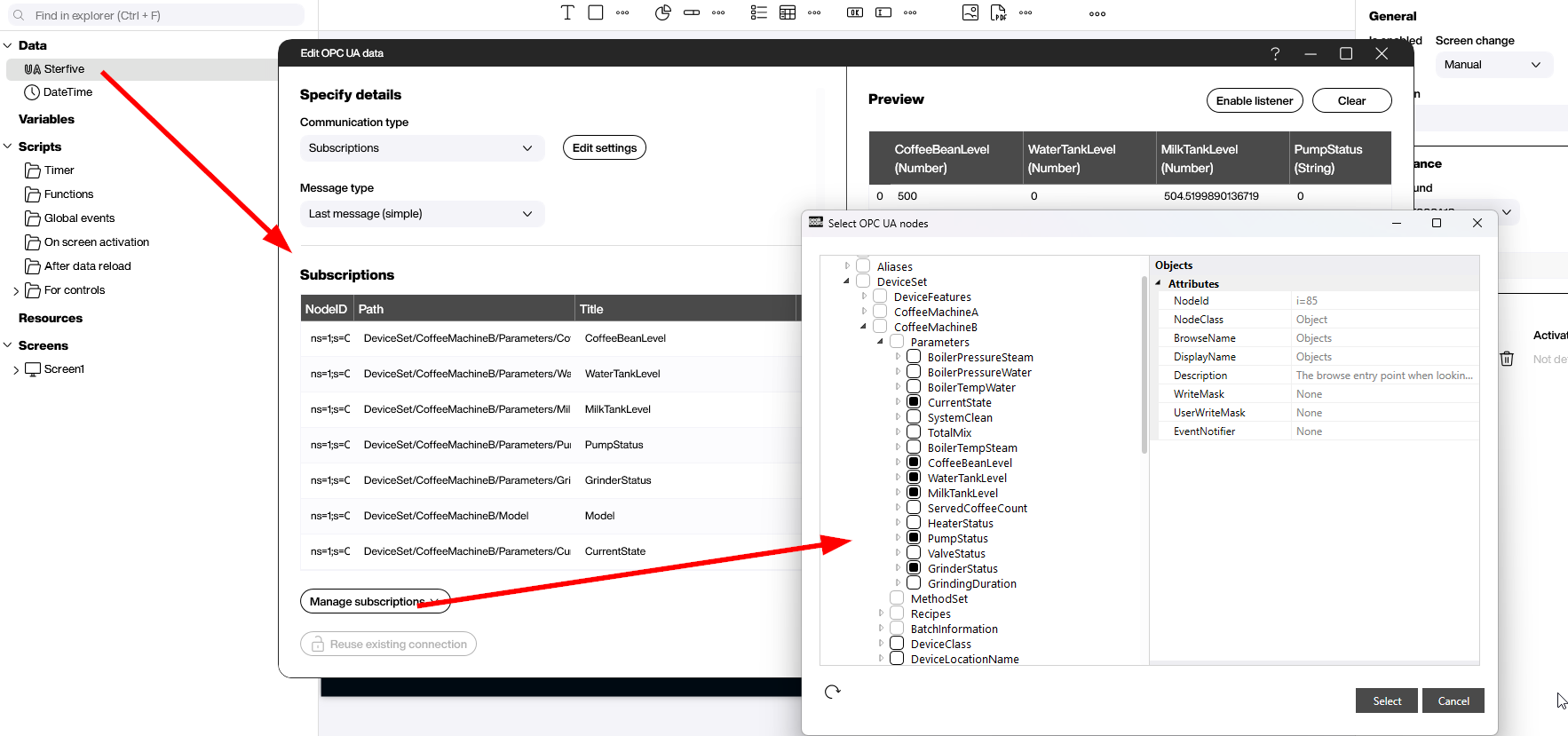
In our example, we use the publicly available OPC UA server opc.tcp://opcuademo.sterfive.com:26543. It offers many exciting nodes and applications we can play with. We opt for the DeviceSet/CoffeeMaschineB, which simulates a fully functional coffee machine — sadly, still only virtual. In the Parameters directory, we can find some interesting attributes to display later in our coffee machine mini UI.
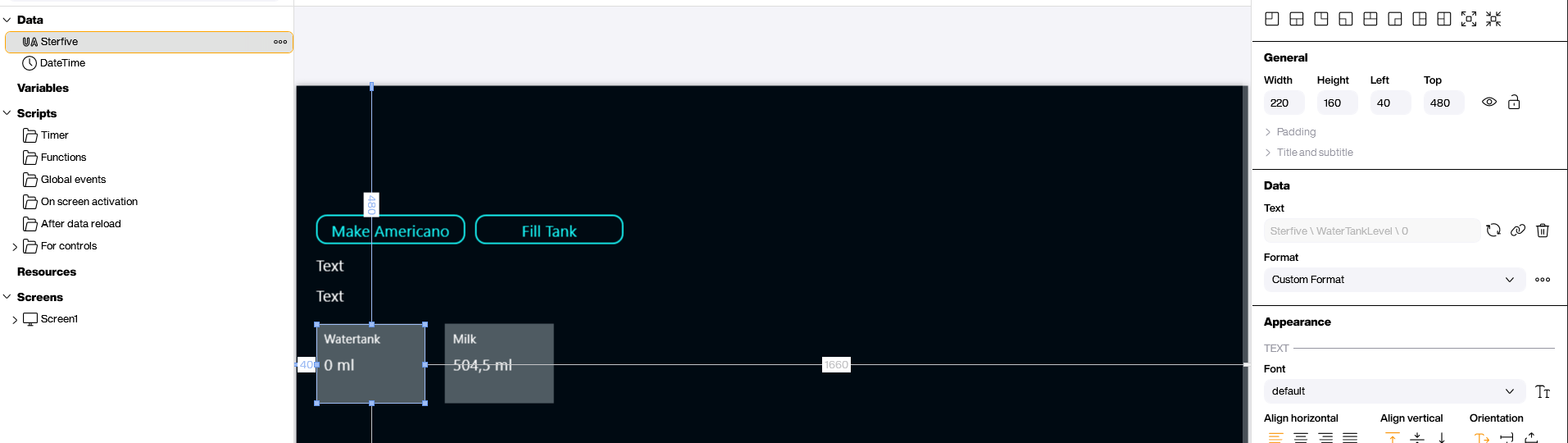
In a simple UI, we just display the water tank and milk tank levels, along with two text fields for status information. Minimalism meets caffeine, and our coffee machine dashboard is ready for action.
The OPC UA functions
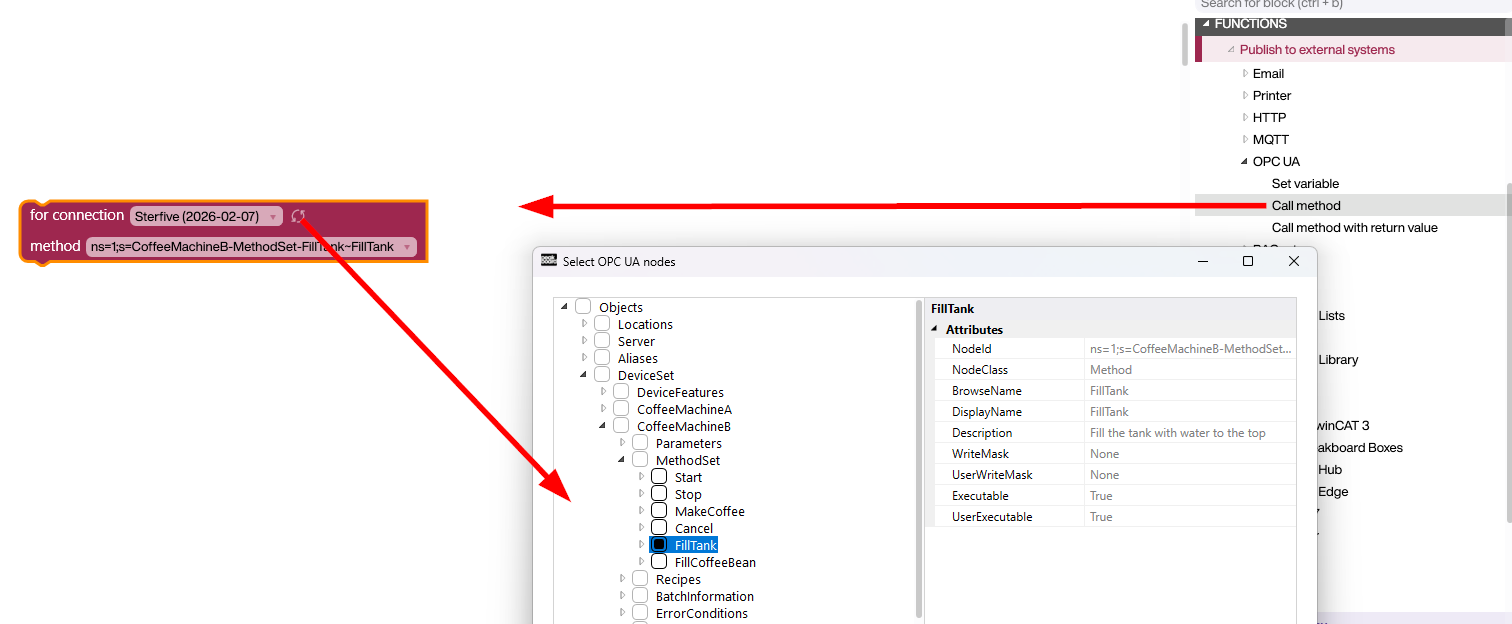
Let’s take a look at the Building Blocks behind the Fill Tank function. With the corresponding Building Block, we use the value help to browse all available functions of a data source. We can choose Fill Tank. That’s it! Now the function is executed when the button is pressed. No more secret handshakes required.
Now, let’s examine the coffee-making process. The corresponding function is MakeCoffee. It receives a parameter to identify the recipe to use for the process. In our example, we just go for black coffee — “Americano”. We even get feedback from the machine. The answer is a JSON string, because apparently, even coffee machines speak JSON these days.

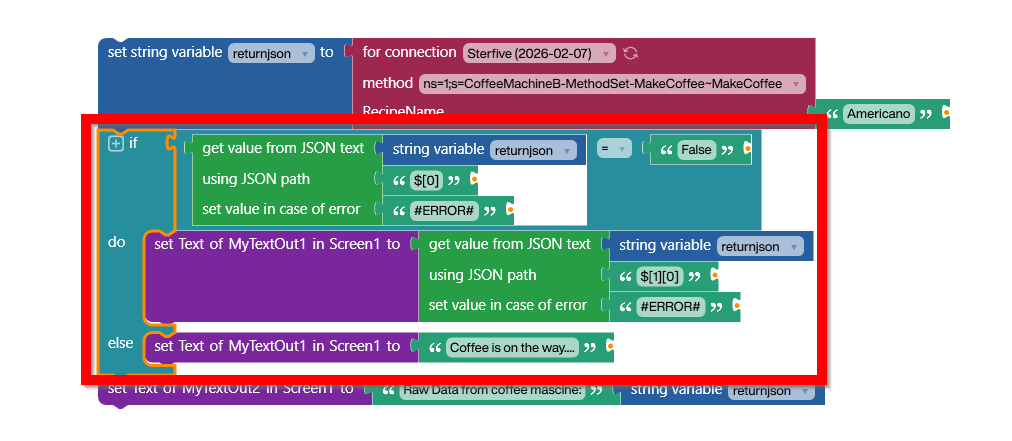
The returned JSON consists of an array. While the first element is just a boolean variable to indicate the success of starting the coffee-making process, the second element contains a detailed error message, in case the process can’t be executed. For a successful start, it would be [true,[]], and as an example for a problem, it could be [false,["not enough water"]].
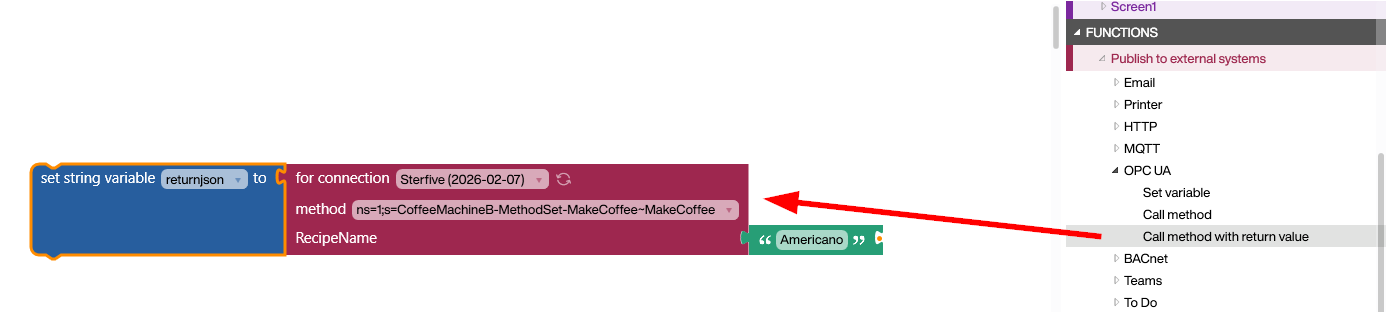
In the following steps, we need to take care of the complex return value. We simply use the JPath Building Block to separate and extract the two information elements. The JPath expression for the first element would be $[0], and for the error message, it’s $[1][0]. The following screenshot shows how to process the return value accordingly.
Result
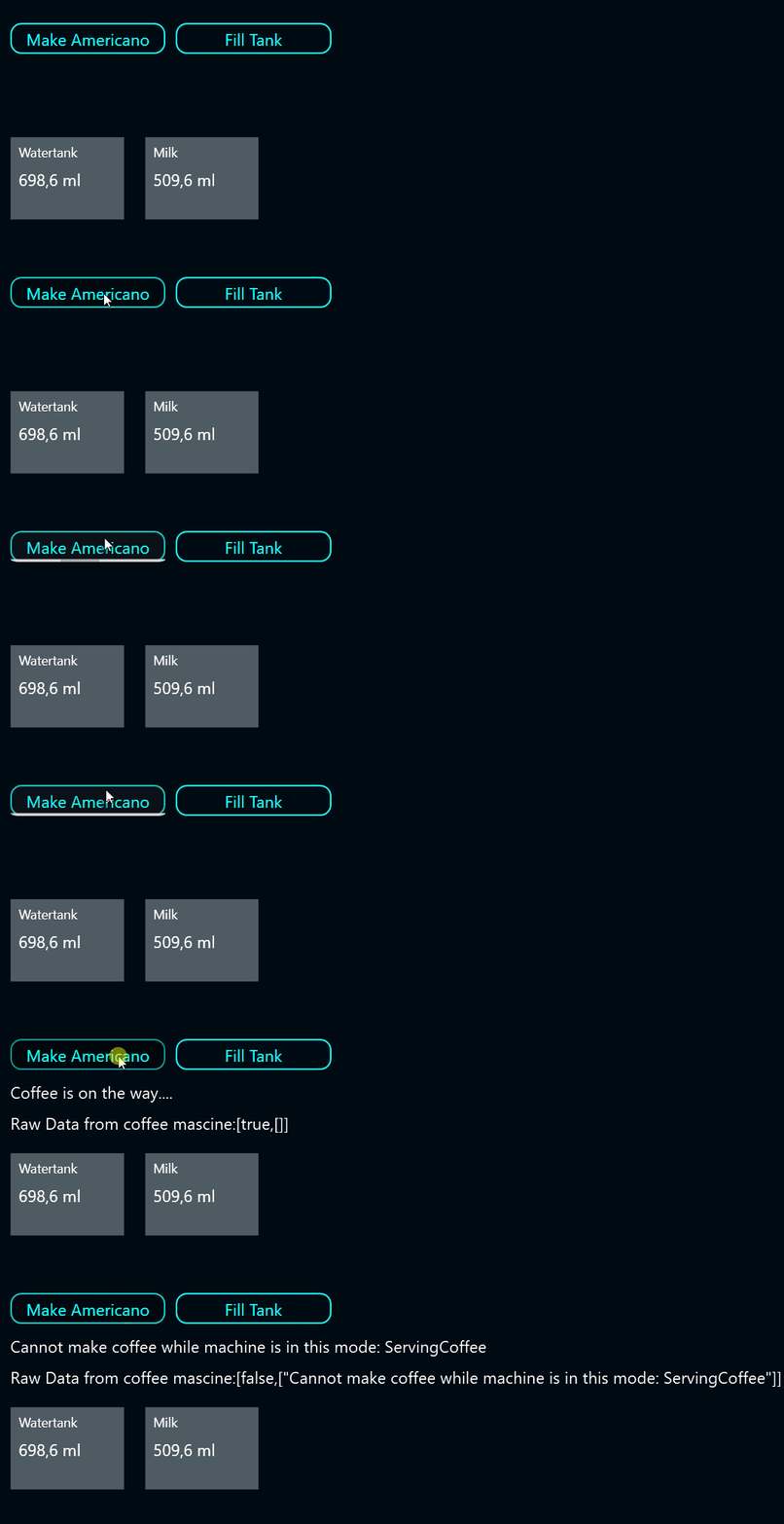
The video shows our coffee machine UI in action. With the first click, we get a positive response. But when we click a second time while the first process hasn’t finished yet, it refuses to start a new one. Even virtual coffee machines need a break!