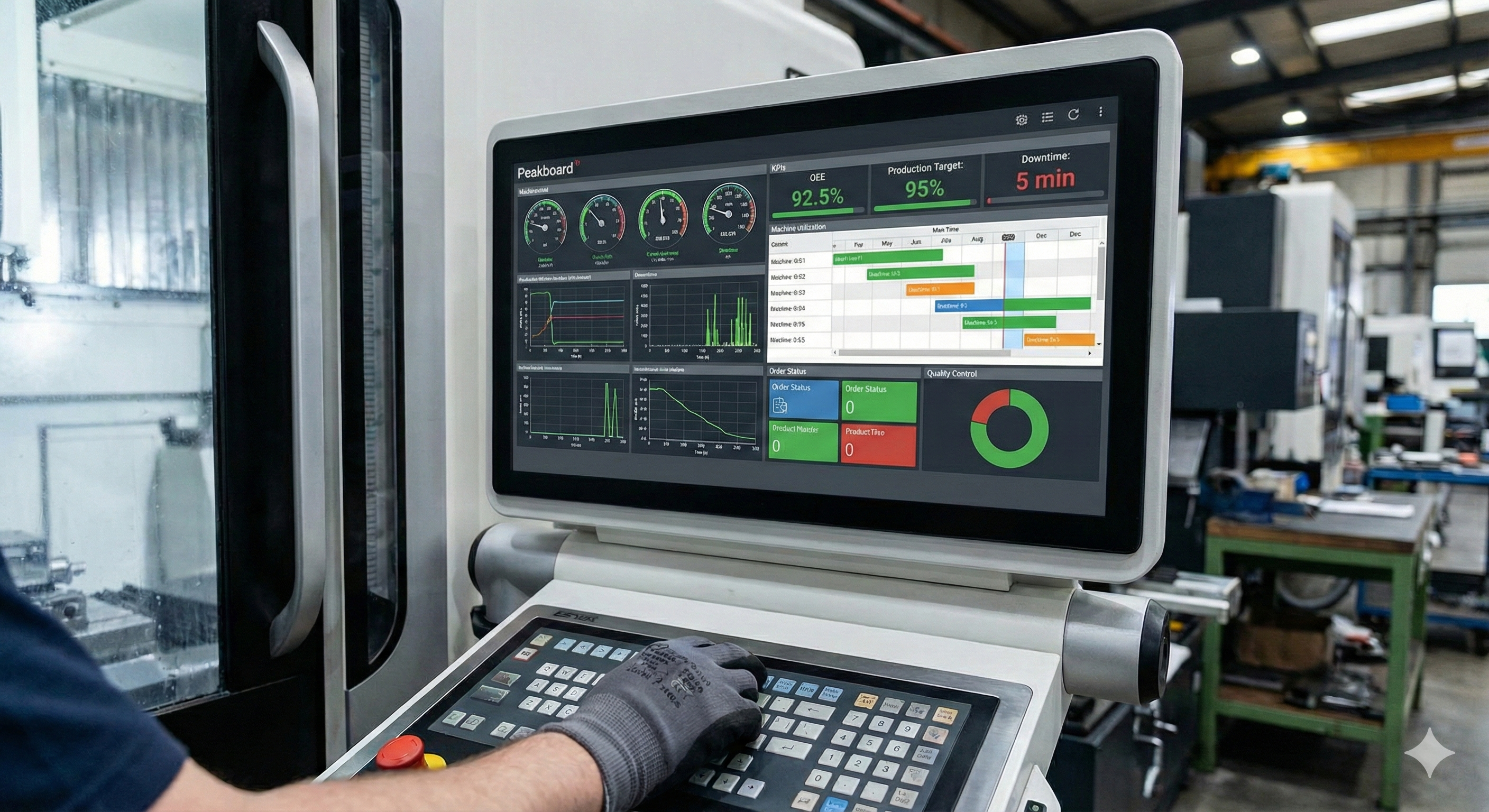
Peakboard applications are designed to run on tablets, on a Peakboard Box connected to a touch screen, or on other industrial PCs. In all of these scenarios, they are typically the sole application on the machine, running in full screen mode. The user usually doesn’t know or see that there is a Windows OS in the background that actually allows multiple Windows apps on a single desktop. In this article, we will discuss how to use a Peakboard application on a Windows desktop alongside other applications. This usage pattern is not very common, but it can come in handy for certain use cases.
Setup
To set up the runtime, we just use a regular BYOD installation as described in this article. The runtime can be launched like any other Windows application by running Peakboard.Runtime.WPF.exe. It can only be started once. After the runtime has booted, it shows the last activated application. If we want to switch between applications, we can simply double-click on a pbmx file in the Windows Explorer.
Besides the runtime itself, there are two Windows services: the Peakboard Management Service and the Peakboard Webserver. They are necessary to access the BYOD instance like any other Peakboard instance through the Designer or the Hub, both locally and remotely.
If we don’t need any kind of external control of the application through Hub or Designer, we can also stop the two Windows services and just run the runtime as a normal Windows executable.
Controlling the window
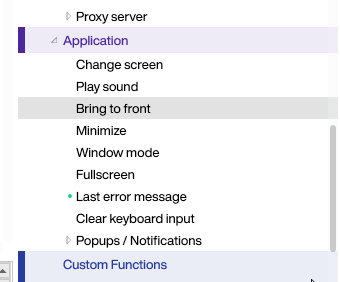
To gain control over the window of the Peakboard application, there are several Building Blocks available for switching the window between minimized, full screen, and window mode.
If we want the application to start in non-full-screen mode, we just place the corresponding Building Block into the activation script of the startup screen.
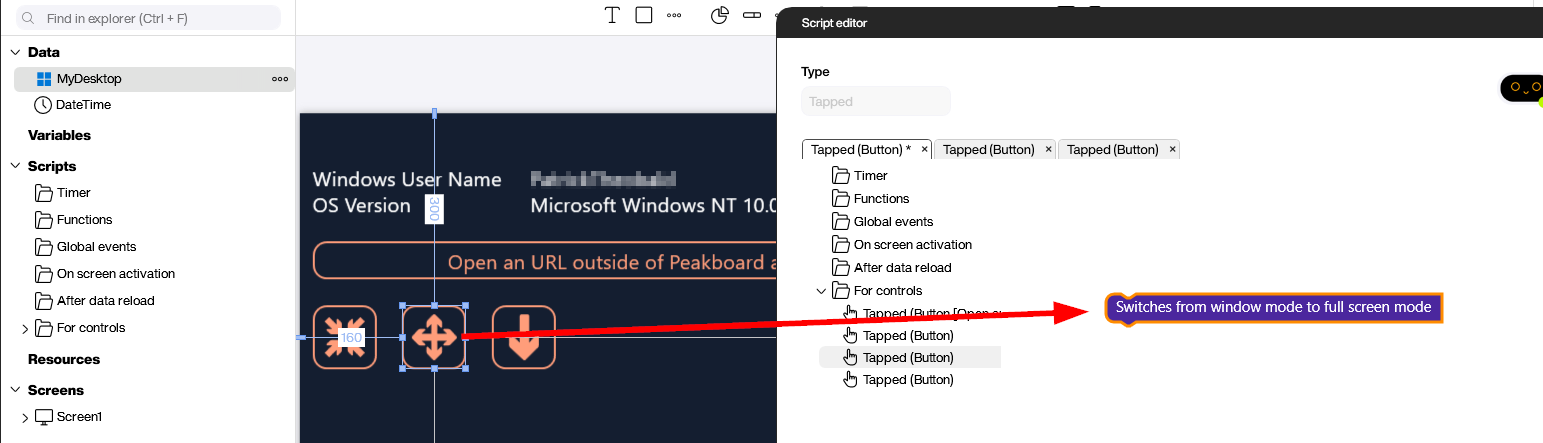
In case we need to bring the Peakboard application to the foreground, there is also a corresponding Building Block for that.
The Desktop Toolbox extension
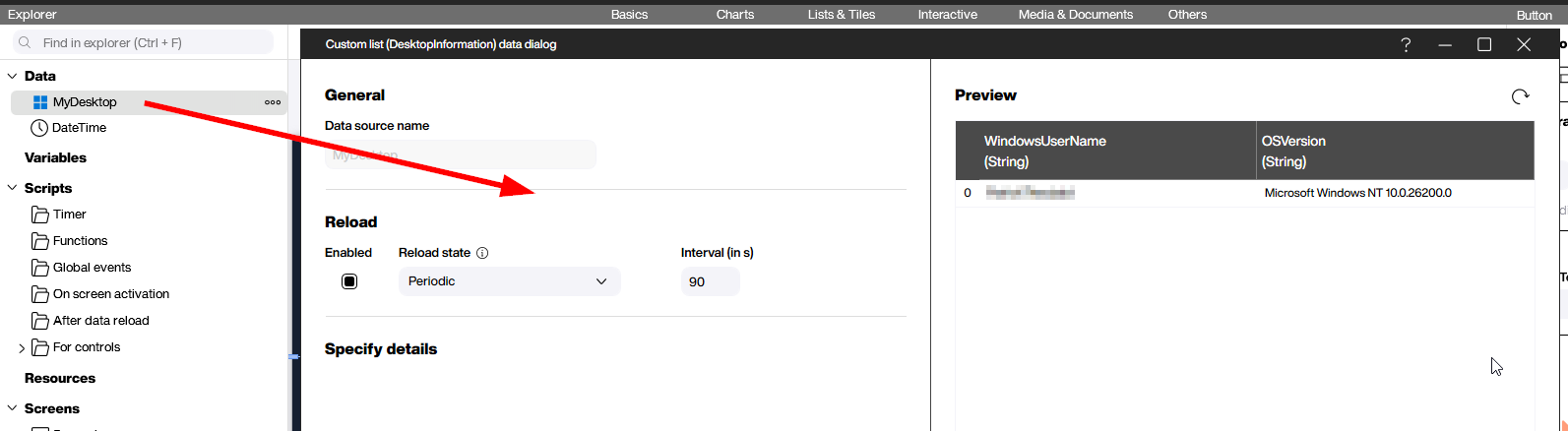
For getting more information about the operating system environment of the end user, we can use the Desktop Toolbox extension. As the name implies, it offers a set of tools and functions around the topic of using a Peakboard application alongside other applications. The data source itself provides the current Windows user name and the operating system version. More functions will probably be added in the future.
Opening a browser
For opening a browser outside of the Peakboard application, we can use the corresponding custom function of the Desktop Toolbox extension.
For more custom functions that are available in the toolbox, check out the GitHub documentation for this extension: Desktop Toolbox Extension on GitHub.
