
This article is part three of our custom Peakboard extensions series:
- Part I - The Basics
- Part II - Parameters and User Input
- Part III - Custom-made Functions
- Part IV - Event-triggered data sources
In the first part of this series, we explained the basics of custom Peakboard extensions. We built a simple Peakboard extension called MeowExtension, by creating two classes in .NET:
- One for specifying the extension metadata.
- One for defining the Cat List data source.
In the second part of this series, we explained how to add configuration options to a custom data source. We added options like IsItARealCat and Age to our Cat List data source.
In today’s article, we’ll explain how to create functions for a custom data source.
Before continuing, make sure that you have read part one and part two of this series. This article won’t make sense otherwise. You can also take a look at the final code for this article, on GitHub.
Custom data source functions
A data source can provide functions, to let us do things beyond simple data querying.
For example, the built-in SQL data source lets us read data from a SQL database. But what if we want to insert data into a database instead? In that case, we would use the Run SQL query function. This function is provided by the SQL data source and it lets us run an arbitrary SQL command.
The goal for today’s article is to add three functions to our Cat List data source:
AddMyNumbers, which returns the sum of two numbers.PrintMyTableToLog, which prints a table to log.GetACat, which returns the data for a cat named Tom.
Each of these functions demonstrates a different concept about custom data source functions. By the end, you’ll understand how to add and use custom data source functions with different parameter and return types.
Create a simple function
First, let’s learn the basics of custom functions. To do this, we’ll add a simple function called AddMyNumbers to our Cat List data source. This function takes in two numbers and returns their sum.
To add a function to a data source, we do the following:
- Declare the function in the data source’s
Functionsfield. This step specifies the name, parameters, and return type of the function. - Define the function in the
ExecuteFunctionOverridefunction. This step provides the implementation for the function.
Declare the function
To declare the function, we add a Functions field to our CustomListDefinition, inside GetDefinitionOverride(). The Functions field is a collection that contains all the function declarations for our data source (but right now, we’re only adding our first function).
protected override CustomListDefinition GetDefinitionOverride()
{
    return new CustomListDefinition
    {
        ID = "CatCustomList",
        // ...

        // List of function declarations.
        Functions = new CustomListFunctionDefinitionCollection
        {
            // The first function declaration.
            new CustomListFunctionDefinition
            {
                Name = "AddMyNumbers",
                Description = "Adds two numbers",
                InputParameters = new CustomListFunctionInputParameterDefinitionCollection
                {
                    new CustomListFunctionInputParameterDefinition
                    {
                        Name = "FirstNumber",
                        Type = CustomListFunctionParameterTypes.Number,
                        Description = "The first number to be added"
                    },
                    new CustomListFunctionInputParameterDefinition
                    {
                        Name = "SecondNumber",
                        Type = CustomListFunctionParameterTypes.Number,
                        Description = "The first number to be added"
                    }
                },
                ReturnParameters = new CustomListFunctionReturnParameterDefinitionCollection
                {
                    new CustomListFunctionReturnParameterDefinition
                    {
                        Name = "Result",
                        Type = CustomListFunctionParameterTypes.Number,
                        Description = "The result of the addition"
                    }
                }
            }
            // If we had more functions, we would add the declarations here.
        }
    };
}
Define the function
To define our function, we override ExecuteFunctionOverride(). Our data source’s functions are all routed through GetDefinitionOverride(). We use an if statement to separate the different function implementations. (But right now, we only have one function.)
To get the arguments for our function, we use context.Values[i].GetValue(), where i = 0 is the first argument, i = 1 is the second argument, etc.
To return something, we wrap the return value in a CustomListExecuteReturnContext object. Then, we return that CustomListExecuteReturnContext.
protected override CustomListExecuteReturnContext ExecuteFunctionOverride(CustomListData data, CustomListExecuteParameterContext context)
{
    // If the function is `AddMyNumbers`...
    if (context.FunctionName.Equals("AddMyNumbers", StringComparison.InvariantCultureIgnoreCase))
    {
        // Get the arguments.
        Double FirstNumber = (Double)context.Values[0].GetValue();
        Double SecondNumber = (Double)context.Values[1].GetValue();

        // Wrap the return value inside a CustomListExecuteReturnContext.
        var returncontext = new CustomListExecuteReturnContext();
        returncontext.Add(FirstNumber + SecondNumber);

        return returncontext;
    } // If we had more functions, we would add additional `else if (...)` blocks here.
    else
    {
        throw new DataErrorException("Function is not supported in this version.");
    }
}
Use the function
Now, we rebuild our extension, and our custom function is ready to be used in Peakboard Designer.
However, custom data source functions do not appear as standalone Building Blocks (unlike built-in data source functions). So in order to run a custom function, we need to use one of these custom-function-runner Building Blocks:
- Run function
- Run function with return value
In our case, AddMyNumbers has a return value, so we use the Run function with return value Building Block. To use the block, we select our data source and custom function, and we enter the arguments for the function:

Create a function with a table parameter
Next, let’s create a function with a table parameter. We’ll create a function called PrintMyTableToLog, which accepts a table and prints that table to log.
Declare the function
In the function declaration, we set the parameter type to CustomListFunctionParameterTypes.Collection:
new CustomListFunctionDefinition
{
    Name = "PrintMyTableToLog",
    InputParameters = new CustomListFunctionInputParameterDefinitionCollection
    {
        new CustomListFunctionInputParameterDefinition
        {
            Name = "MessageTable",
            Type = CustomListFunctionParameterTypes.Collection,
            Description = "A table containing messages"
        }
    }
},
Define the function
In the function definition, we use context.Values[0].CollectionValue to get the table argument. Then, we iterate through the rows of the table and print them to log.
else if (context.FunctionName.Equals("PrintMyTableToLog", StringComparison.InvariantCultureIgnoreCase))
{
    CustomListObjectElementCollection MyTab = context.Values[0].CollectionValue;

    foreach(CustomListObjectElement row in MyTab)
    {
        this.Log.Info($"{row["MessageType"]}: {row["Message"]}");
    }

    return new CustomListExecuteReturnContext();
}
Use the function
To use this function in a script, we need to use LUA. This is because Building Blocks does not currently support table parameters (as of January 2026). However, the LUA code is pretty simple.
For our demo script, we create a table literal called MyTab. Then, we call our PrintMyTableToLog function, passing in MyTab as the argument.
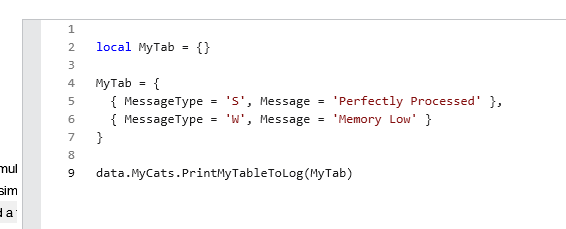
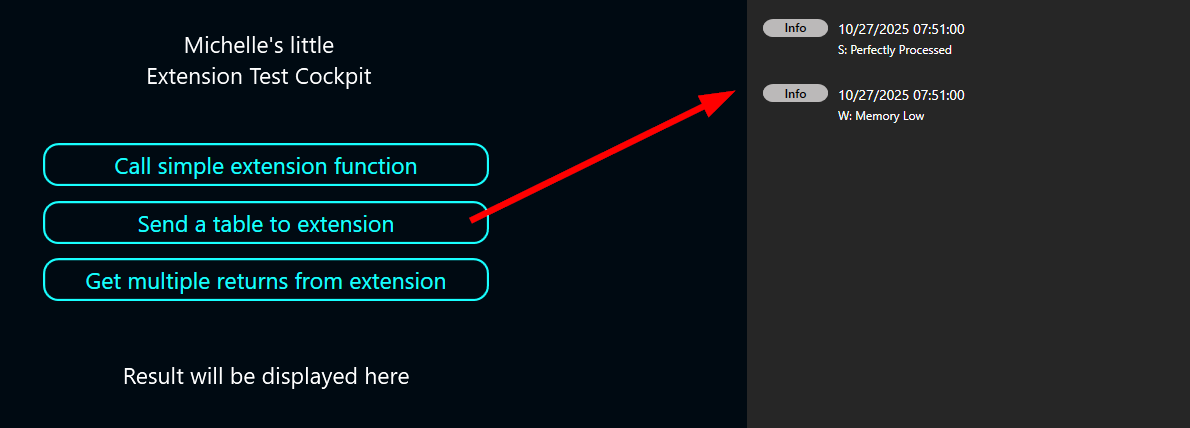
Next, we bind our script to a button’s tapped event. Then, when we tap the button, the script prints our MyTab table to log:
Create a function that returns an object
Now, let’s create a function that returns an object. We’ll create a function called GetACat, which returns a cat object. The function doesn’t accept any parameters and the cat object it returns is always the same (just to keep things simple).
Declare the function
In the function declaration, we set the return type to CustomListFunctionParameterTypes.Object:
new CustomListFunctionDefinition
{
    Name = "GetACat",
    ReturnParameters = new CustomListFunctionReturnParameterDefinitionCollection
    {
        new CustomListFunctionReturnParameterDefinition
        {
            Name = "Result",
            Type = CustomListFunctionParameterTypes.Object,
            Description = "A cat object is returned"
        }
    }
}
Note: If you want to return a table instead, then use CustomListObjectElementCollection, like in our PrintMyTableToLog function.
Define the function
In the function definition, we create a CustomListObjectElement instance and set the Name and Age fields:
else if (context.FunctionName.Equals("GetACat", StringComparison.InvariantCultureIgnoreCase))
{
    var item = new CustomListObjectElement();
    item.Add("Name", "Tom");
    item.Add("Age", 7);

    var returncontext = new CustomListExecuteReturnContext();
    returncontext.Add(item);

    return returncontext;
}
Use the function
To use this function in a script, we again need to use LUA. We create this demo script:
- Call the
GetACatfunction and store the return value inMyCat(a generic LUA object variable). - Display the name and age fields of
MyCaton screen.

Here’s what the script looks like in action:

Conclusion
Custom data source functions are easy to understand and implement, once you understand the basic principles behind them. You can even make functions with complex parameters and return types, like objects and tables!
And remember, if you want to see how all our code fits together, check out our GitHub!