
The Peakboard Hub Public API is the remote-control layer of the Hub. It lets us read and write lists, send alerts, push variables, trigger Building Block functions on a Box, and more, all from the outside, all over plain HTTPS. We have already covered the basics in this blog: how to get an API key and a JWT in Cracking the code - Part I, how to invoke remote functions in Part II, and how to read and write Hub lists in Part III. Power BI integration and the Azure Logic Apps walkthrough live one step away from those.
Since June there is a fresh release of the Hub API, and two of the additions are big enough to warrant their own walkthroughs: a brand new endpoint that returns a live screenshot of a running Box, and a complete FileManagement area that lets us upload, version, download and delete files on the Hub. The full Swagger UI lives at api.peakboard.com/public-api. The version selector in the top right of the page lets us switch between the V1 and V2 spec documents.
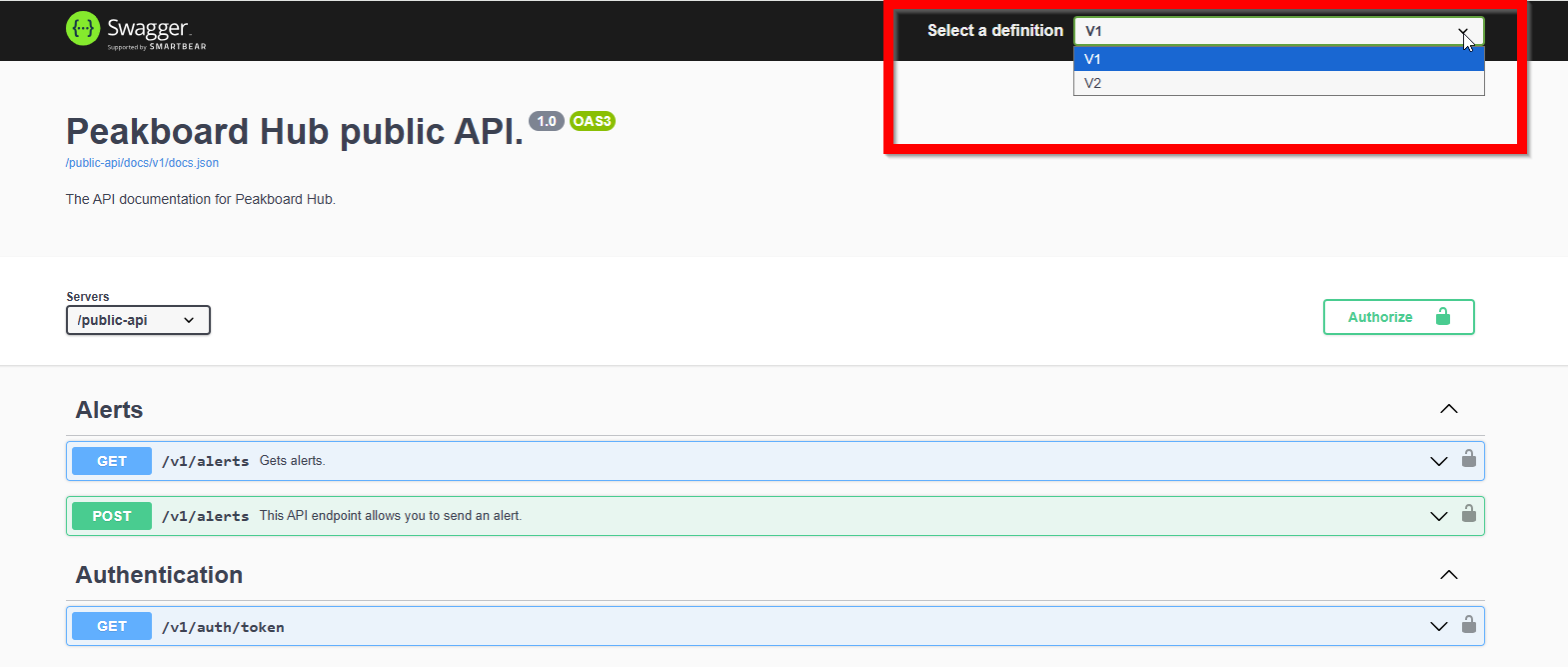
Before we look at the new endpoints, one small thing about authentication: the new GET /v2/auth/token returns a structured payload with both an accessToken and a validUntil timestamp, instead of the bare token string we got from the old /v1/auth/token. The token is still passed as Authorization: Bearer <accessToken> on every other call. Both samples in this article use the v2 auth flow and read the API key from a PEAKBOARD_API_KEY environment variable so it never lands in source control. In PowerShell we set the variable for the current session like this:
$env:PEAKBOARD_API_KEY = "<your-api-key>"This is the line we actually want most of the time. The variable is alive for as long as the shell window is alive, and any process we spawn from that shell inherits it. On bash or zsh the equivalent is export PEAKBOARD_API_KEY=<your-api-key>. Worth being explicit about one Windows gotcha: setx PEAKBOARD_API_KEY "<your-api-key>" writes the value to the user profile so it survives a reboot, but it does not populate it in the current shell. New shells inherit it, the one we ran setx in does not. Mixing those two up is the most common reason “I set the variable, but the script still says it cannot find it”.
Snapshotting a running Box
The new screenshot endpoint is the kind of thing that sounds small but unlocks a whole class of use cases: a single GET against https://api.peakboard.com/public-api/v1/box/screenshot?boxId=<id> returns the current frame of the running application on that Box as a PNG. We can use it to embed a live preview of a shop-floor dashboard in a ticketing tool, to attach a screenshot to a Hub alert, or to wire up an automated visual regression sanity check.
One small wrinkle to know about: the endpoint returns the PNG as a base64-encoded string with Content-Type: text/plain, not as a raw binary PNG. If we just write the response body straight to a file, the result is an unreadable text file that starts with iVBORw0KGgo.... We have to base64.b64decode the response text first, and then we get the actual PNG bytes.
The Python sample below (hub-screenshot.py) is everything we need end to end: it pulls an access token from the v2 auth endpoint, calls the screenshot endpoint with the box id we pass on the command line, decodes the base64 payload, and writes the PNG to disk.
BASE = "https://api.peakboard.com/public-api"

def get_token(api_key: str) -> str:
    r = requests.get(f"{BASE}/v2/auth/token", headers={"apiKey": api_key}, timeout=30)
    r.raise_for_status()
    return r.json()["accessToken"]

def fetch_screenshot(token: str, box_id: str) -> bytes:
    # The endpoint returns the PNG as a base64-encoded string with
    # Content-Type text/plain, so we decode r.text before returning.
    r = requests.get(
        f"{BASE}/v1/box/screenshot",
        params={"boxId": box_id},
        headers={"Authorization": f"Bearer {token}"},
        timeout=60,
    )
    r.raise_for_status()
    return base64.b64decode(r.text)
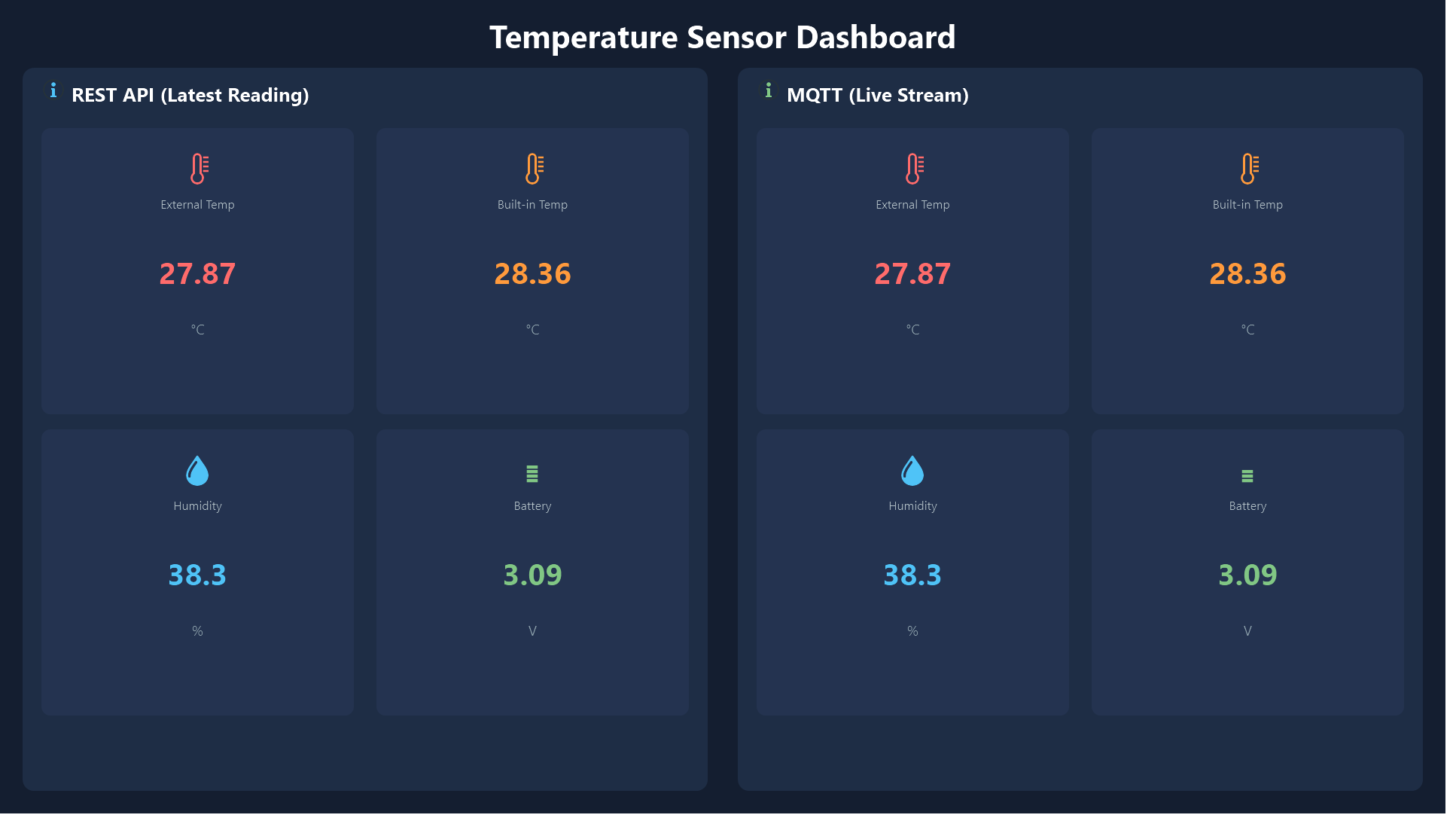
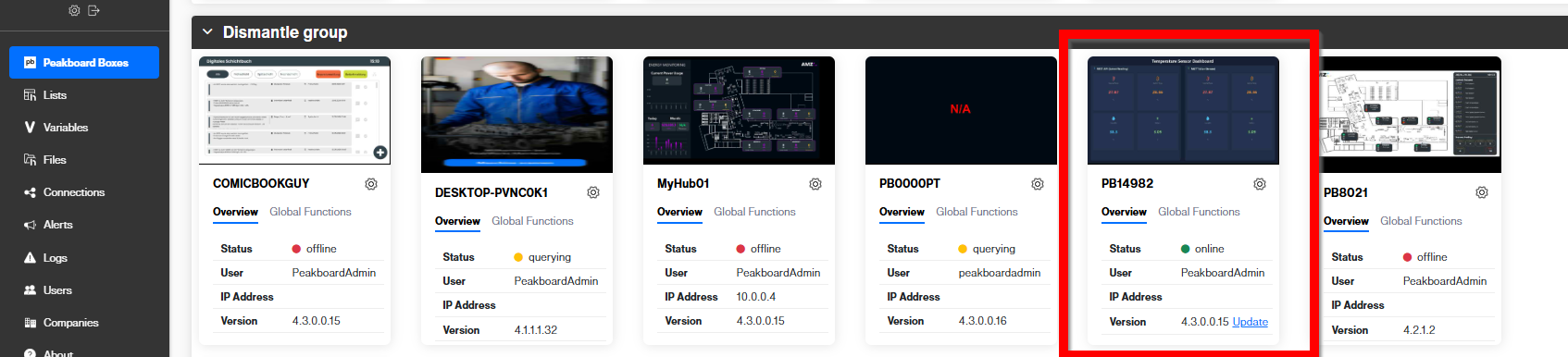
We run it with PEAKBOARD_API_KEY=<key> python hub-screenshot.py <box-id> screenshot.png and end up with a fresh screenshot.png of the actual running display. To prove this really is a live frame and not a cached image, we can compare the result against the same Box’s thumbnail in the Hub UI: both show the same dashboard layout, the same KPI tiles, the same colours.
Files in, files out
The second big addition is a FileManagement area that gives the API the same notion of files and version history that the Hub UI already exposes. There are six endpoints altogether: list a folder, upload a new file, fetch metadata and version history of a file, download the active version, push a new version, and delete the file. All of them are protected by the same bearer token as everything else.
A couple of things are worth noting before we touch the API: path conventions are asymmetric (listing uses a leading slash, uploading does not), POST /v1/files returns an empty body, so we have to re-list the folder to learn the new headId of the file we just uploaded, and the PUT that adds a new version expects the uploaded file’s filename to match the existing head’s filename exactly. We learned these the hard way; the C# sample below codes them in so we do not have to.
The C# sample HubFiles.cs is a single-file dotnet console app that targets the dismantle folder on the Hub. It exposes three subcommands - list, upload and download - which is enough to demonstrate the full round trip.
async Task UploadAsync(string localPath)
{
    using var content = new MultipartFormDataContent
    {
        { new StringContent(Folder), "Path" },
        { new StringContent("hub-cs-sample"), "Username" },
    };
    var fileBytes = await File.ReadAllBytesAsync(localPath);
    content.Add(new ByteArrayContent(fileBytes), "File", Path.GetFileName(localPath));

    var resp = await http.PostAsync($"{Base}/v1/files", content);
    resp.EnsureSuccessStatusCode();
}

async Task DownloadAsync(long headId, string outPath)
{
    var bytes = await http.GetByteArrayAsync($"{Base}/v1/files/{headId}/download");
    await File.WriteAllBytesAsync(outPath, bytes);
}
A typical end-to-end session looks like this:
$ dotnet run -- upload   ./notes.txt
Uploaded ./notes.txt to /dismantle (use `list` to find the new headId).
$ dotnet run -- list
headId  size      name
1301    596       notes.txt
$ dotnet run -- download 1301 ./roundtrip.txt
Wrote 596 bytes to ./roundtrip.txt
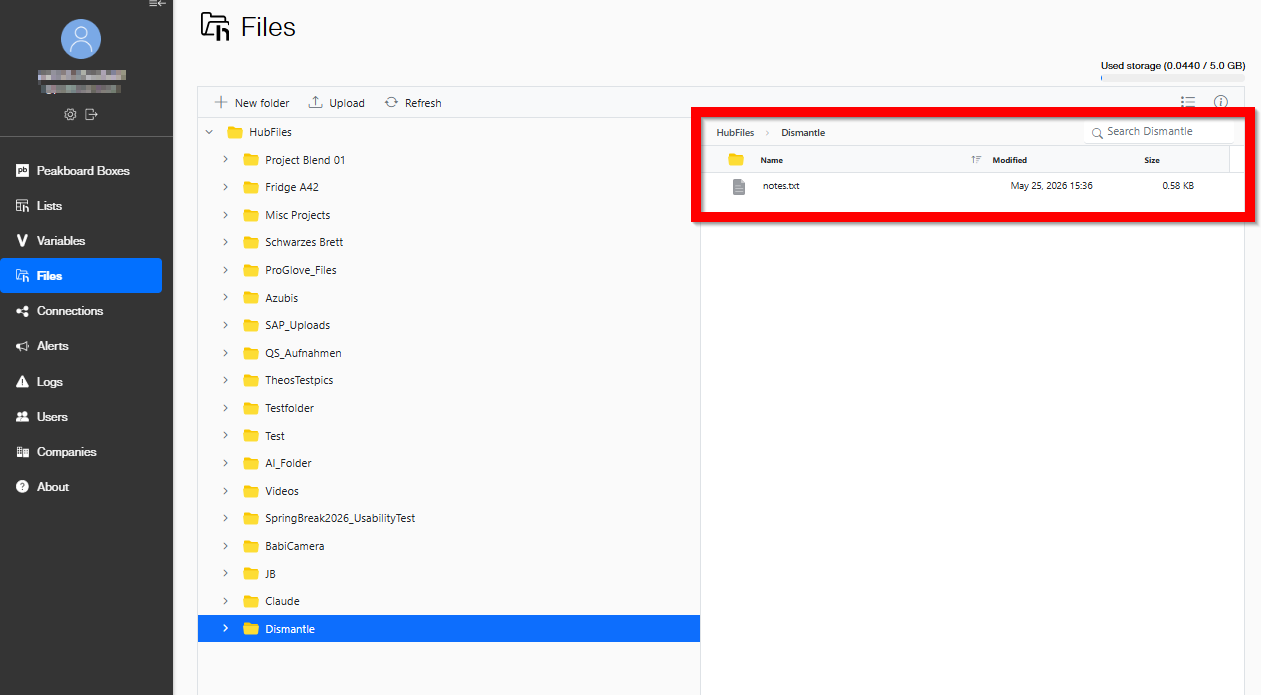
If we open the Hub UI right after the upload, we see the file appear in the Dismantle folder, with the same name and size we just saw on the command line. Useful as a sanity check, and proof that the API really does write through to the same storage the Hub UI is showing.
Both samples deliberately keep the surface area small so the moving parts of the API stay visible. From here we can wrap them up in a proper client library, schedule them in a background worker, or hook them into our existing Hub Flows.