Almost every Peakboard application that shows tabular data eventually needs a way to filter it. A shop floor terminal that lists open work orders, a warehouse dashboard that shows pending shipments, a service desk view that lists open tickets - sooner or later somebody asks “can we narrow this down by date, by status, by line, by customer?” and we are in the business of building a search form. In this article we look at two fundamentally different ways of doing exactly that, and the choice between them matters more than it might seem at first.
The first approach is to filter data that is already loaded into the application. The full result set lives in a list inside the Peakboard project, and once the user fills in the search form and clicks the filter button, we only change which rows we display. No round-trip to a database or API is involved. The second approach is to push the filter all the way through to the source system, so pressing the filter button triggers a new query against SQL Server, an API, or whatever backend we are using, and the application only sees the rows that match the filter. The rule of thumb is simple: the first approach works well for a limited and reasonably small number of records that we can comfortably hold in memory on the Box, while the second approach scales to an essentially unlimited number of records, because the heavy lifting stays on the source system. Both have their place, and we will build a small demo for each so we can see them side by side.
Filtering local data
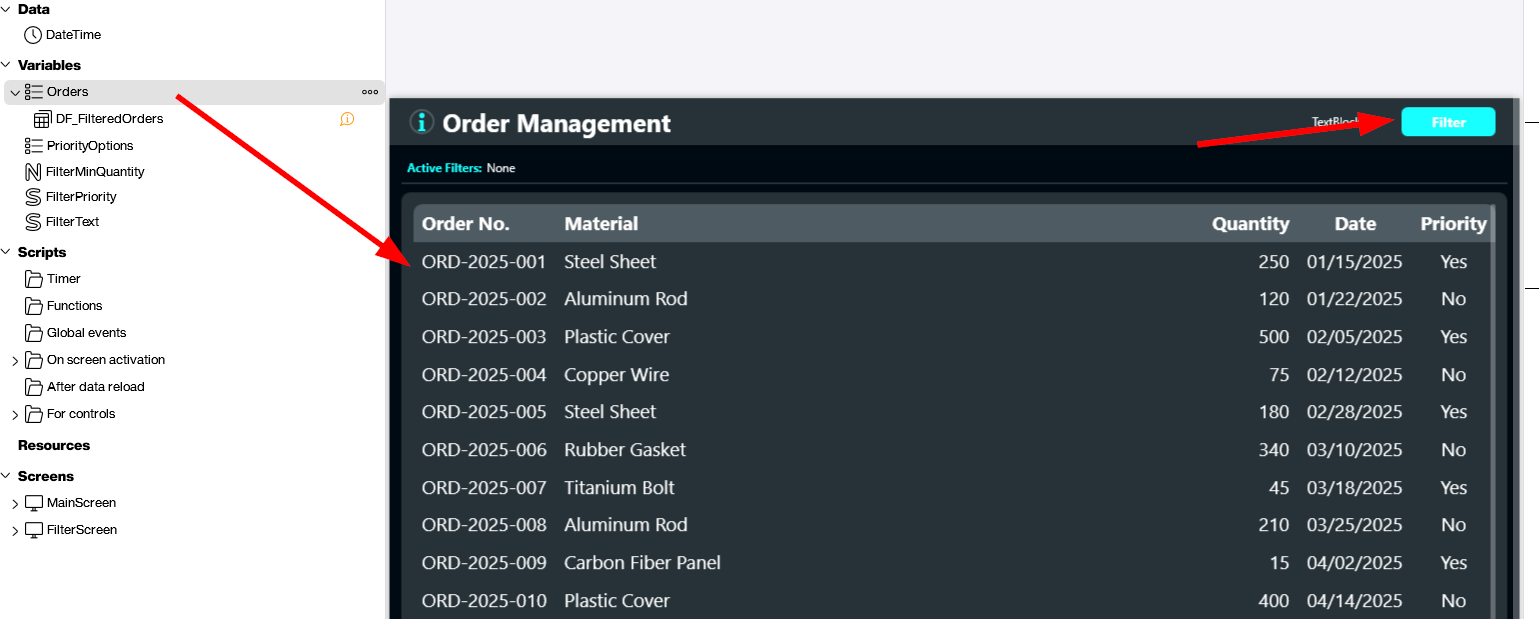
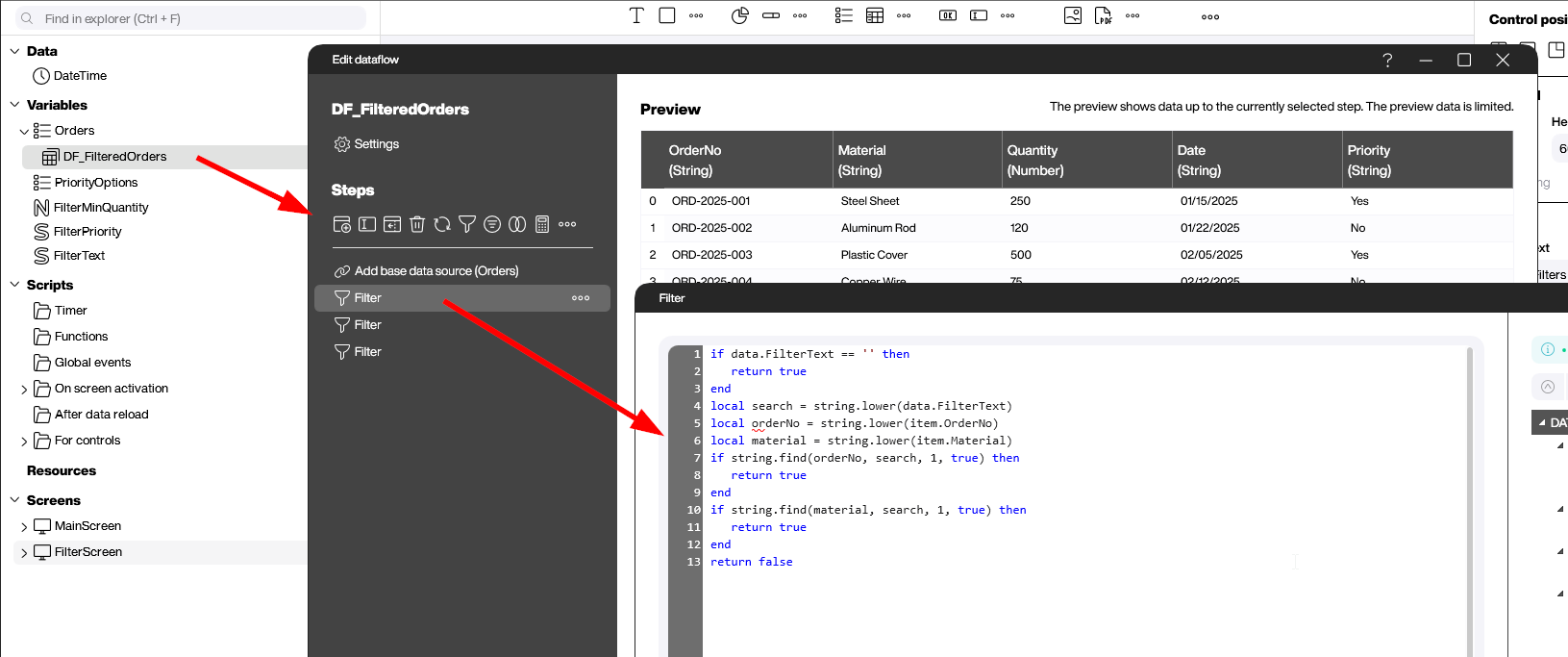
The full sample for this section is available as SearchFormLocalData.pbmx at the top of the article. In our first demo, the data lives entirely inside the application. We use a variable list called Orders that contains a couple of dozen order rows with columns for order number, material, quantity, date and priority. It could just as well be a static Excel file, a fixed CSV, or any other non-dynamic data source. The important point is that the whole result set is already in memory by the time the user opens the screen. Right next to Orders we also see DF_FilteredOrders, which is the data flow that the order table on the main screen is actually bound to. Whenever this data flow runs, the table on the right refreshes with the filtered result.
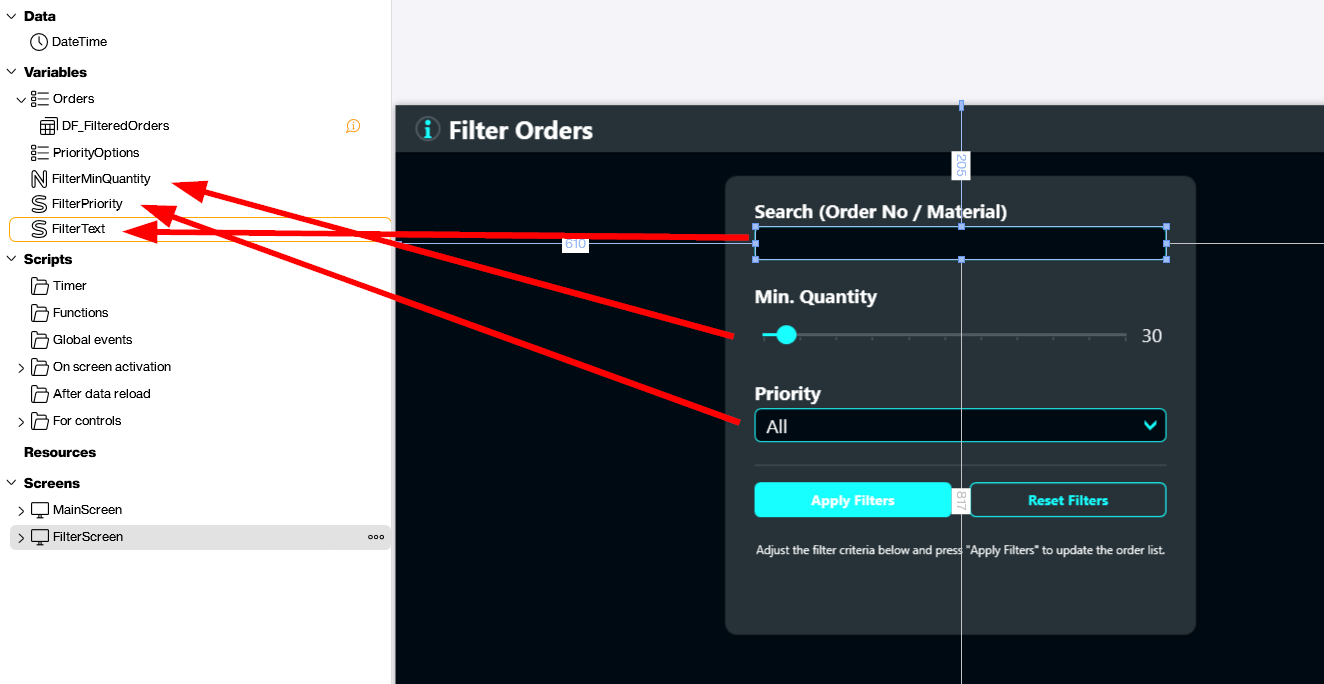
The filter form itself lives on a separate screen. Each input control on this screen is bound to its own variable: the search text box writes into FilterText, the quantity slider writes into FilterMinQuantity, and the priority dropdown writes into FilterPriority. The “Apply Filters” button does not contain any business logic at all. It only triggers the DF_FilteredOrders data flow and switches back to the main screen. All of the actual filtering work happens inside the data flow.
When we open DF_FilteredOrders, we see the Orders list as the base data source and one Filter step per filter criterion stacked on top of it. The interesting one is the text filter, because a single search box is expected to match across more than one column: the user might type an order number, but they might just as well type a material name. The small Lua snippet inside the step lowercases both the search term and the candidate columns, returns true immediately if the search text is empty, and otherwise returns true as soon as the term shows up in either the order number or the material. If we prefer not to write any code at all, the exact same logic can be expressed with Building Blocks instead.
Filtering on the source system
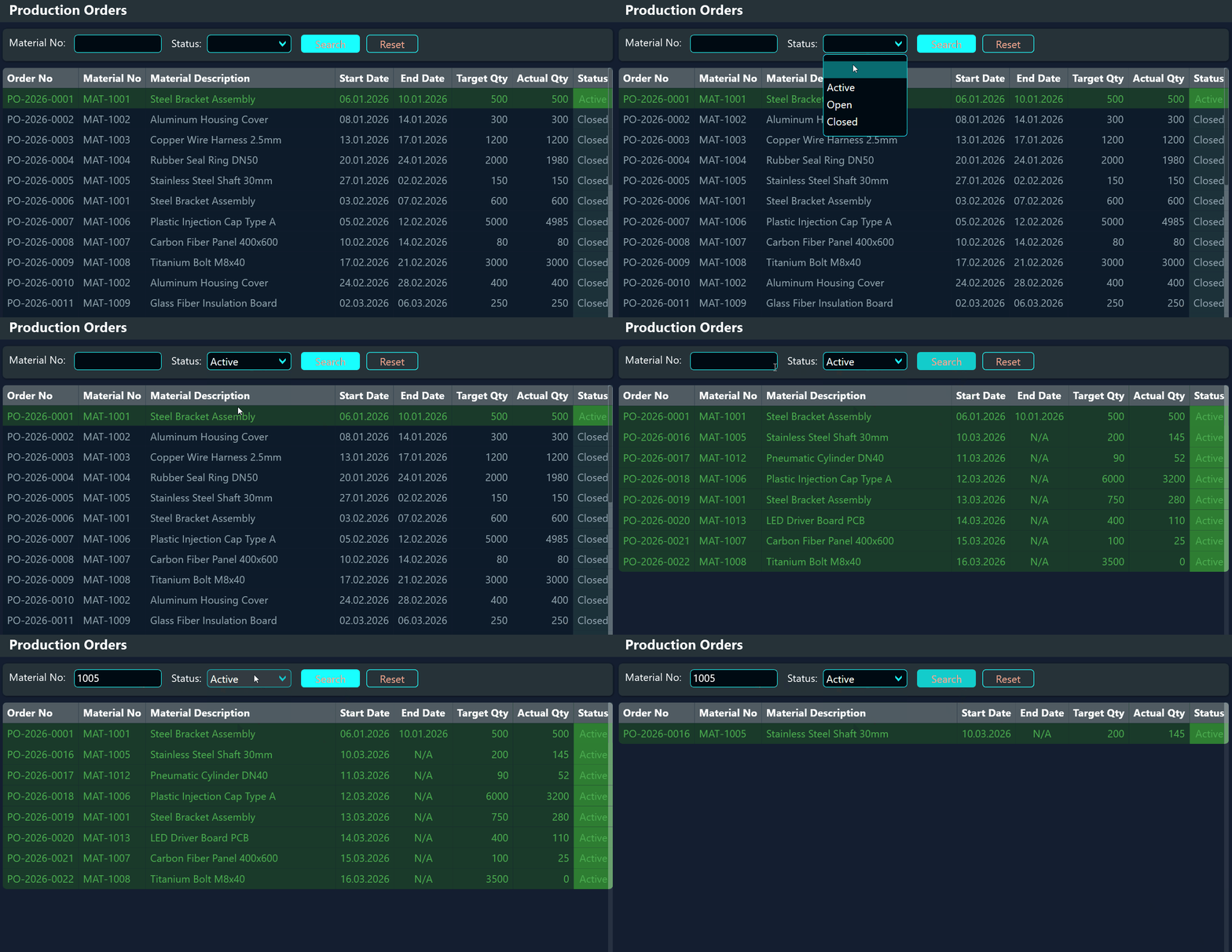
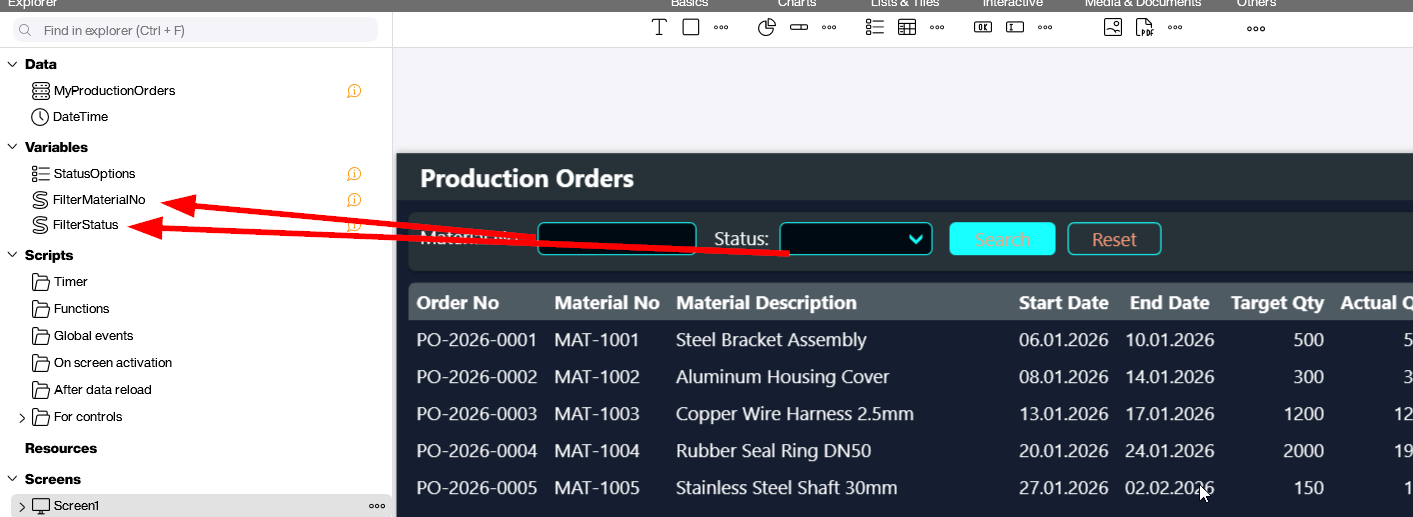
The full sample for this section is available as SearchFormRemoteData.pbmx at the top of the article. The setup looks superficially similar to the local case. We have a Production Orders screen with a Material No text box and a Status dropdown at the top, each control is bound to a variable (FilterMaterialNo and FilterStatus), and there is a Search button next to them. The crucial difference is that the table on this screen is not bound to a local list. It is bound directly to a SQL Server data source called MyProductionOrders, and the Search button does only one thing: it triggers a reload of that data source.
When we look at MyProductionOrders we see a regular SQL Server connection, but the statement is not a static piece of SQL. It is generated by a small Lua script that runs every time the data source is reloaded. The script starts with a base query and then appends an additional WHERE clause for each filter variable that is actually filled, which keeps the database from having to scan unnecessary rows.
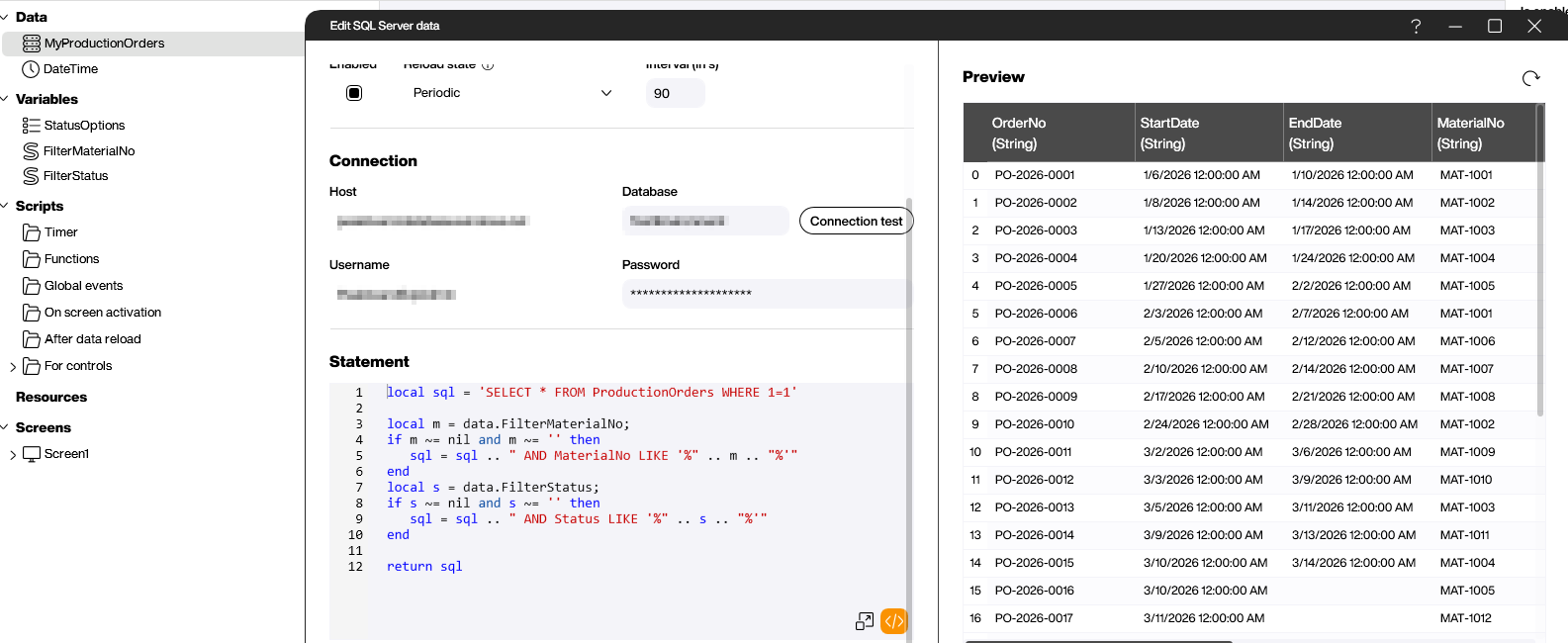
Here is the full script for reference:
local sql = 'SELECT * FROM ProductionOrders WHERE 1=1'

local m = data.FilterMaterialNo;
if m ~= nil and m ~= '' then
   sql = sql .. " AND MaterialNo LIKE '%" .. m .. "%'"
end
local s = data.FilterStatus;
if s ~= nil and s ~= '' then
   sql = sql .. " AND Status LIKE '%" .. s .. "%'"
end

return sql
The WHERE 1=1 trick is the convenient part: it lets us append every condition with AND without having to remember whether we already wrote the first WHERE. The result is a query that grows naturally with the filters that the user has filled in, while the actual matching work stays on SQL Server, which is exactly where it belongs for large tables.
The final piece is what this looks like at runtime. The user types a material number, picks a status, hits Search, and Peakboard rebuilds the SQL, fires it against the database and rebinds the table. The matching rows fade in with no perceptible delay.