
In our last SAP DMS article, we pulled technical drawings out of the SAP Document Management System and put them on a shop floor screen. That covers the reading side: the operator sees the current, released drawing for the part in front of them.
But the shop floor also produces documents. A quality inspector takes a photo of a part that passed or failed a check, a worker scans a signed inspection sheet, or a station generates a small report at the end of a batch. All of these belong in SAP, attached to the material they describe, so that anyone looking at that material later finds them right next to the drawing.
In this article, we turn the direction around. We build a function module that takes a document as a Base64 string, creates a document info record, links it to a material and checks the file into the SAP content server. Then we build a Peakboard application that uploads an inspection photo to whatever material number the user types in.
Why we need our own function module
The obvious first candidate is BAPI_DOCUMENT_CREATE2. It creates a document info record, and it can link it to a material in the same call. Its weak spot is the original file: it expects a path to a file on the application server or a frontend PC, not the content itself. A Peakboard box has no way to drop a file into an SAP file system.
The second candidate is CVAPI_DOC_CHECKIN. It can accept the file content as an internal table, which is exactly what we want. But it only checks an original into an existing document, and it expects the content as raw binary blocks rather than as text.
So we combine the two in a small RFC-enabled wrapper. Our function module receives the content as Base64 in lines of 255 characters, the same format our download module from the last article returns. It decodes the string, creates the document info record with the object link, and then checks the content in. One call from Peakboard, one new document in SAP.
Creating the function module in SAP
All steps happen in transaction SE37. If you want to skip the typing, the complete source code is available for download at the top of this article, but you still have to set up the interface as described below.
Step 1: Create the function module
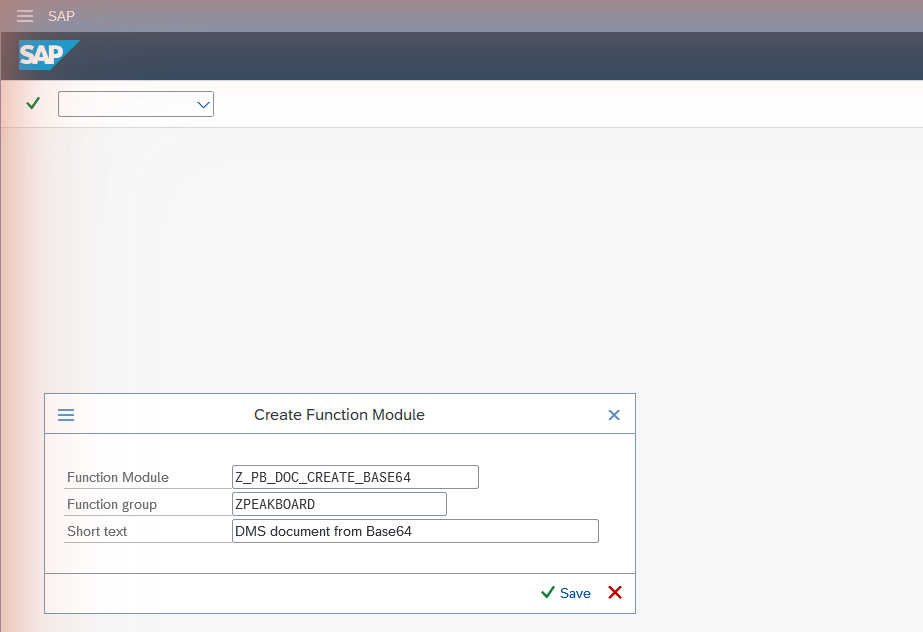
Enter the name Z_PB_DOC_CREATE_BASE64 and click Create. SAP asks for a function group and a short text. Any function group in your customer namespace works; we use ZPEAKBOARD, the same group as our download module. If your system asks for a transport request, assign the module to one.
Step 2: Make it remote-enabled
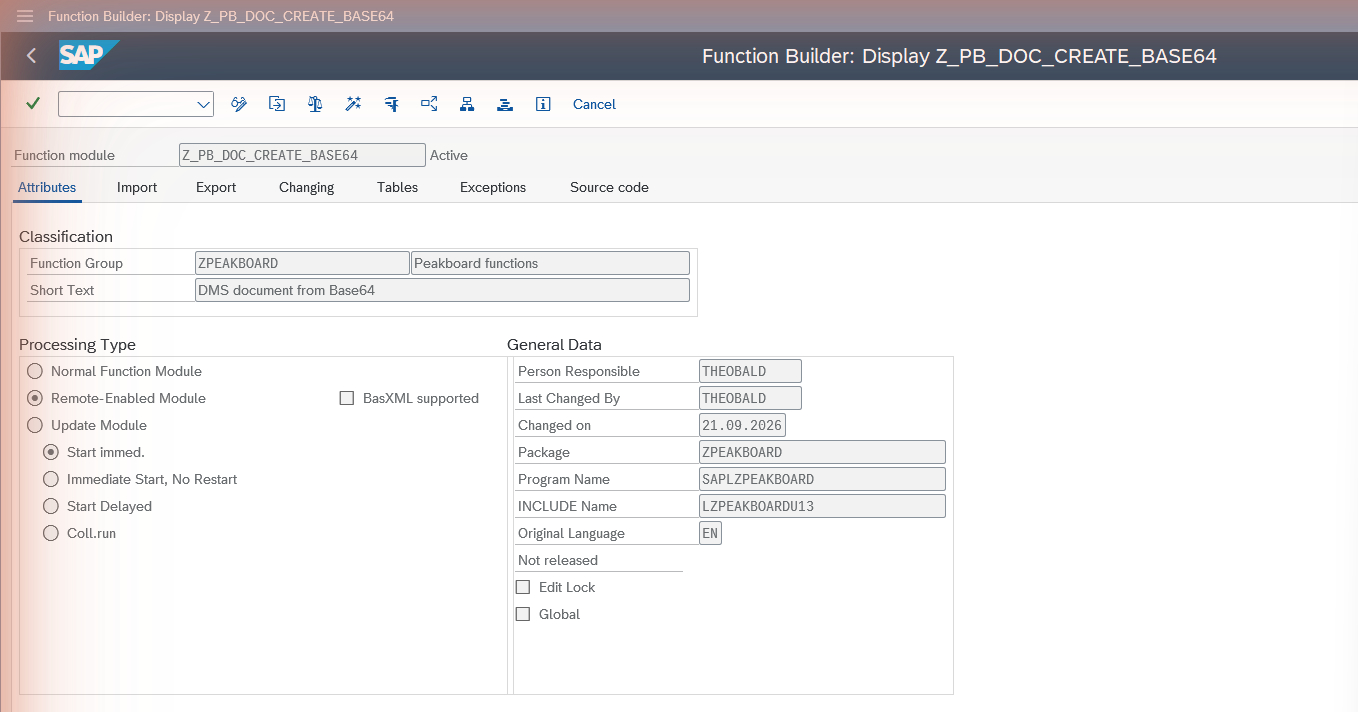
On the Attributes tab, set the processing type to Remote-Enabled Module. Without this setting, Peakboard can’t call the module over RFC. As a consequence, all import and export parameters must be passed by value, so tick Pass Value for every one of them in the next steps.
Step 3: Import parameters
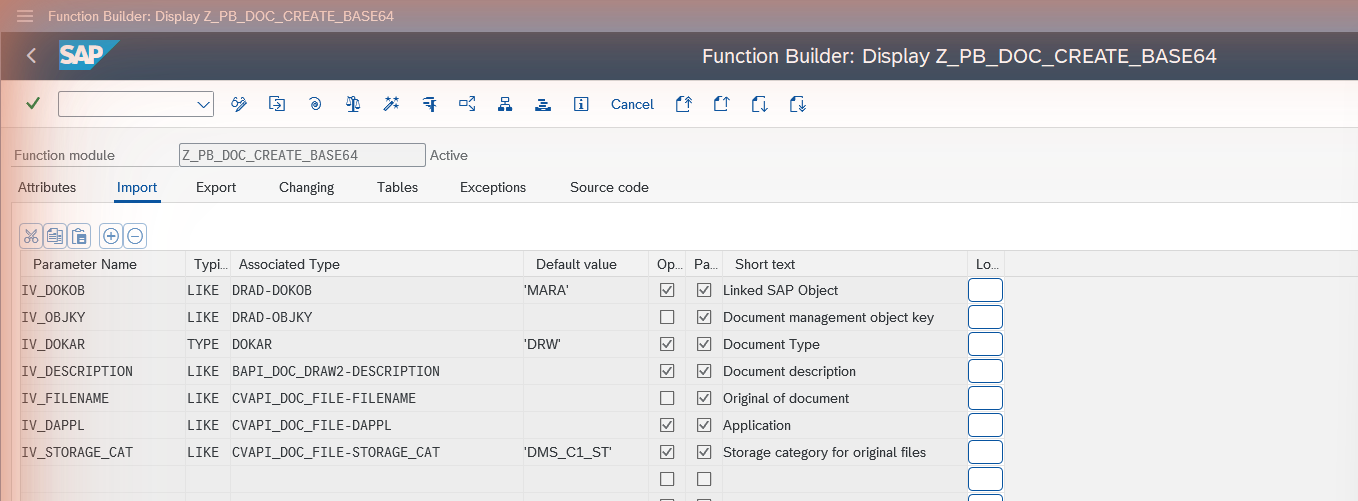
The import parameters tell the module where the document belongs and what it is called.
| Parameter | Typing | Associated type | Default | Optional |
|---|---|---|---|---|
IV_DOKOB |
LIKE | DRAD-DOKOB |
'MARA' |
yes |
IV_OBJKY |
LIKE | DRAD-OBJKY |
no | |
IV_DOKAR |
TYPE | DOKAR |
'DRW' |
yes |
IV_DESCRIPTION |
LIKE | BAPI_DOC_DRAW2-DESCRIPTION |
yes | |
IV_FILENAME |
LIKE | CVAPI_DOC_FILE-FILENAME |
no | |
IV_DAPPL |
LIKE | CVAPI_DOC_FILE-DAPPL |
yes | |
IV_STORAGE_CAT |
LIKE | CVAPI_DOC_FILE-STORAGE_CAT |
'DMS_C1_ST' |
yes |
IV_DOKOB and IV_OBJKY identify the business object: MARA plus a material number for a material, but an equipment or a customer works the same way. IV_DOKAR is the document type of the new record. IV_FILENAME is the name the file gets in SAP, and its extension is also used to determine the workstation application (.pdf becomes PDF, .jpg becomes JPG) unless you pass IV_DAPPL explicitly. IV_STORAGE_CAT is the storage category on the content server. Check the categories that are set up in your system; DMS_C1_ST is the SAP standard.
Step 4: Export parameters
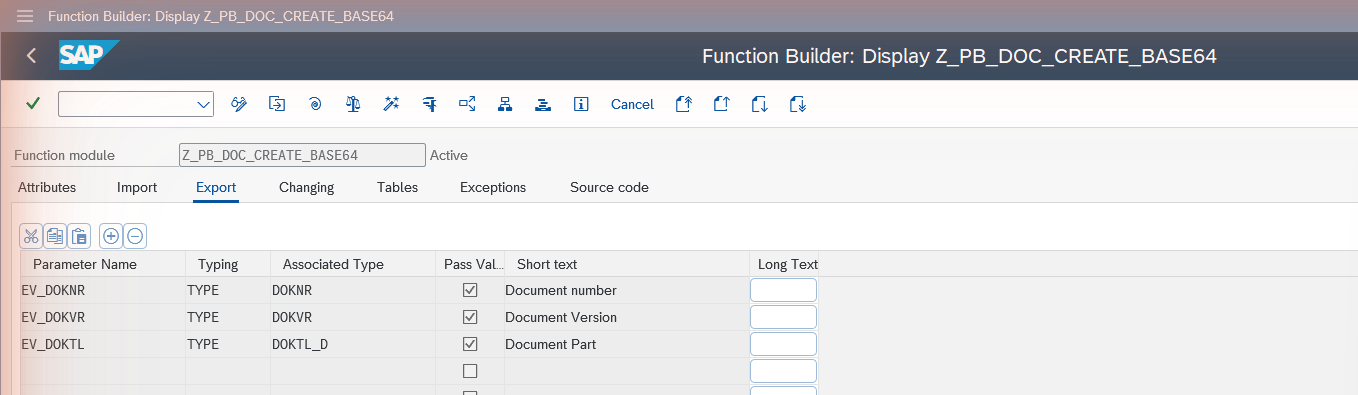
The export parameters return the key of the document the module has just created.
| Parameter | Typing | Associated type |
|---|---|---|
EV_DOKNR |
TYPE | DOKNR |
EV_DOKVR |
TYPE | DOKVR |
EV_DOKTL |
TYPE | DOKTL_D |
Step 5: Tables parameters
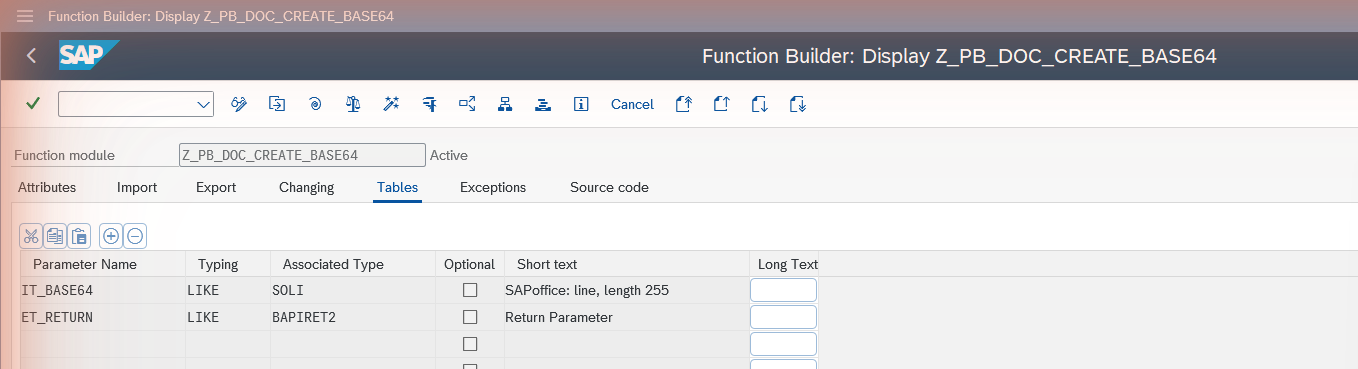
Two tables complete the interface: the document content coming in, and the messages going out.
| Parameter | Typing | Associated type |
|---|---|---|
IT_BASE64 |
LIKE | SOLI |
ET_RETURN |
LIKE | BAPIRET2 |
SOLI is a standard structure with a single character field of 255 characters, which is why we cut the Base64 string into pieces of that length. ET_RETURN uses the usual BAPI message structure, so Peakboard can check the message type to tell success from failure.
Step 6: Source code
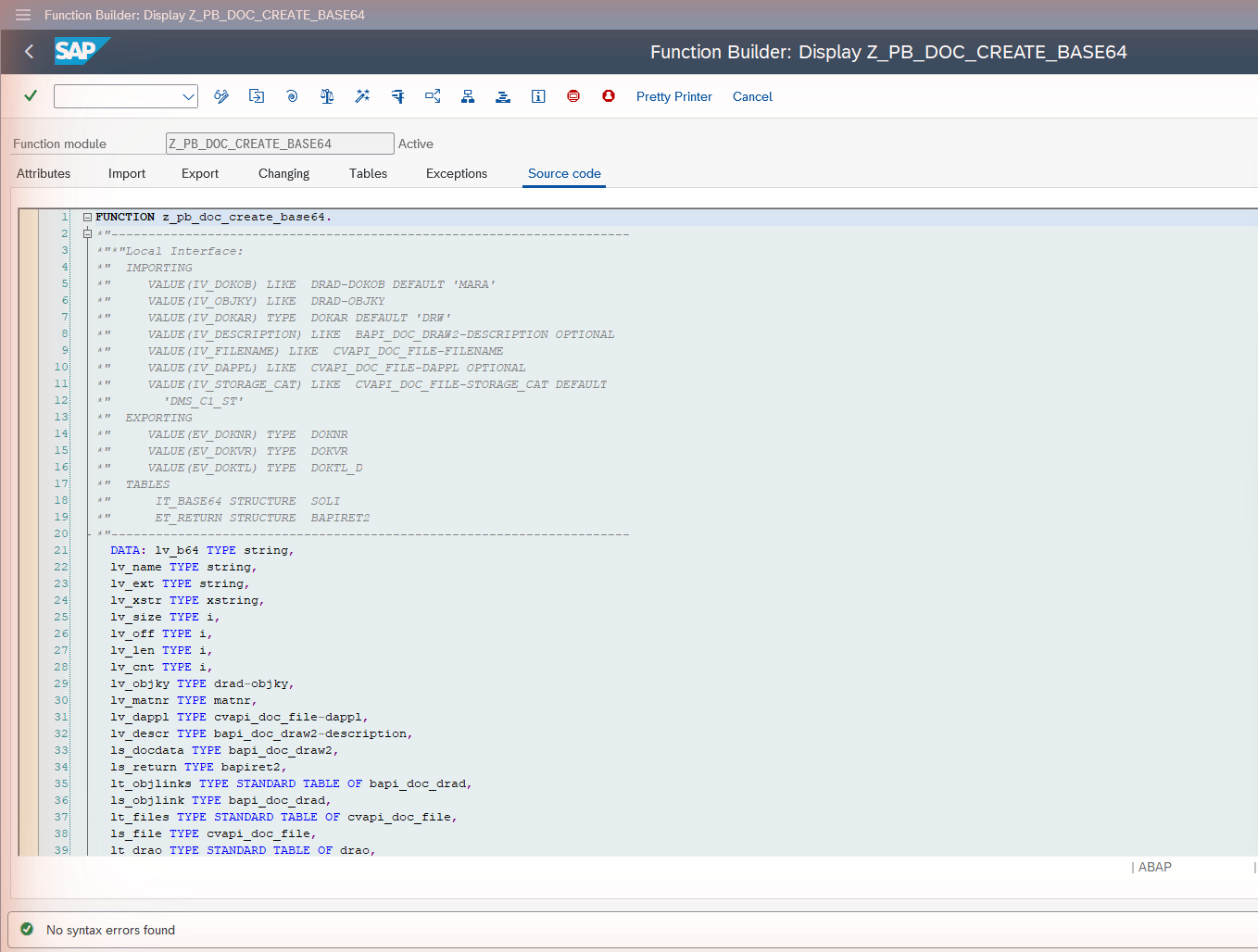
Download the source code Z_PB_DOC_CREATE_BASE64.abap and paste everything between the generated interface comment and ENDFUNCTION into the Source code tab. Then run the syntax check (Ctrl+F2) and activate the module (Ctrl+F3).
The code runs through six steps. It decodes the Base64 string and stops right away if nothing arrived, so an empty call never leaves an empty document behind. It pads numeric material numbers with leading zeros, because that’s how SAP stores them in the object link. It derives the workstation application from the file extension. It creates the document info record and the object link with BAPI_DOCUMENT_CREATE2 and commits it. It splits the binary content into blocks of 2550 bytes, which is the size of the DRAO data field. And finally it checks the content in with CVAPI_DOC_CHECKIN, telling it with PF_CONTENT_PROVIDE = 'TBL' that the file comes as an internal table.
Step 7: Test it in SE37
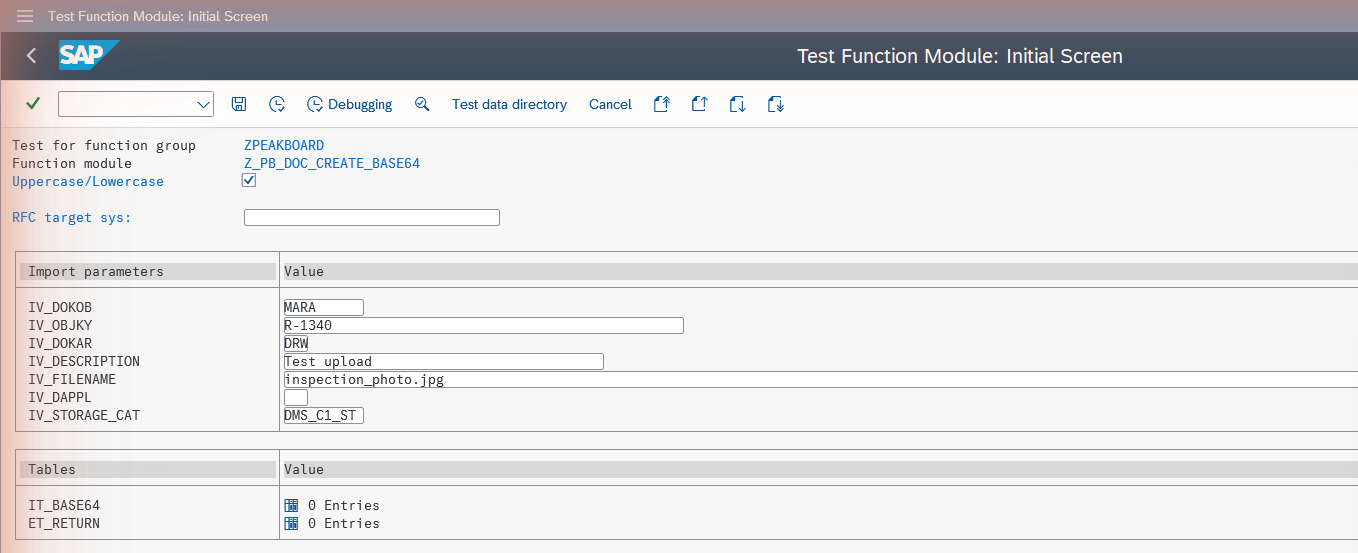
Before we move to Peakboard, a quick test in SE37 (F8) is worth the minute. There is one trap here: tick Uppercase/Lowercase on the test screen. Without it, SAP converts all input to uppercase, and a Base64 string in capital letters decodes to garbage. From Peakboard this doesn’t matter, as RFC calls keep the case untouched.
A note on CVAPI_DOC_CHECKIN: unlike the BAPIs, it isn’t released by SAP for customer use. It works reliably and has been around for many releases, but SAP doesn’t guarantee its interface across upgrades. After a major upgrade, it’s worth running the test above once more.
Building the Peakboard application
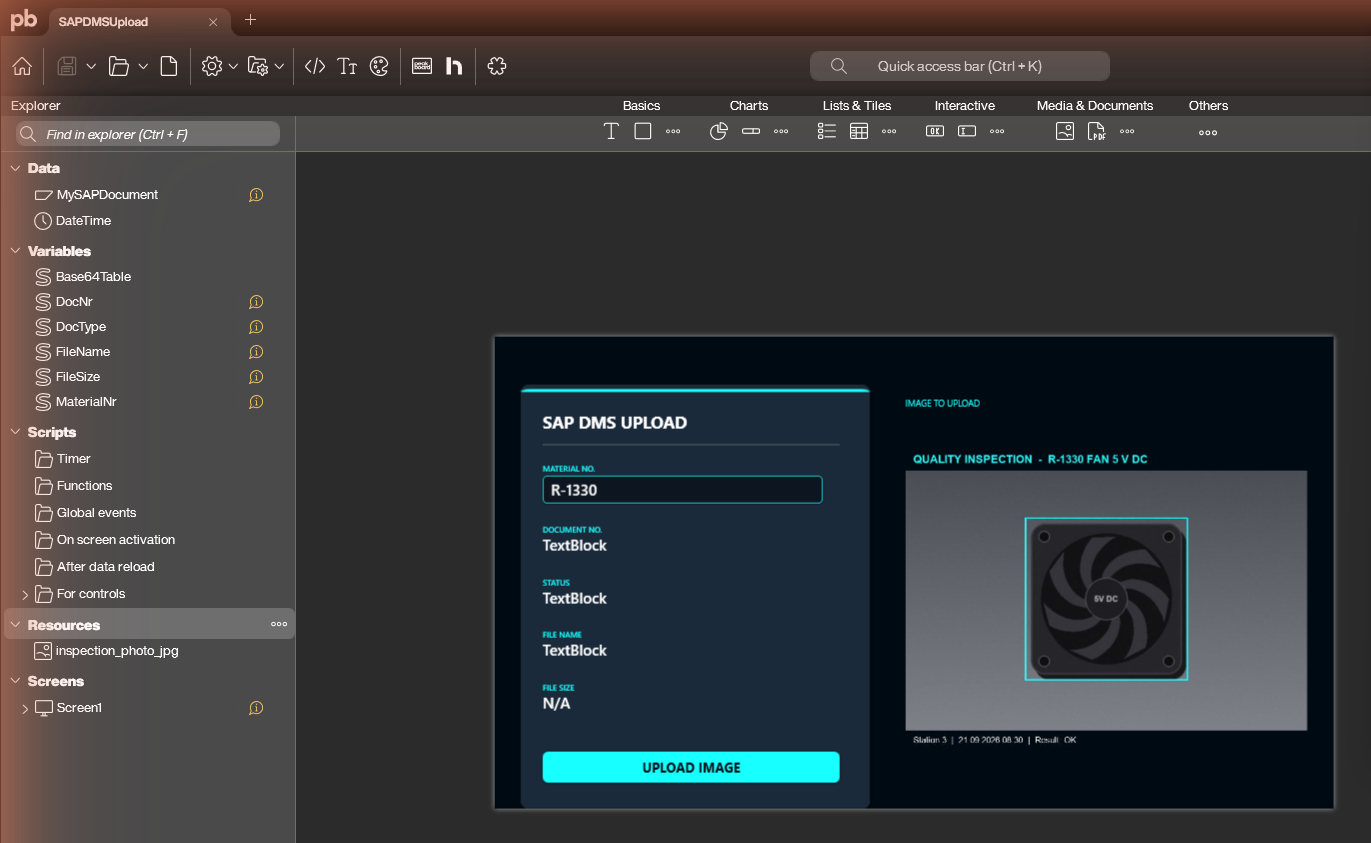
The sample application is available for download at the top of this article. It shows an inspection photo, lets the user enter a material number, and uploads the photo to SAP at the push of a button. The SAP connection in the download is anonymized, so enter your own system and user before you try it.
The structure is simple. There is one SAP data source called MySAPDocument, and a handful of variables: MaterialNr is bound to the text box, DocNr, DocType, FileName and FileSize show the result, and Base64Table carries the document to SAP. The photo itself is a resource called inspection_photo_jpg, and an image control shows it on the screen.
The data source calls our function module. The material number and the file name come from variables through the #[...]# placeholder syntax, and so does the whole content table:
EXECUTE FUNCTION 'Z_PB_DOC_CREATE_BASE64'
   EXPORTS
      IV_DOKOB = 'MARA',
      IV_OBJKY = '#[MaterialNr]#',
      IV_DOKAR = 'DRW',
      IV_DESCRIPTION = 'Upload from Peakboard',
      IV_FILENAME = '#[FileName]#'
   IMPORTS
      EV_DOKNR INTO @DocNr
   TABLES
      IT_BASE64 = #[Base64Table]#,
      ET_RETURN INTO @RETVAL
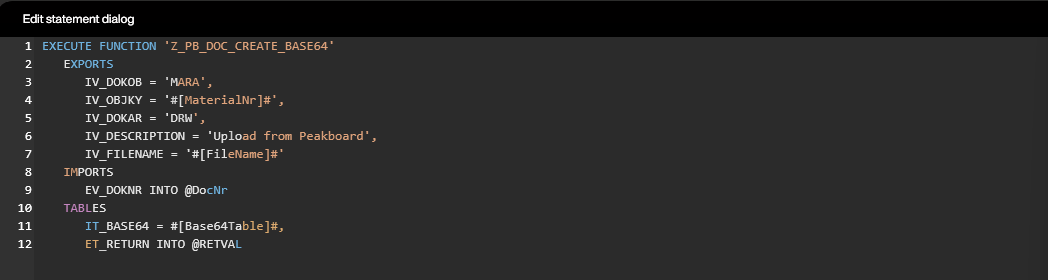
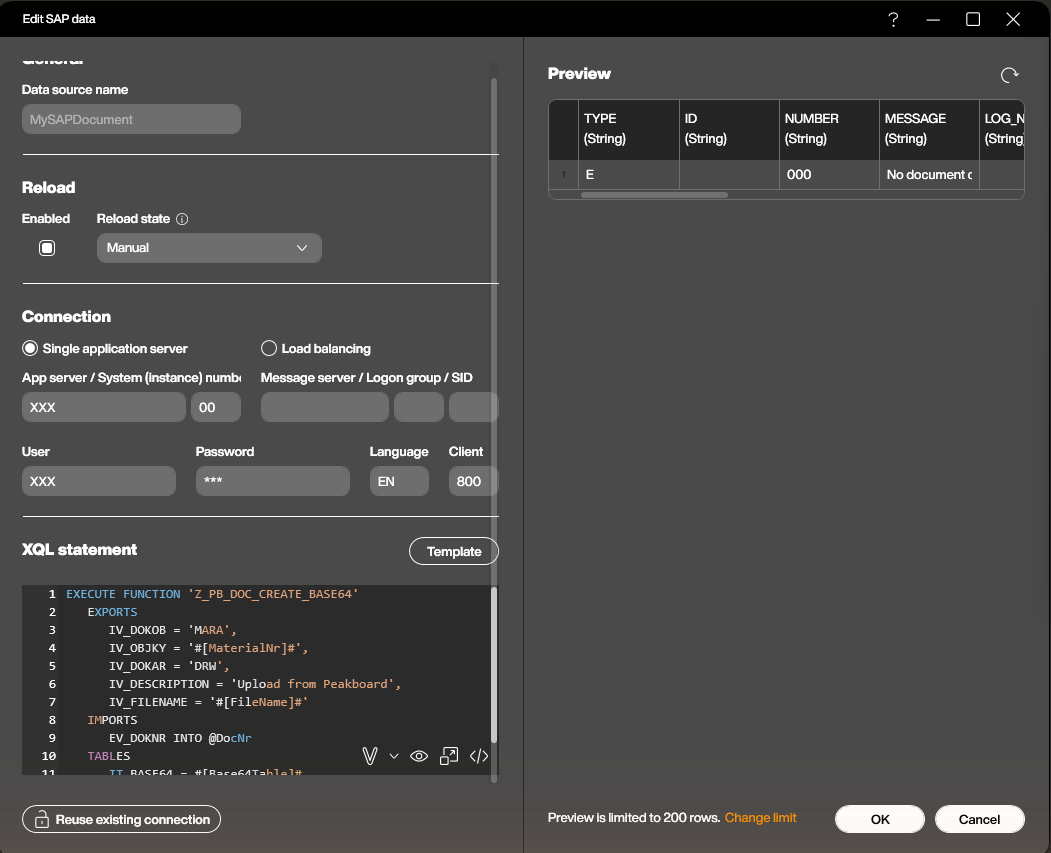
IT_BASE64 = #[Base64Table]# is the interesting line. A table parameter in XQL is written as a list of rows, where the first row holds the column names: (('LINE'),('first chunk'),('second chunk'),...). We let a script build this literal and store it in the variable Base64Table, and Peakboard puts it into the statement right before the call. The table ET_RETURN becomes the result of the data source, so we can read the SAP message from it afterwards.
Set the reload state of the data source to Manual. Every reload creates a new document in SAP, so you only want it to run when the user explicitly asks for it. For the same reason, the variable Base64Table has the default value (('LINE'),('')): a table with one empty row. If the data source ever reloads by accident, the function module finds no content and returns an error before it creates anything. The preview in the screenshot shows exactly that case. Note that a header without any row, (('LINE')), doesn’t work; the XQL parser needs at least one row.
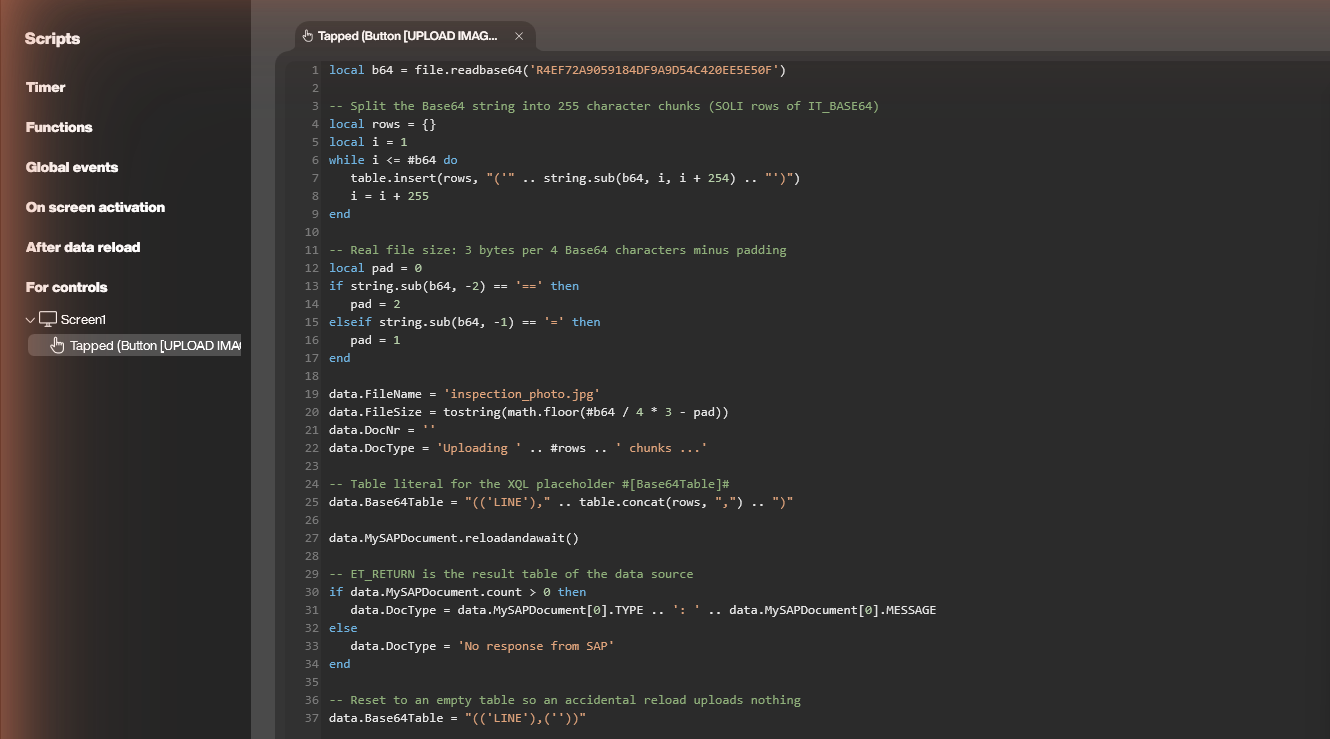
The upload itself happens in the Tapped script of the UPLOAD IMAGE button:
local b64 = file.readbase64('R4EF72A9059184DF9A9D54C420EE5E50F')

-- Split the Base64 string into 255 character chunks (SOLI rows of IT_BASE64)
local rows = {}
local i = 1
while i <= #b64 do
   table.insert(rows, "('" .. string.sub(b64, i, i + 254) .. "')")
   i = i + 255
end

-- Real file size: 3 bytes per 4 Base64 characters minus padding
local pad = 0
if string.sub(b64, -2) == '==' then
   pad = 2
elseif string.sub(b64, -1) == '=' then
   pad = 1
end

data.FileName = 'inspection_photo.jpg'
data.FileSize = tostring(math.floor(#b64 / 4 * 3 - pad))
data.DocNr = ''
data.DocType = 'Uploading ' .. #rows .. ' chunks ...'

-- Table literal for the XQL placeholder #[Base64Table]#
data.Base64Table = "(('LINE')," .. table.concat(rows, ",") .. ")"

data.MySAPDocument.reloadandawait()

-- ET_RETURN is the result table of the data source
if data.MySAPDocument.count > 0 then
   data.DocType = data.MySAPDocument[0].TYPE .. ': ' .. data.MySAPDocument[0].MESSAGE
else
   data.DocType = 'No response from SAP'
end

-- Reset to an empty table so an accidental reload uploads nothing
data.Base64Table = "(('LINE'),(''))"
The first line does the heavy lifting: file.readbase64() reads a resource and returns its content as a Base64 string. The ID in the parentheses belongs to your resource, and you don’t have to look it up. In the script editor, open Resources on the right, expand your resource and double-click Read Base64, and the Designer inserts the line with the correct ID for you.
The rest is string handling. The loop cuts the string into pieces of 255 characters and wraps each one in ('...'), then table.concat() joins them into the table literal. reloadandawait() runs the call and waits for SAP to answer, and afterwards we show the message type and text from ET_RETURN on the screen. The last line resets Base64Table to the safe default we talked about.
Trying it out
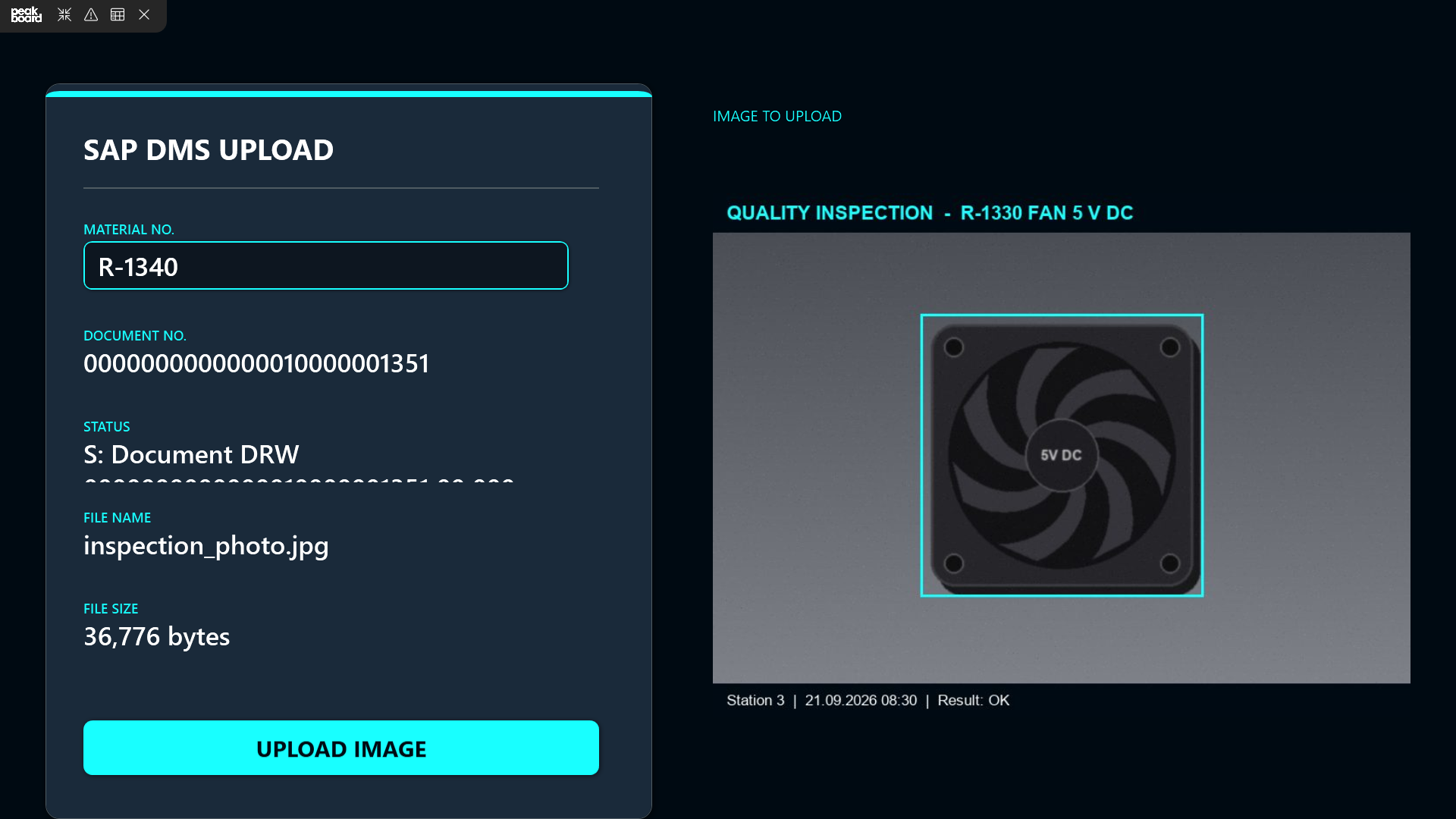
Start the preview, enter a material number and tap UPLOAD IMAGE. After a moment, the application shows the number of the new document, the status message from SAP, the file name and the size. Our 36 KB photo travelled to SAP as 193 chunks and arrived with exactly 36,776 bytes, the size of the original file.
To see the result on the SAP side, open the document in CV03N, or run the application from our last article with the same material number: it downloads the photo you have just uploaded. The document number comes back in SAP’s internal format with leading zeros, just as in the download article.
Wrapping up
With the download module from the last article and the upload module from this one, Peakboard can now read and write the SAP DMS. Both use the same format, Base64 in 255 character lines, so documents move in either direction without any conversion in between.
In our example, the photo is a resource that’s part of the application. On a real inspection station, you’d rather take the picture on the spot. Peakboard can deliver the image of a camera in a video control as Base64 as well, so the same script can upload a photo the inspector has just taken, straight into SAP and attached to the right material.