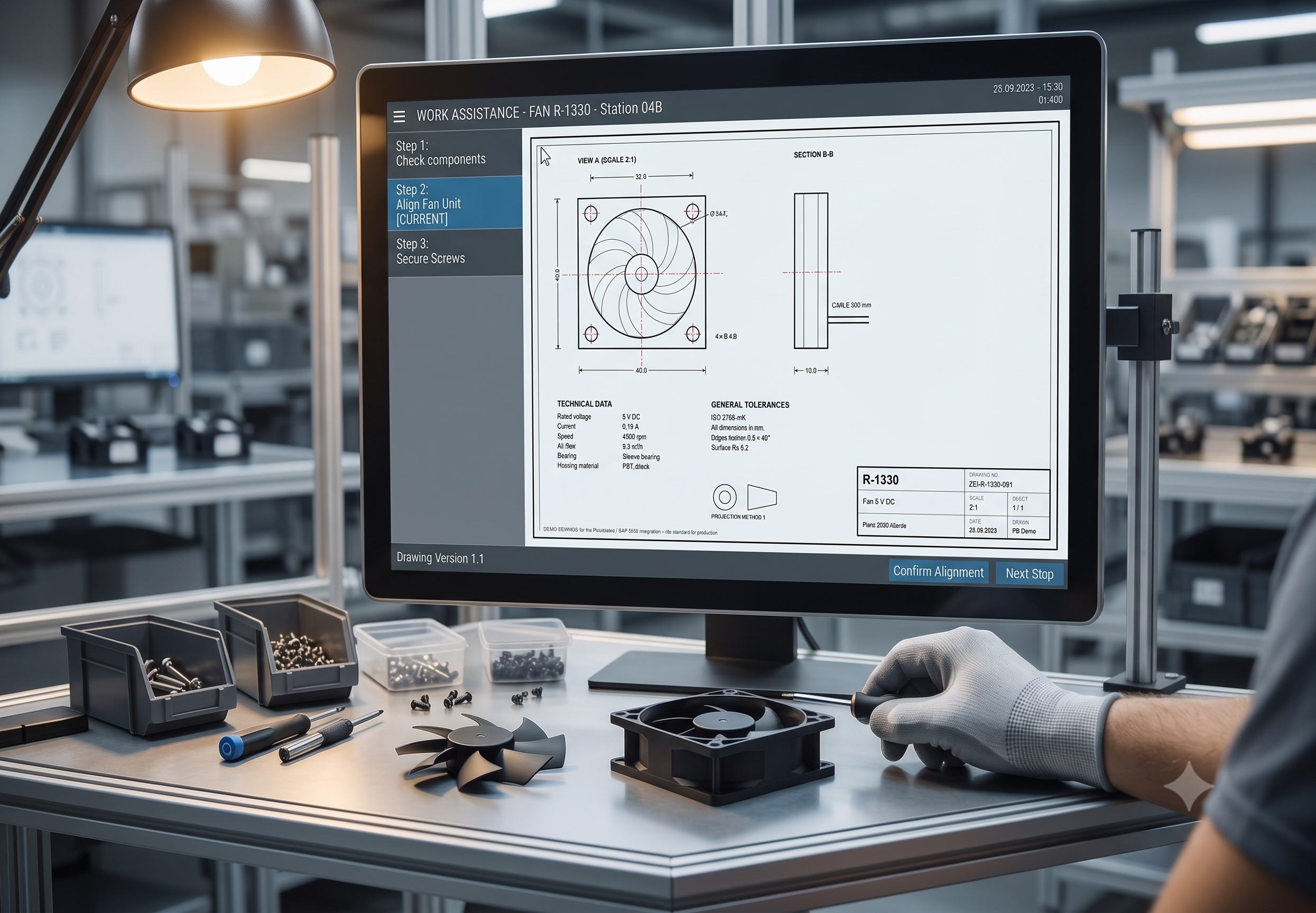
SAP doesn’t just store master data and transactions; it also manages documents through its Document Management System (DMS). These documents are often technical drawings, but they can just as easily be work instructions, assembly guides, inspection sheets, or quality certificates. Each one is linked to the business objects it belongs to, such as a material or an order, so the right paperwork is always attached to the right part.
On the shop floor, this is exactly the kind of information workers need in front of them. In Peakboard, we typically pull these documents from SAP for work assistance and quality checks: showing the current drawing next to a workstation, guiding an operator through an assembly step, or displaying the inspection sheet a worker has to fill in. Because the document comes straight from SAP, everyone always sees the current, released version instead of an outdated printout.
In this article, we’ll look at how we get a document out of the SAP DMS and display it in a Peakboard application.
How documents are maintained in SAP
Before we pull anything out of SAP, it helps to know how the document got in there in the first place. The DMS keeps every file in a document info record, which is created with transaction CV01N, changed with CV02N and displayed with CV03N. A document info record is identified by four fields - document number, document type, document part and version - and the document type is worth a closer look: DRW and DRM are both engineering drawings, while other types cover inspection sheets, work instructions or CAD models. Since a material can carry several documents at once, the document type is what lets us ask for the right one later.
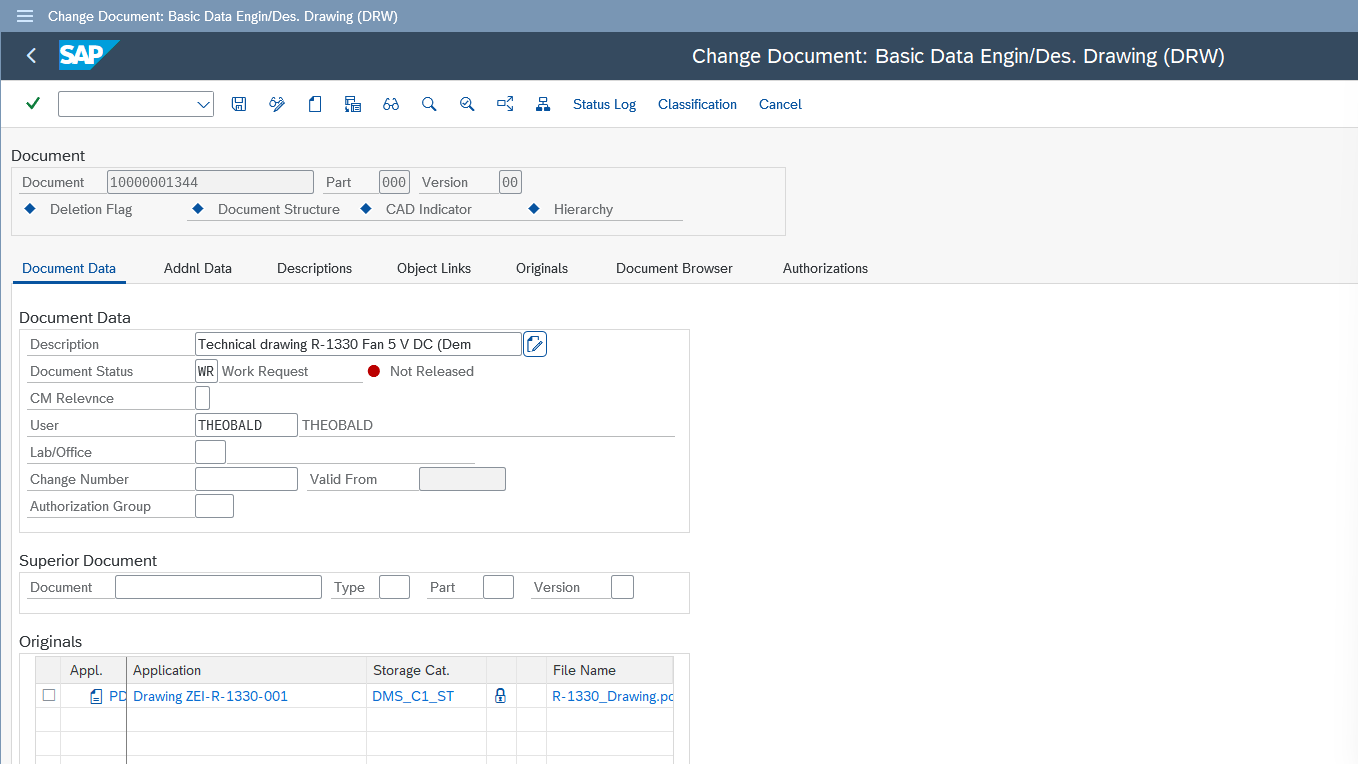
The screenshot below shows our example in CV02N. The upper half holds the descriptive data, the lower half the list of originals - the actual files behind the record. Two columns matter here: the storage category (DMS_C1_ST in our case) and the file name. The storage category is the one people get wrong most often. When you add an original, SAP first only stores a reference to the file on your PC; it becomes part of the DMS only once you check it in via Originals - Check In Original and pick a storage category. If you skip that step, the document looks perfectly fine in the GUI, but there is no content on the server - and any attempt to read it later fails.
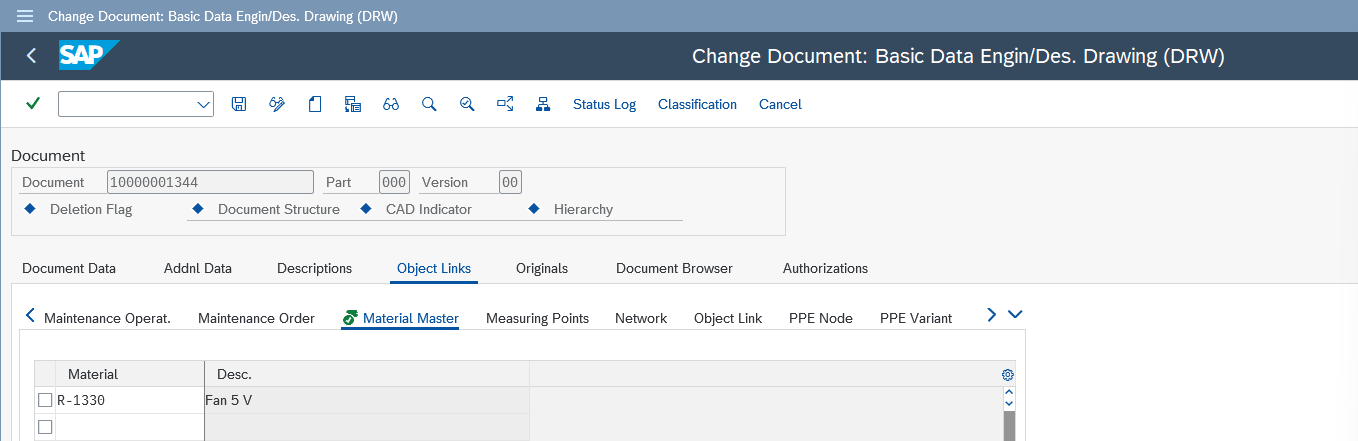
The second half of the story is the Object Links tab. This is what connects the document to the business object it describes - in our case the material master. Each object type gets its own sub-tab, so a document can be linked to a material, an equipment, a customer or a purchase order alike. Our drawing is linked to material R-1330, and that link is exactly what we’ll query later: we won’t ask SAP for a document number, we’ll ask for “the drawing that belongs to this material”.
The same link can also be maintained from the other direction, in the material master under Additional Data - Document Data, and CV04N gives you a search across all document info records. Technically, all of this ends up in two tables: DRAW holds the document info records, and DRAD holds the object links - which is where our function module will start looking.
Building the function module
Getting a document out of the DMS is unfortunately not a one-liner. A document info record only points at its original file indirectly: the object link in DRAD tells us which document belongs to our material, DMS_DOC2LOIO resolves that document into a logical object id, DMS_PH_CD1 turns the logical id into a physical one plus the storage category, and only then can SCMS_DOC_READ hand us the actual bytes. On top of that, SAP returns those bytes as raw binary chunks, while a Peakboard application would much rather receive a Base64 string it can drop straight into an image control.
Chaining four calls through XQL for every single document would be tedious, so we wrap the whole thing into one small RFC-enabled function module. We pass in the object and its key, and we get back the file name, the file size and the document content as Base64 - one call, one result. The complete source code is available for download at the top of this article; the following walkthrough shows how to set the module up in transaction SE37.
Start by creating a new function module named Z_PB_DOC_GET_BASE64 in SE37 and assign it to a function group of your choice. The one setting that really matters sits on the Attributes tab: the processing type has to be Remote-Enabled Module, otherwise Peakboard won’t be able to call it over RFC. As a consequence, every import and export parameter also has to be marked as pass-by-value.
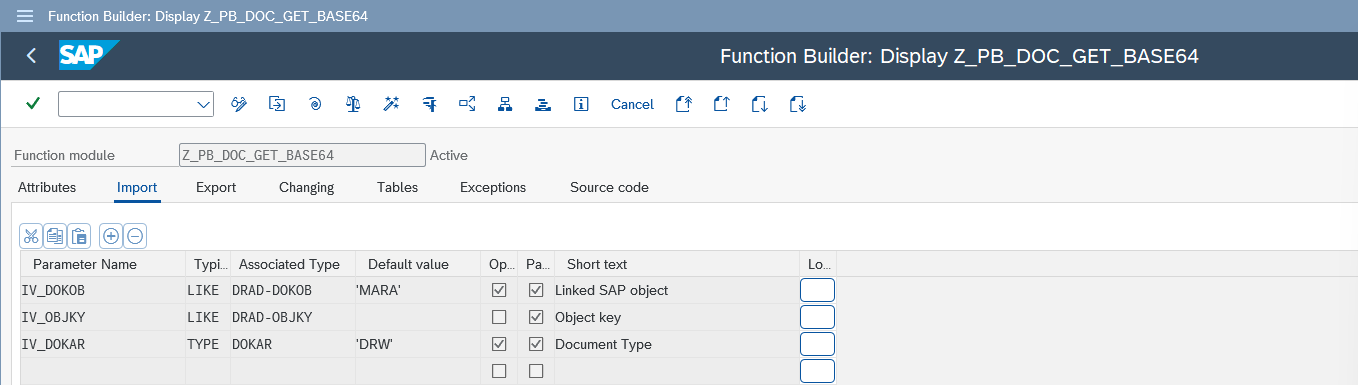
On the Import tab we define the three parameters that tell the module which document we are after. IV_DOKOB is the SAP object type the document is linked to - MARA for a material, but EQUI for an equipment or KNA1 for a customer works just as well. IV_OBJKY carries the key of that object, and IV_DOKAR narrows the search down to a document type, which is what lets us pick the right one when several documents hang off the very same material - the drawing as a PDF, for instance, rather than the same drawing as an image.
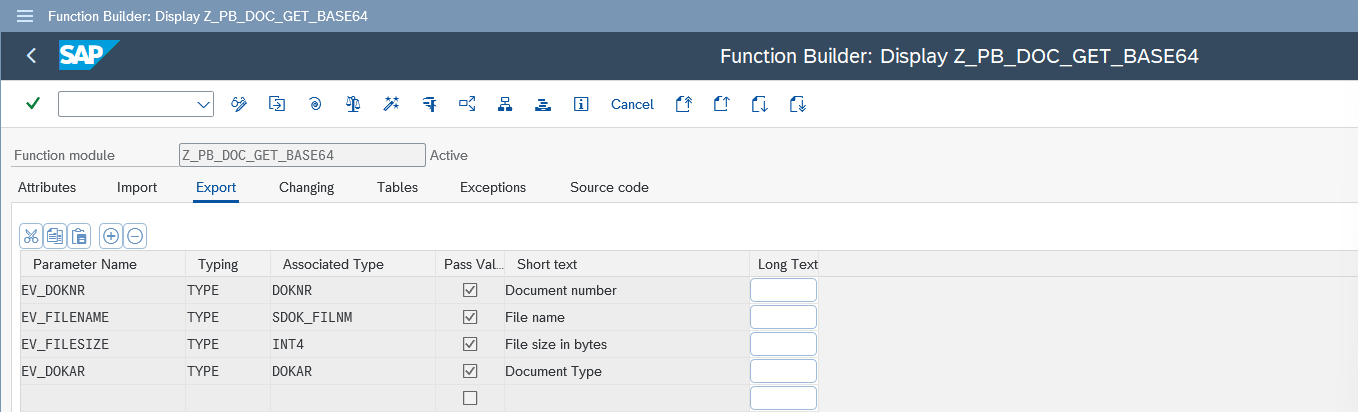
The Export tab returns the metadata of the document we found. EV_DOKNR and EV_DOKAR identify the document info record, EV_FILENAME gives us the original file name - which we’ll use later to derive the MIME type - and EV_FILESIZE holds the real size in bytes. That size is more important than it looks: SAP pads the last binary chunk with null bytes, so without the exact length we’d end up with a corrupted file.
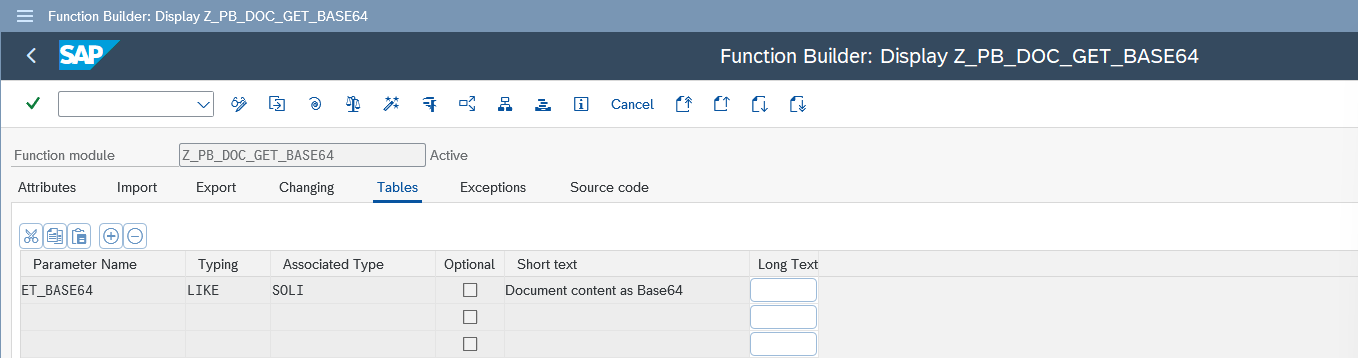
Finally, the Tables tab carries the document itself. A Base64 string of a real drawing is far too long for a single field, so we return it in the standard SAP structure SOLI, which holds 255 characters per line. A small PDF ends up as a handful of lines, a decent PNG drawing as a few hundred - and on the Peakboard side we simply concatenate them back into one string.
We also add two exceptions, NOT_FOUND and READ_ERROR, so the module fails in a controlled way when no document is linked to the object or when the original was never checked into the content server. Once the interface is complete, paste the downloaded source code into the Source code tab and activate the module. A quick test run with IV_DOKOB = 'MARA' and the material number of your choice should return the file name, the file size and a stack of Base64 lines.
Building the Peakboard application
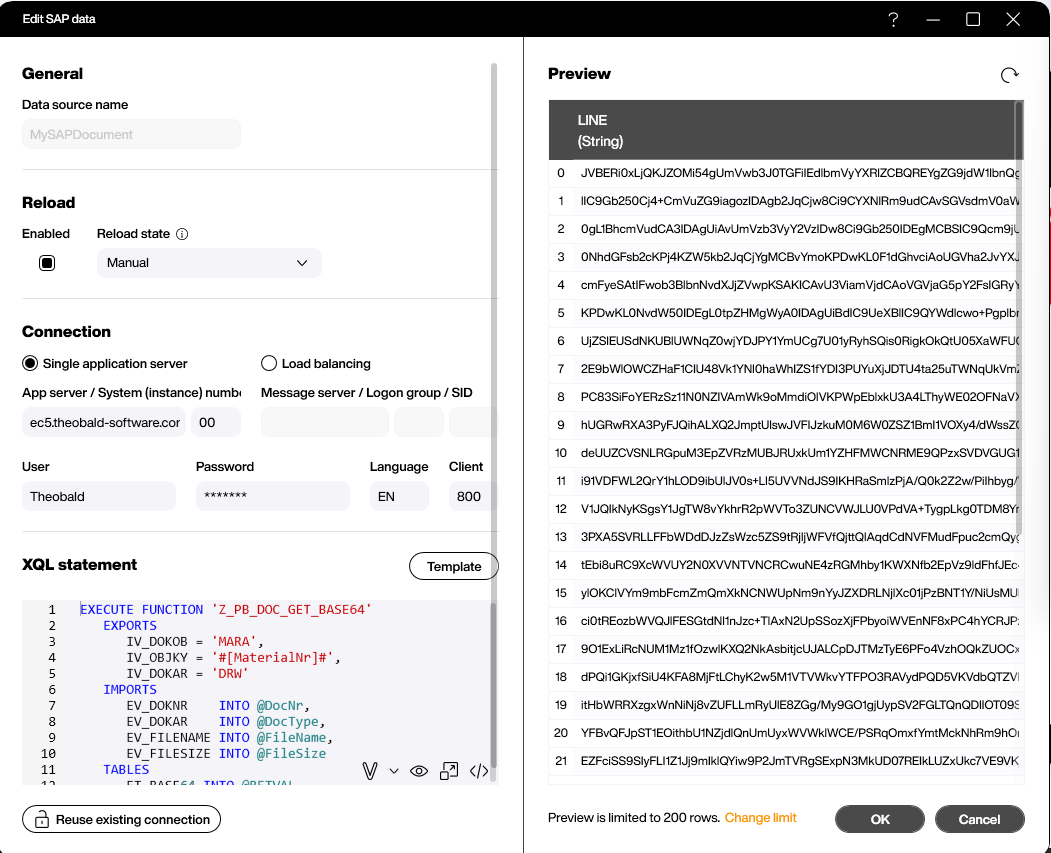
With the function module in place, the Peakboard side is refreshingly short. We create a single SAP data source - let’s call it MySAPDocument - and put the call to our module into its XQL statement:
EXECUTE FUNCTION 'Z_PB_DOC_GET_BASE64'
   EXPORTS
      IV_DOKOB = 'MARA',
      IV_OBJKY = '#[MaterialNr]#',
      IV_DOKAR = 'DRW'
   IMPORTS
      EV_DOKNR    INTO @DocNr,
      EV_DOKAR    INTO @DocType,
      EV_FILENAME INTO @FileName,
      EV_FILESIZE INTO @FileSize
   TABLES
      ET_BASE64 INTO @RETVAL
Two pieces of syntax are doing the heavy lifting here, and they point in opposite directions. #[MaterialNr]# reads a Peakboard variable into the statement before it is sent to SAP - so the material number the user types on the screen ends up as the object key, and the same data source works for any material without us touching the XQL. The @ names go the other way: they write results back into Peakboard variables. Because our module returns the metadata as scalar export parameters, EV_DOKNR, EV_DOKAR, EV_FILENAME and EV_FILESIZE land directly in the variables DocNr, DocType, FileName and FileSize, while the Base64 table becomes the rows of the data source itself, with a single column named LINE.
One setting deserves attention: the reload state is set to Manual. We don’t want this data source polling SAP in the background - reading a document is something the user triggers deliberately, and we’ll fire it from a button in a moment. The preview on the right already shows what comes back: a long list of Base64 chunks, the first one starting with JVBERi0, which is simply what %PDF- looks like in Base64.
The rest of the application is built around those variables. MaterialNr is the input: a text box is bound to it, so whatever the user types is immediately available to the data source. The other four are outputs and are bound to text blocks; the file size gets a number format that appends bytes and falls back to N/A while nothing has been loaded yet. For the document itself we place a PDF viewer control on the screen and point it at a small placeholder PDF stored as a resource - that way the control shows something meaningful before the first document arrives instead of sitting there empty.
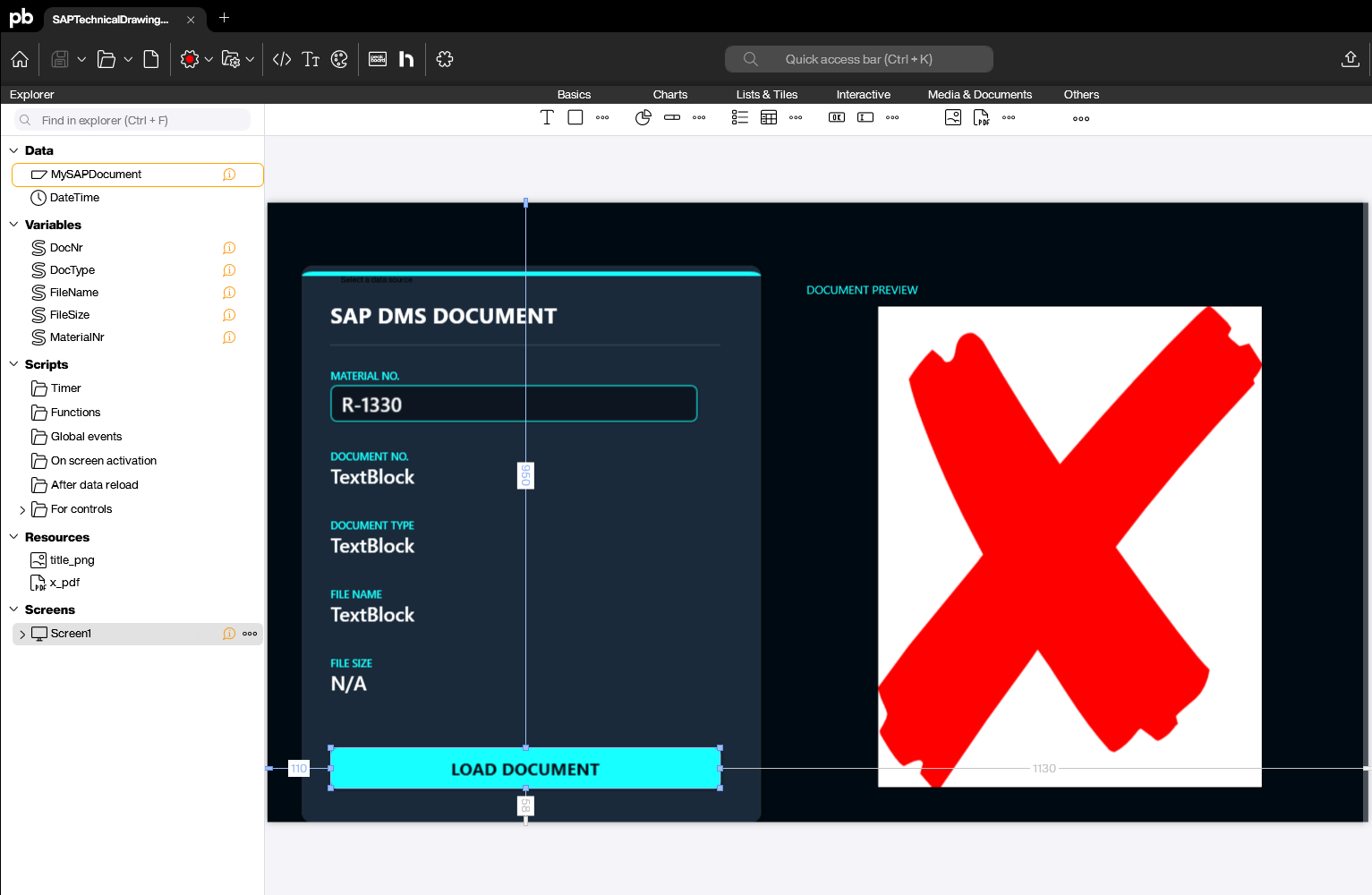
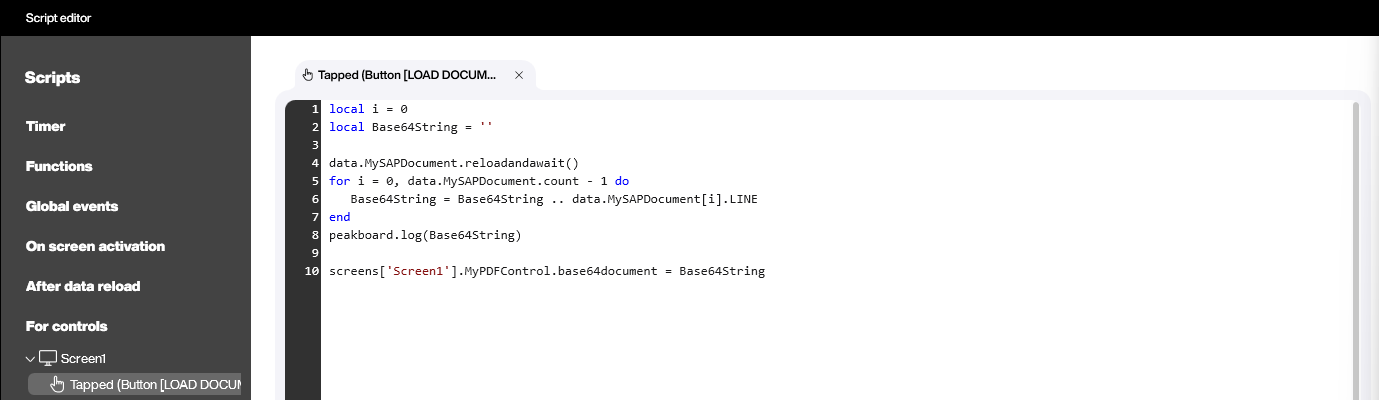
Everything comes together in the Tapped script of the LOAD DOCUMENT button. It reloads the data source, glues the Base64 chunks back into one string and hands that string to the PDF viewer:
local i = 0
local Base64String = ''

data.MySAPDocument.reloadandawait()
for i = 0, data.MySAPDocument.count - 1 do
   Base64String = Base64String .. data.MySAPDocument[i].LINE
end
peakboard.log(Base64String)

screens['Screen1'].MyPDFControl.base64document = Base64String
reloadandawait() is the important call: it reloads synchronously, so the loop below is guaranteed to see the document the user just asked for and not the one from the previous click. The loop then concatenates the LINE column in order - remember that our function module chopped the Base64 string into 255 character pieces precisely because a single field could never hold a whole drawing. The last line is the payoff: the PDF viewer has a base64document property, so we can assign the string directly. No temporary file, no path, no cleanup.
Wrapping up
And that’s the whole round trip. The user types a material number, taps the button, and a moment later the drawing that engineering checked into the SAP DMS is on the screen - together with its document number, document type, file name and size, straight from the same call.
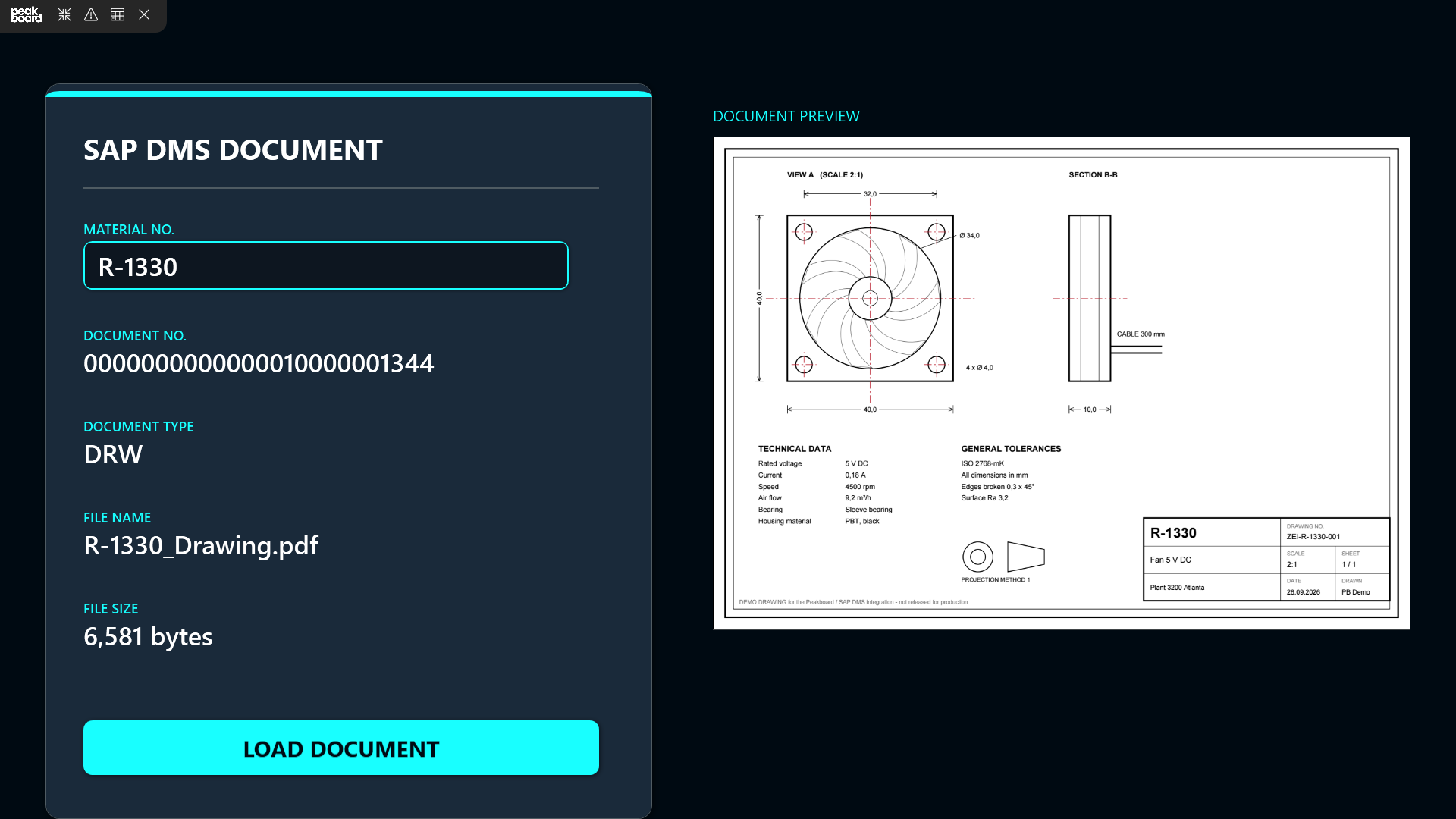
One detail you can see in the screenshot: SAP hands back the document number in its internal form, padded with leading zeros. That is authentic - if it bothers you on a shop floor screen, strip it in the script or let the function module return it already formatted.
From here, the obvious next step is to get rid of the button. On a real workstation the material number rarely comes from someone typing it: it comes from a barcode scanner at the rack, from the order the operator has just started, or from a Kanban box that was scanned empty. Feed that value into the MaterialNr variable instead, and the right drawing simply appears - always the current, released version, because it comes straight from SAP.