Peakboard is designed for applications to run entirely on one physical screen, preferably a touchscreen. This is how a typical Peakboard-backed industrial application operates. However, there may be times when you need to capture or share the screen — or parts of it — beyond the current display. Common use cases include notifying someone via email or archiving the current status of a chart for review the next day, such as in shop floor management processes. In this article, we will explore how to generate a screenshot from your current visualization and perform actions with it—whether storing, sending, or pushing it to an API endpoint.
Preparing the UI Elements
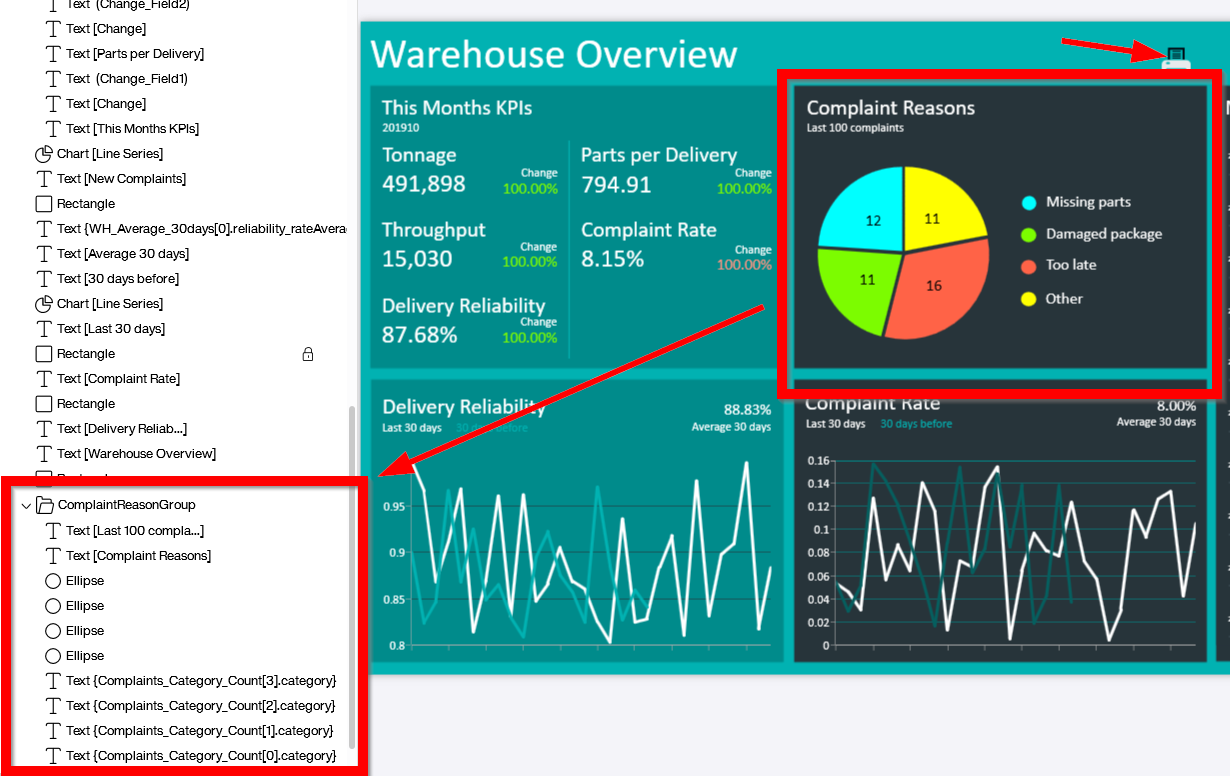
The foundation for our example is one of the official templates: Your dashboard for strategic warehouse management. You can download the modified version for this article here. We made a few small adjustments to demonstrate the power of screenshotting. Let’s examine the tile in the middle of the upper section of the dashboard, which displays complaint reasons. From a UI perspective, it consists of a chart and several text boxes that form the chart legend and captions. All these elements are grouped into a single container called ComplaintReasonGroup. Typically, groups are used to organize controls on the screen for locking or hiding/showing them collectively. We can leverage this group for our screenshot later. Additionally, we need a printer icon to trigger the screenshot.
Light - Camera - Action
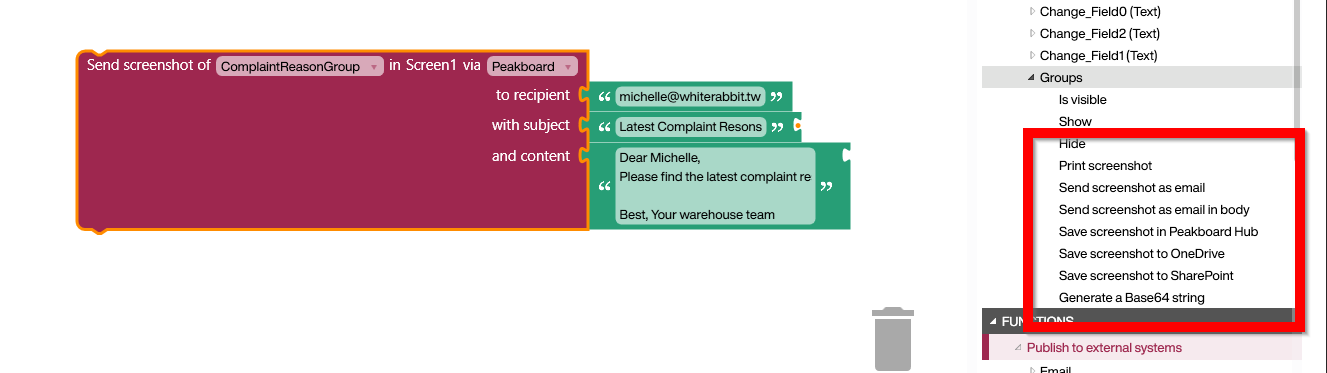
Let’s examine the code behind the button. On the right side, in the tree of screen elements, you’ll find blocks for handling screen groups. We’re using the Send Screenshot via Email block to compose and send an email. The screenshot is embedded in the email body along with the provided text.
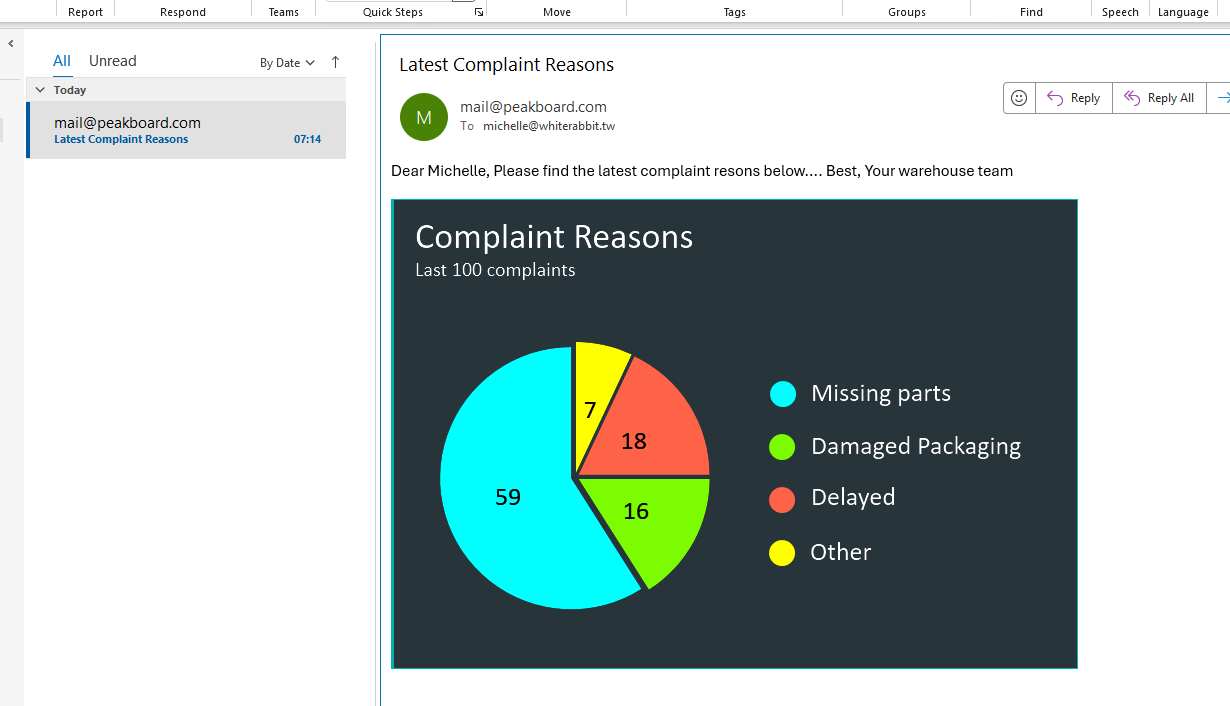
Here’s the final result of the sent email.
What to Do with a Screenshot
As shown in the screenshot above, there are several options for processing screenshots:
- Send the screenshot via email, either in the body or as an attachment.
- Store the screenshot in the file management system of the Peakboard Hub.
- Store the screenshot in a SharePoint document library or on OneDrive.
- Convert the screenshot to a Base64 string, which is useful for submitting to an API endpoint or triggering workflows in external tools.