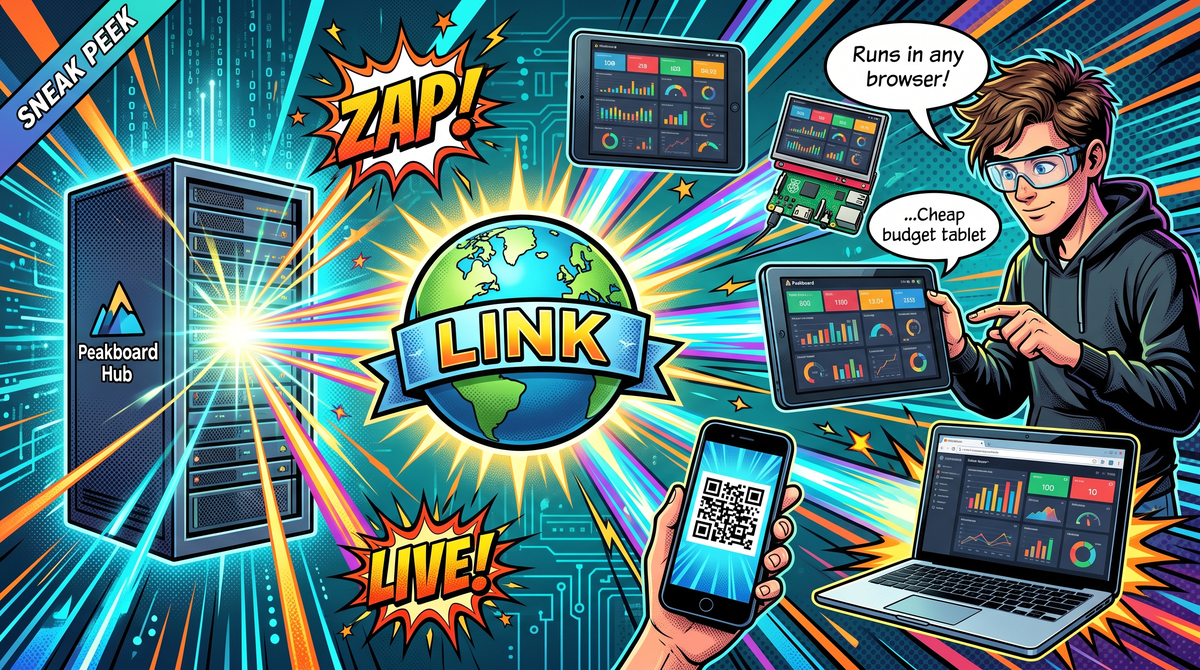
Until now, every Peakboard application needed a place to run: a physical Peakboard Box mounted next to a screen, or a BYOD instance installed on a Windows machine. With Peakboard LINK, this changes. LINK is a new part of Peakboard Hub that hosts and executes a Peakboard application completely in the web. The application no longer runs on a box; it runs on the Peakboard Hub server, and clients simply connect with any browser to use it. And this is not just a passive view: users can interact with the application just like they would on a touch screen in front of a box.
The best part is that LINK is fully compatible with everything we already know. There is no special flavor of application to build. Any Peakboard application can run on a traditional box, on a Peakboard BYOD instance or as LINK in the web, without changing a single line of script or a single data source.
In this article, we take a first glimpse at Peakboard LINK and walk through how to use it. For all the details, the official Peakboard LINK documentation is the place to go.
Putting the application into the Hub
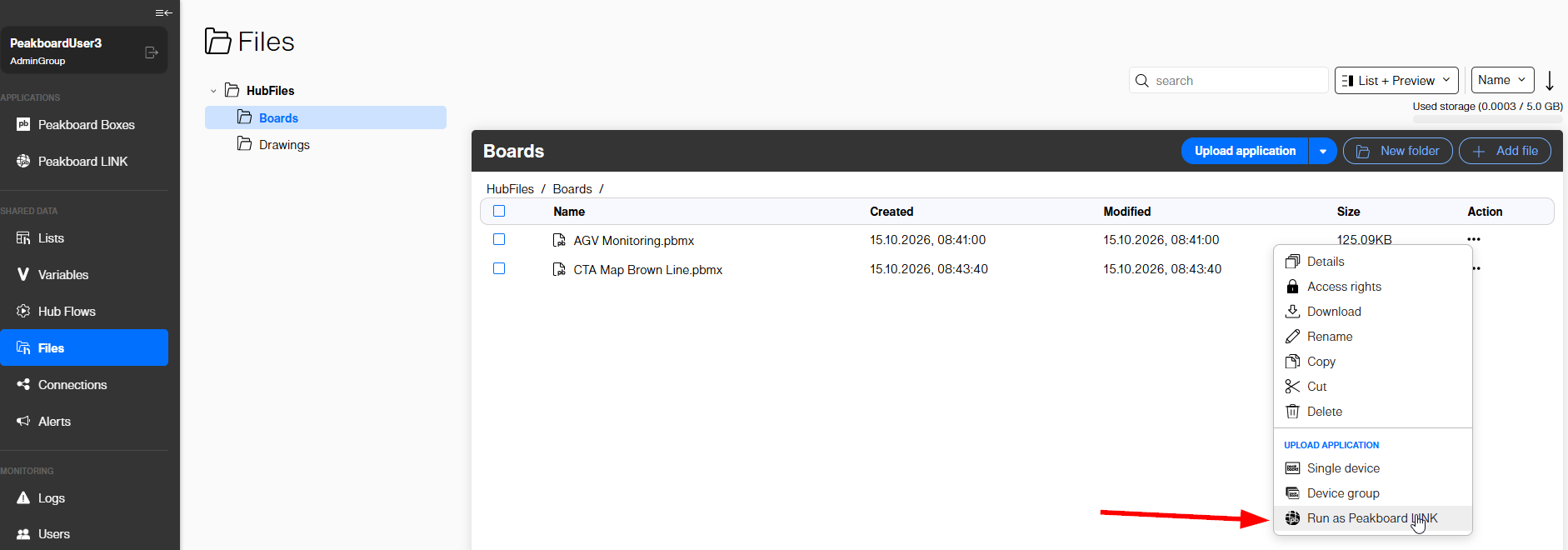
Everything starts with the file system that Peakboard Hub provides. This is where our pbmx files live. There are two ways to get them there: we can upload a pbmx file manually by using the “Upload application” button in the Files section of the Hub, or we can save the pbmx file directly from the Peakboard Designer into the Hub file system.
Once the pbmx file is in the Hub, every single one of them can be turned into a LINK application. We just open the action menu next to the file and choose “Run as Peakboard LINK”.
Accessing the LINK application
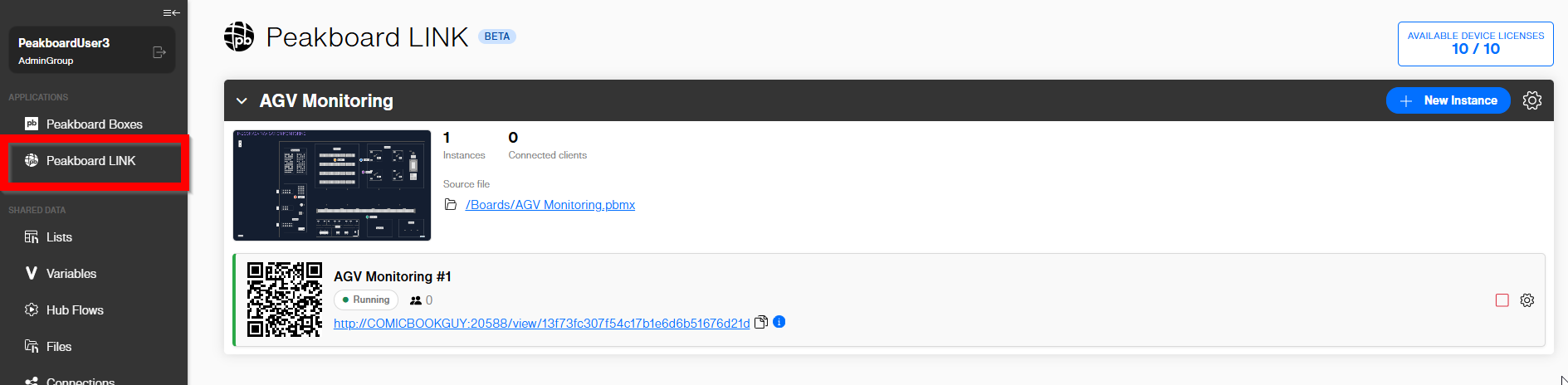
After activating LINK, the application shows up in the “Peakboard LINK” section of the Hub. Here we see the running instance together with its URL. Anyone who wants to use the application just opens this link in a browser. For mobile access, there is also a QR code, so a quick scan with a phone or tablet is enough to get there.
However, when we open the link for the first time, the application does not show up right away. Instead, we see a screen telling us that this screen is not licensed. Every client that shows a Peakboard LINK application needs a license, and there are two ways to get one: either the device itself is licensed, or the user signs in with a Hub account that holds a Peakboard LINK user license. For device licensing, the page shows a short screen code that identifies the device.
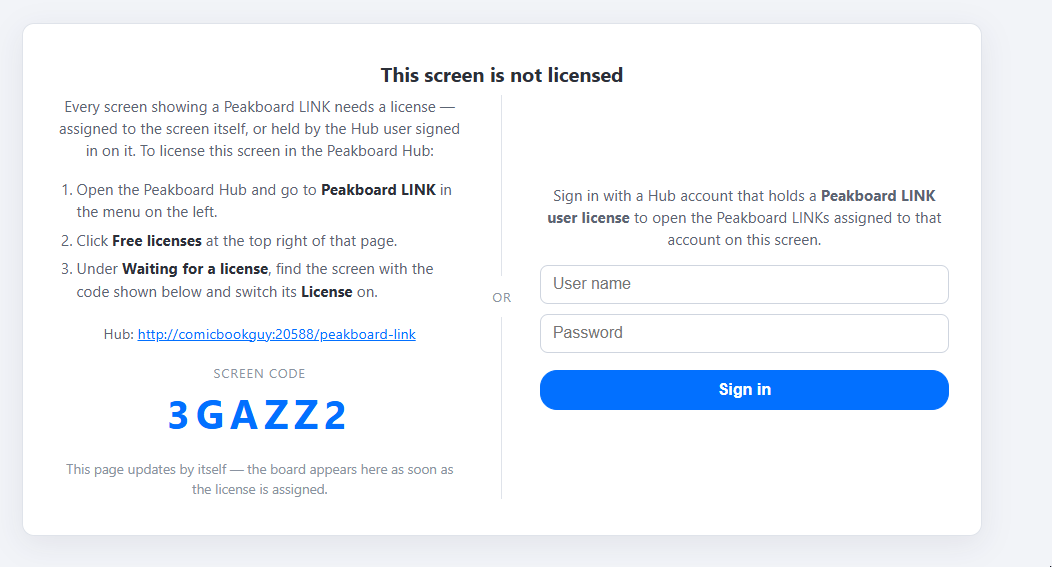
To license the device, we go back to the Peakboard LINK section in the Hub and click on the available device licenses at the top right. The dialog lists all devices that tried to open a LINK application. We find our device by its screen code and switch its license on. The page in the browser updates by itself, and as soon as the license is assigned, the application appears.
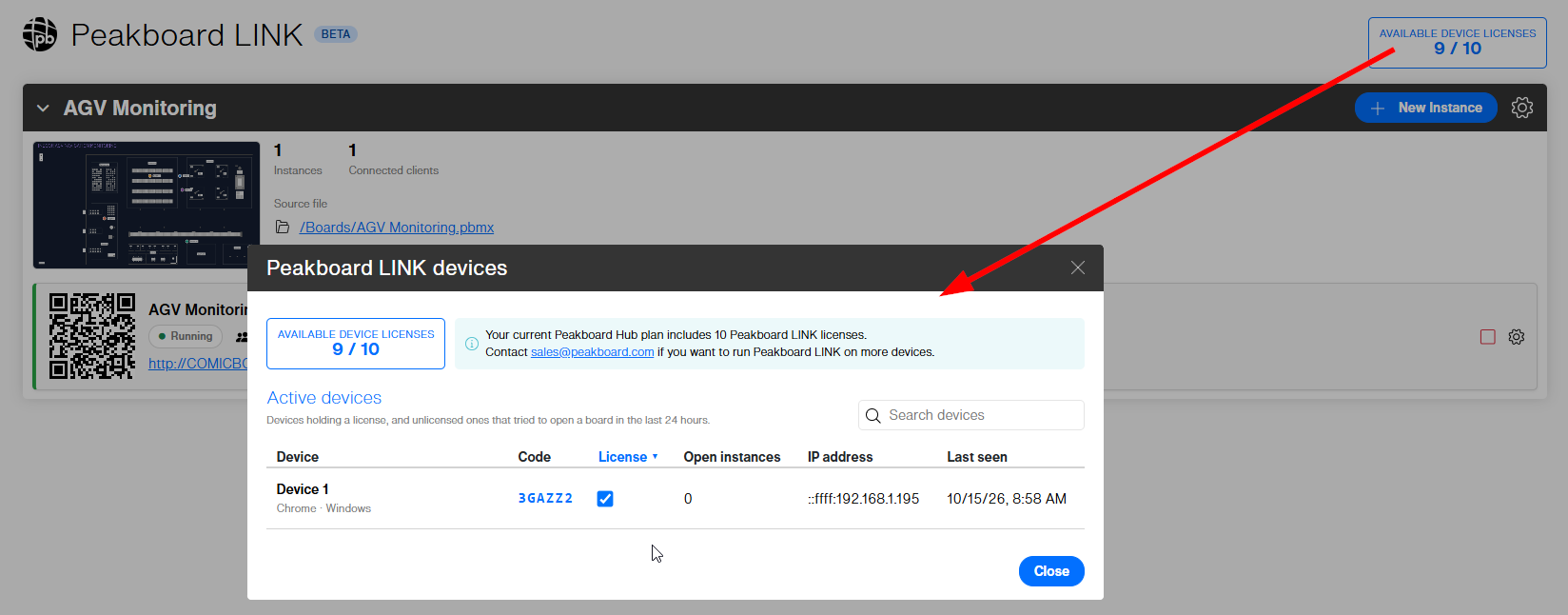
Even if our Hub instance is not licensed yet, we can try this right away: every Peakboard Hub comes with one built-in LINK license.
Instances: Not a regular web application
One thing is very important to understand: a LINK application can’t be directly compared with a regular web application. In a typical web app, every browser runs its own copy of the frontend, and each user has their own state. LINK works differently. The Peakboard application runs as a process on the Hub server, exactly like it would run on a box, and the browser only shows what this process renders.
This means that when two users open the same instance, they always see exactly the same frontend. If one user interacts with the application, for example by switching a screen, typing into a text box or selecting an entry in a list, the other user sees this change immediately in their browser as well. Both are looking at and working with one and the same running application.
That’s why it is necessary to launch multiple instances of the same application, for example one instance for every user or one for every device that is using the app. A new instance is created by clicking “New Instance” next to the application. Each instance runs as its own process, gets its own URL and QR code, and can be used independently of all the others.
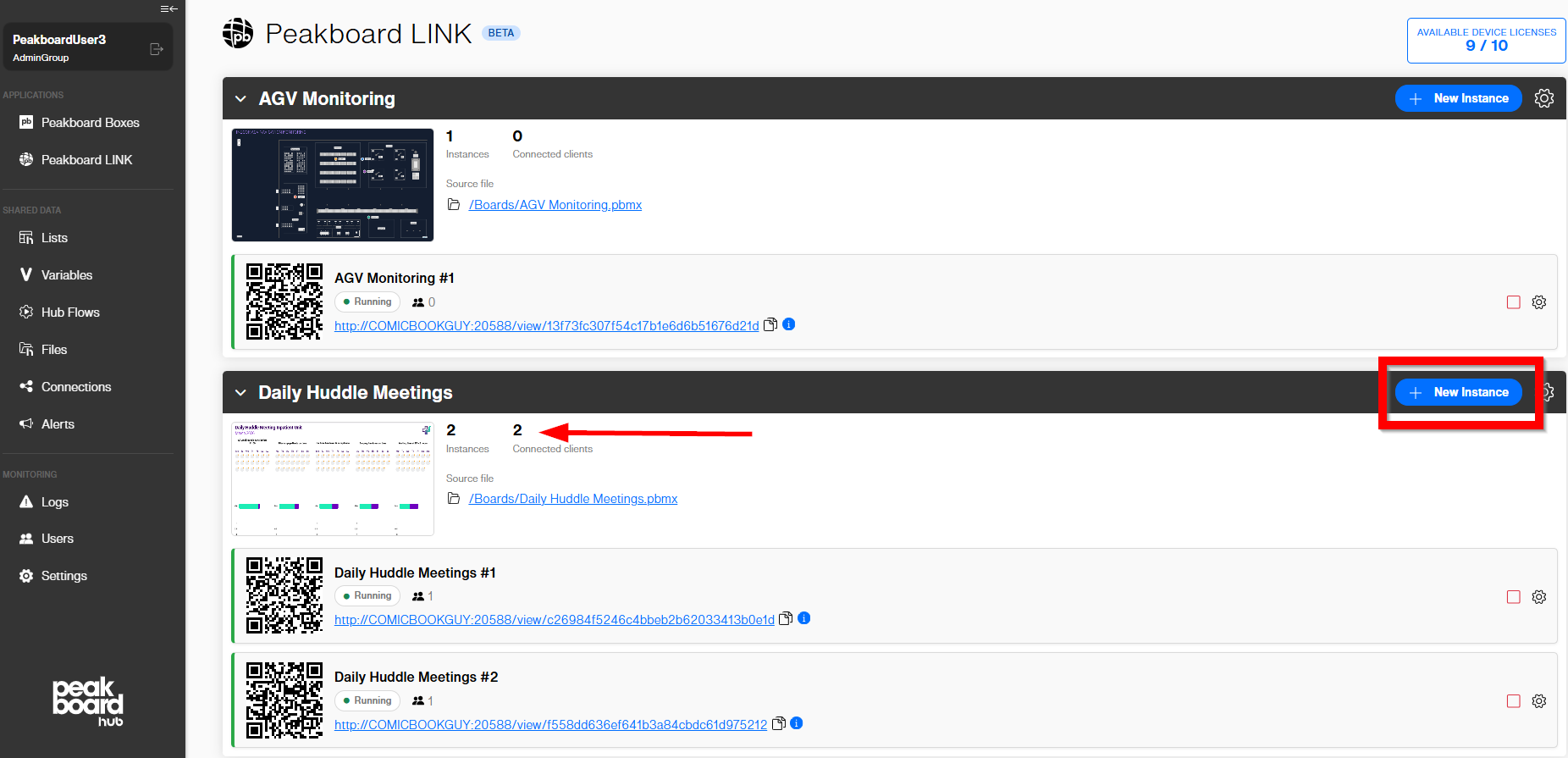
The screenshot below shows two applications. The first one, “AGV Monitoring”, has a single instance. The second one, “Daily Huddle Meetings”, has two instances running. For every application and every instance, the Hub also shows how many clients are currently connected, so we can see at a glance whether someone is using an instance right now.
The result
The screenshot below shows the “Daily Huddle Meetings” application running in a regular browser. It is a real web application: completely interactive, with exactly the same look and feel as a normal Peakboard application on a box.
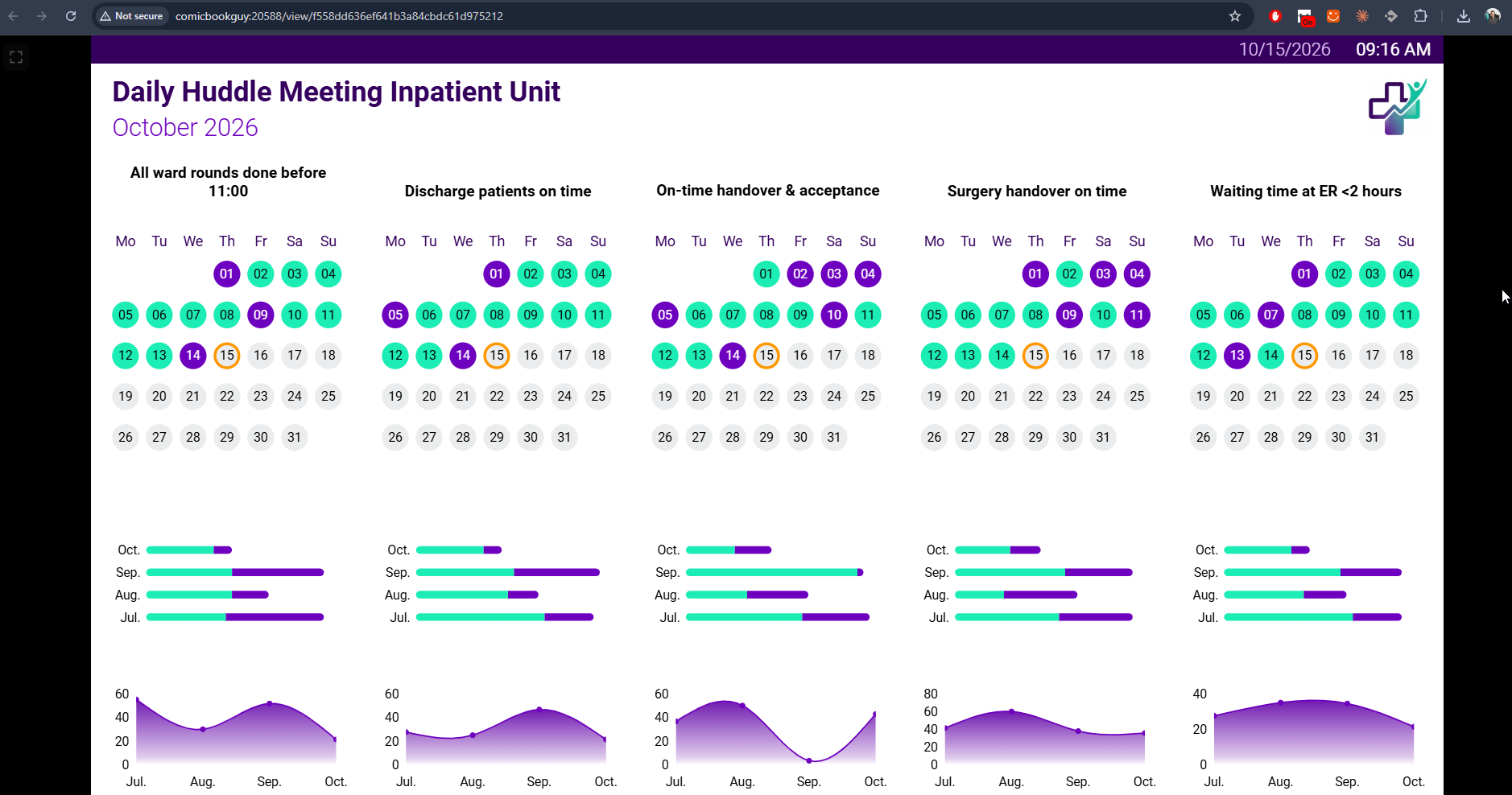
Because all we need is a browser, we can use LINK applications on almost any device, including devices without a Windows OS. iPads, Raspberry Pis, any kind of low budget tablet or even much smaller devices can now show and interact with a Peakboard application.
Conclusion
There is one thing we must always keep in mind when building applications for LINK: all application processes run on the Hub server. So every data source must be accessible from the server, not necessarily from the client. A database, an OPC UA server or an SAP system must be reachable from the machine where Peakboard Hub is running; whether the browser device can reach it doesn’t matter at all.
This is a huge change from the regular way of thinking about Peakboard applications, which always fully run locally on the box. With LINK, the box moves to the server, and the screen can be anything that has a browser.